Tag: Business Phone Numbers

  • How to Configure and Manage Outbound Caller ID in DialNext

    How to Configure and Manage Outbound Caller ID in DialNext

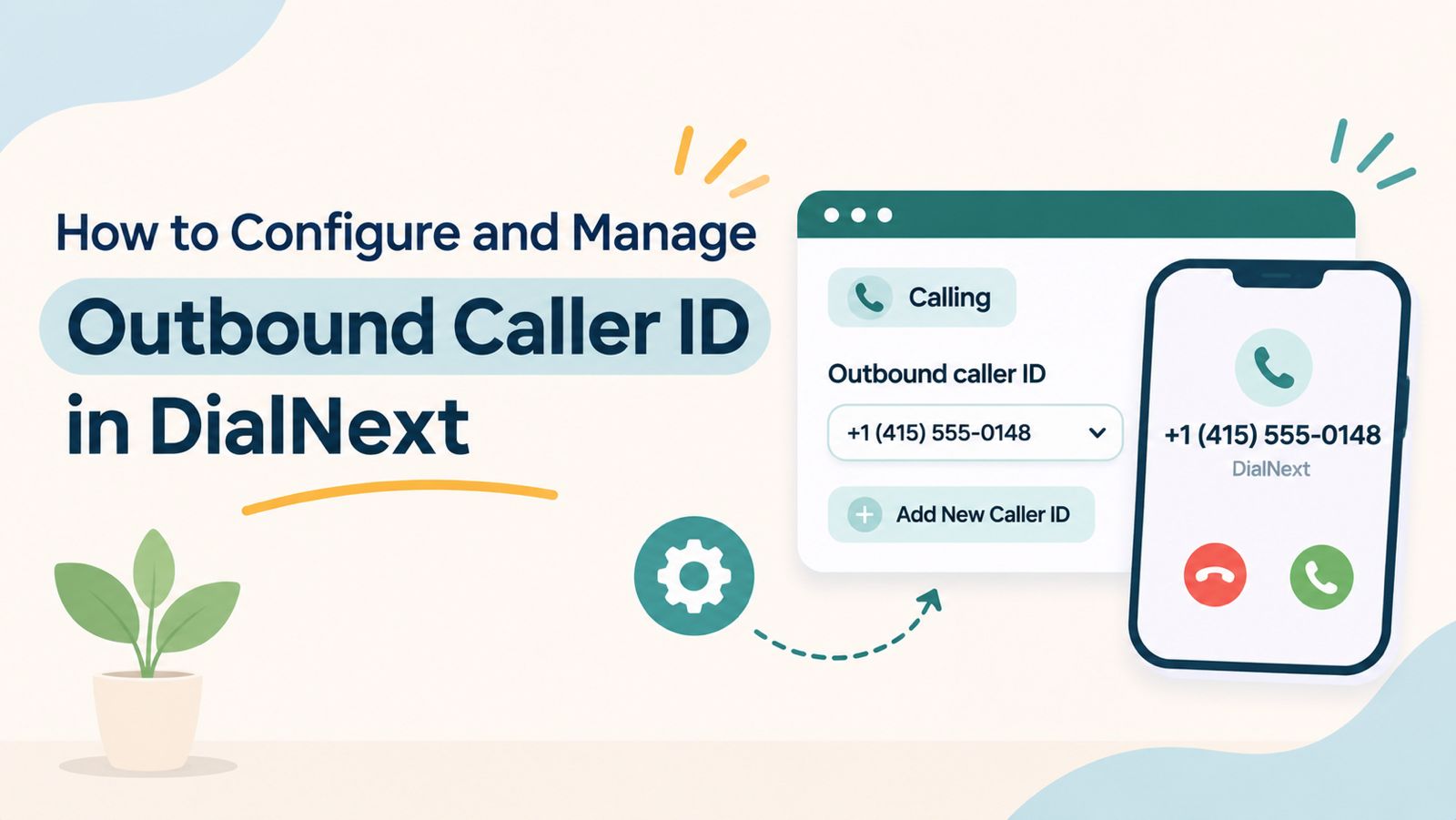
    Outbound Caller ID in DialNext helps businesses manage the phone number displayed to recipients when making outgoing calls. Users can access the Outbound Caller ID setting through their phone number configuration.

    For sales and customer support teams, displaying an appropriate business number helps recipients identify incoming business calls. Therefore, configuring the correct caller ID is an important part of managing outbound communication.

    In this guide, you will learn how to access the Outbound Caller ID setting, add a new caller ID, and select an available phone line from the DialNext Dialer before placing an outgoing call.

    What Is Outbound Caller ID?

    Outbound Caller ID is the phone number displayed to a recipient when someone makes an outgoing call.

    For example, when a sales representative contacts a prospect through DialNext, the configured caller ID determines the number associated with that outgoing call. This helps businesses manage how their outbound calls are presented to recipients.

    How to Configure Outbound Caller ID in DialNext

    Follow these steps to access and manage the Outbound Caller ID setting in your DialNext account.

    Step 1: Open the Phone Numbers Section

    First, log in to your DialNext account. Then, navigate to Phone Numbers from the left-hand sidebar.

    Once the page opens, you can view the phone numbers available in your workspace. The page also displays important information about each number, including:

    • Phone Number
    • Type
    • Capabilities
    • Access

    This overview helps you identify the phone number you want to configure. Therefore, locate the appropriate number before proceeding.

    Step 2: Open Phone Number Configuration

    Next, find the phone number you want to manage.

    1. Click the three-dot menu next to the selected phone number.
    2. Select Configure number from the available options.
    3. The phone number configuration page will open.

    From this page, you can access different configuration sections, including Overview, Calling, Routing, Messaging, and Access.

    Step 3: Navigate to the Calling Tab

    After opening the phone number configuration page, select the Calling tab.

    Next, locate the Outbound caller ID setting. You will see a dropdown that currently displays Default.

    According to the description displayed in DialNext, this setting determines which number appears when you make outgoing calls.

    Click the dropdown to view the available options.

    Step 4: Add a New Caller ID

    If you want to add another caller ID, you can start the process directly through the Outbound Caller ID dropdown.

    Follow these instructions:

    1. Click the Outbound caller ID dropdown.
    2. Select Add New Caller ID.
    3. A dialog titled Add Caller ID will appear.
    4. Select the appropriate country code and enter the phone number in the Phone number field.
    5. If applicable, enter an extension in the Extension (Optional) field.

    Before proceeding, review the information you have entered.

    Important: The subsequent submission, verification, and activation process has not been confirmed in the available DialNext dashboard. Therefore, follow the instructions displayed in your account. Do not assume a particular verification method or activation process.

    How to Select a Phone Line from the DialNext Dialer

    In addition to the Outbound Caller ID setting, DialNext provides a Call from dropdown in the Dialer. This option allows users to select an available phone line before placing an outgoing call.

    To select a phone line, follow these steps:

    1. Navigate to Dialer from the left-hand sidebar.
    2. Locate the Call from option below the dial pad.
    3. Click the dropdown arrow to view the available phone lines.
    4. Review the displayed options.
    5. Select the phone line you want to use for your outgoing call.

    Once selected, the chosen phone line will appear in the Call from field. This makes it easier to choose an available line before initiating an outgoing call.

    Note: The Outbound Caller ID setting and the Call from dropdown are presented in different areas of DialNext. The first is available in phone number configuration, while the second allows users to select an available phone line from the Dialer. Refer to the options displayed in your account when configuring or selecting a number.

    You can also read more about outbound calling efficiency in DialNext.

    Other Calling Settings in DialNext

    While managing Outbound Caller ID, you may notice several other settings under the Calling tab.

    These options include:

    • Ring duration: Displays the configured call ringing duration.
    • Assign missed calls to: Shows the selected assignee for missed calls.
    • Record calls: Displays whether call recording is enabled.
    • Transcribe calls: Displays whether call transcription is enabled.
    • Play compliance announcement before recording: Displays the current announcement setting.

    For more information about call recording, read our guide on How to Access and Manage Call Recordings in DialNext.

    These are separate calling configurations. Therefore, you do not need to change them simply to access the Outbound Caller ID setting.

    Frequently Asked Questions

    1. What is Outbound Caller ID in DialNext?

    Outbound Caller ID determines which phone number is displayed to recipients when making outgoing calls. In DialNext, users can access this setting through the Calling tab in phone number configuration.

    2. Where can I find Outbound Caller ID settings in DialNext?

    First, navigate to Phone Numbers from the left-hand sidebar. Next, click the three-dot menu beside the required number and select Configure number. Finally, open the Calling tab to find the Outbound caller ID setting.

    3. How can I add a new Caller ID in DialNext?

    To start adding a new Caller ID, open the Outbound caller ID dropdown and select Add New Caller ID. Then, enter the phone number along with its country code. You can also provide an extension if applicable. Follow any additional instructions displayed in your DialNext account.

    4. What is the Call from option in DialNext?

    The Call from option appears below the Dialer keypad. It allows users to view available phone lines and select one before placing an outgoing call.

    5. Can I select different phone lines in the Dialer?

    The Call from dropdown displays the phone lines available in your workspace. You can select an appropriate line from the displayed options before making an outgoing call.

    Additional Resources

    Explore the following resources to learn more about DialNext and its business communication capabilities.

    DialNext Resources

    External Documentation

    Note: This external resource explains Twilio’s calling services. Its verification procedures should not be treated as DialNext configuration instructions.

    Need Help?

    If you need assistance with Outbound Caller ID configuration or have questions about the available phone number settings, contact the DialNext support team at help@dialnext.io.

    You can also visit the DialNext official website to explore its business communication solutions.

    Start managing your business calls more effectively with DialNext!

  • What Is Caller ID?

    What Is Caller ID?

    Caller ID is a telephone service that displays the phone number of an incoming call before you answer it. Many business phone systems also display the caller’s name when that information is available.

    Businesses use Caller ID to identify incoming callers, improve customer interactions, and manage calls more efficiently.

    Why Is Caller ID Important?

    Without Caller ID, every incoming call would appear as an unknown number.

    Caller ID helps businesses and individuals quickly recognize callers before answering the phone.

    Using Caller ID offers several benefits:

    • Identify incoming callers
    • Improve customer service
    • Screen unwanted calls
    • Return missed calls more easily
    • Increase trust during business communications

    Additionally, Caller ID helps employees prepare for conversations before answering customer calls.

    How Does Caller ID Work?

    When someone places a call, the originating phone provider sends the caller’s phone number through the telephone network.

    The receiving carrier delivers that information to the recipient’s device before the call connects.

    If additional caller information is available, the recipient may also see the caller’s business or personal name.

    Although this process happens almost instantly, the information displayed depends on carrier support, device compatibility, and local telecommunications standards.

    What Information Does Caller ID Display?

    Caller ID can display:

    • Phone number
    • Business name (when available)
    • Personal name (when available)
    • Country or region (on some devices)

    The exact information varies depending on the receiving carrier and the recipient’s device.

    Caller ID vs CNAM

    Caller ID and CNAM are closely related, but they are not the same.

    Caller IDCNAM
    Displays the phone numberDisplays the caller’s name
    Available on most telephone networksPrimarily supported in North America
    Identifies the calling numberIdentifies the business or individual

    In many cases, recipients see both the phone number and the associated caller name together.

    Caller ID vs STIR/SHAKEN

    Caller ID identifies who is calling, while STIR/SHAKEN helps verify that the caller is authorized to use the displayed phone number.

    Together, these technologies improve trust in voice communications.

    • Caller ID displays the phone number.
    • CNAM displays the caller’s name.
    • STIR/SHAKEN authenticates the calling number.

    As a result, businesses can provide a more trustworthy calling experience.

    Why Does Caller ID Sometimes Show “Unknown”?

    Several factors can prevent Caller ID information from appearing correctly.

    Common reasons include:

    • Caller ID has been intentionally blocked.
    • The originating carrier does not provide caller information.
    • The receiving carrier does not support all Caller ID features.
    • The call originates from an unsupported network.
    • A temporary network issue prevents caller information from being delivered.

    Additionally, spam filtering systems may modify how caller information appears on some devices.

    Can Businesses Customize Caller ID?

    Yes. Many business phone providers allow organizations to configure the phone number displayed during outbound calls.

    Some providers also support CNAM registration, allowing a business name to appear alongside the phone number on supported networks.

    Availability depends on the phone number, carrier, and country.

    Does DialNext Support Caller ID?

    Yes. DialNext supports Caller ID for business communications.

    Caller ID behavior depends on your phone numbers, carrier capabilities, and regional telecommunications regulations.

    If you need help configuring outbound Caller ID, contact the DialNext support team.

    Frequently Asked Questions

    Does Caller ID Display My Business Name?

    Not always. Caller ID displays the phone number, while the business name is typically provided through CNAM on supported networks.

    Can I Hide My Caller ID?

    Some carriers allow callers to block their Caller ID information. Availability depends on your provider and local regulations.

    Does Caller ID Work Internationally?

    Caller ID works in many countries, although the information displayed varies by carrier, destination, and regional telecommunications standards.

    Does Caller ID Prevent Spam Calls?

    No. Caller ID identifies incoming callers but does not prevent spam calls. Technologies such as STIR/SHAKEN and carrier spam filtering help reduce fraudulent calls.

    Related Articles

    Additional Resources

    Learn more about caller identification and telecommunications standards:

    Need Help?

    If you have questions about Caller ID, CNAM, or business phone numbers, contact us at help@dialnext.io.

  • What Is CNAM?

    What Is CNAM?

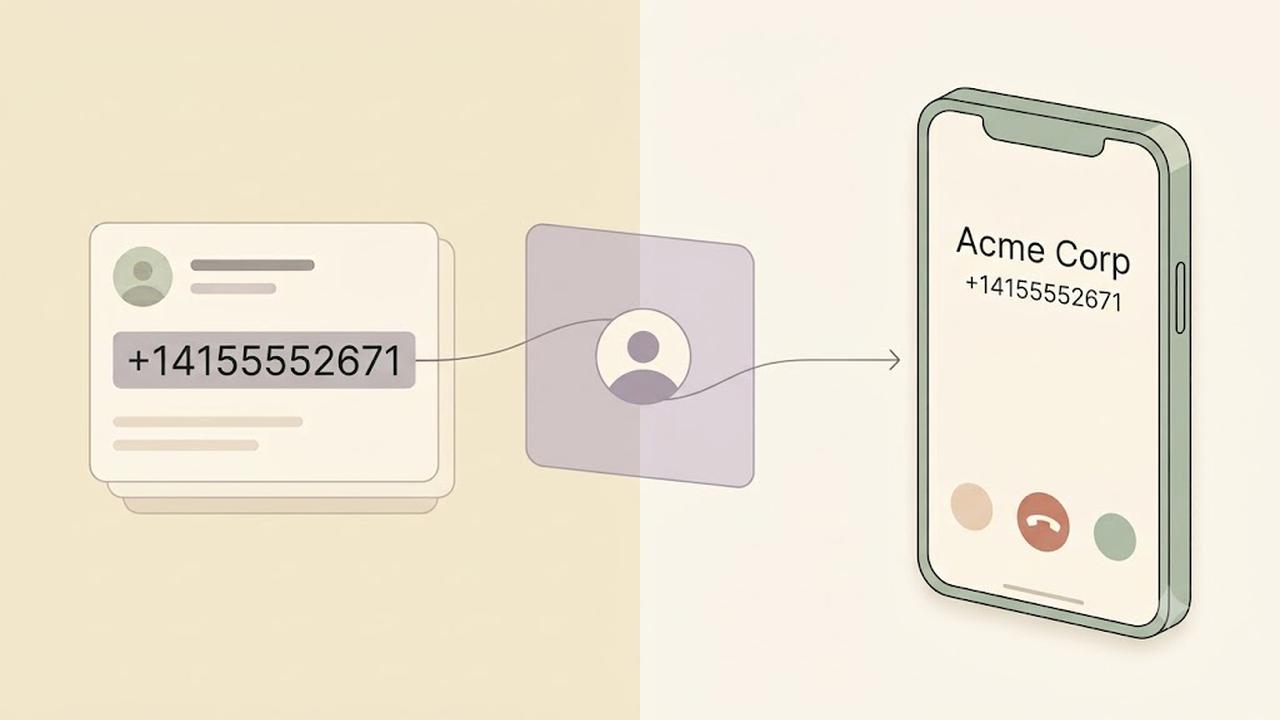
    CNAM (Caller ID Name) is a service that displays the caller’s name along with their phone number when placing a phone call. Businesses use CNAM to help customers recognize who is calling before answering the phone.

    A properly configured CNAM record can improve brand recognition, increase answer rates, and build trust with customers.

    Why Is CNAM Important?

    When customers receive calls from unknown numbers, they may choose not to answer.

    CNAM helps solve this problem by displaying your business name on supported caller ID devices.

    Using CNAM can help businesses:

    • Improve answer rates
    • Increase brand recognition
    • Build customer trust
    • Reduce confusion during inbound and outbound calls
    • Create a more professional calling experience

    Additionally, displaying a recognizable business name can make legitimate calls appear more trustworthy.

    How Does CNAM Work?

    When you place a phone call, your phone number is sent to the receiving carrier.

    The receiving carrier may perform a CNAM lookup to determine whether a caller name is associated with that phone number.

    If a CNAM record exists and the recipient’s carrier supports CNAM lookups, the business name may appear alongside the phone number.

    Although the process happens in seconds, the displayed caller name depends on the receiving carrier’s network and device capabilities.

    What Does a CNAM Record Look Like?

    A CNAM record typically contains:

    • Business name
    • Personal name (when applicable)
    • Up to 15 display characters in many North American networks

    Example:

    Phone NumberDisplayed CNAM
    +14155552671DialNext
    +12125551234ABC Plumbing
    +16175559876Smith Law

    Carrier limitations may affect how the caller name appears on different devices.

    Does Every Phone Display CNAM?

    No.

    CNAM support depends on several factors, including:

    • The receiving carrier
    • The recipient’s device
    • Regional telecommunications standards
    • Whether the carrier performs CNAM lookups

    Some mobile carriers display only the phone number, while others may show a verified business name or information from their own caller ID databases.

    CNAM vs Caller ID

    Although the terms are often used together, they refer to different things.

    Caller IDCNAM
    Displays the phone numberDisplays the caller’s name
    Available on most phone systemsDepends on carrier support
    Identifies the calling numberIdentifies the caller or business

    Together, Caller ID and CNAM help recipients identify incoming calls.

    CNAM vs STIR/SHAKEN

    CNAM and STIR/SHAKEN serve different purposes.

    • CNAM displays the caller’s name.
    • STIR/SHAKEN verifies that the caller is authorized to use the phone number.

    In other words, CNAM helps identify the caller, while STIR/SHAKEN helps authenticate the caller.

    Many businesses use both technologies to improve customer trust.

    How Do Businesses Register a CNAM?

    The registration process depends on your voice provider.

    In general, businesses must:

    1. Own or control the phone number.
    2. Submit the desired caller name.
    3. Wait for the provider to publish the CNAM record.
    4. Allow time for carrier databases to update.

    Propagation times vary between providers and carriers.

    Does DialNext Support CNAM?

    CNAM availability depends on the phone number, carrier, and country.

    If CNAM is supported for your phone number, DialNext can help you configure your caller ID name according to carrier requirements.

    Contact our support team if you need assistance with CNAM registration or caller ID configuration.

    Frequently Asked Questions

    Is CNAM Available Worldwide?

    No. CNAM is primarily supported in North America. Other countries often use different caller identification systems.

    Does CNAM Guarantee My Business Name Will Appear?

    No. The displayed caller name depends on the receiving carrier, recipient’s device, and local telecommunications infrastructure.

    How Long Does CNAM Registration Take?

    The processing time varies by provider and carrier. Updates may take several business days to appear across all networks.

    Can I Change My CNAM?

    Yes. Most providers allow businesses to update their caller ID name, although carrier processing times may vary.

    Related Articles

    Additional Resources

    Learn more about caller identification and telecommunications standards:

    Need Help?

    If you have questions about CNAM, caller ID, or business phone numbers, contact us at help@dialnext.io.