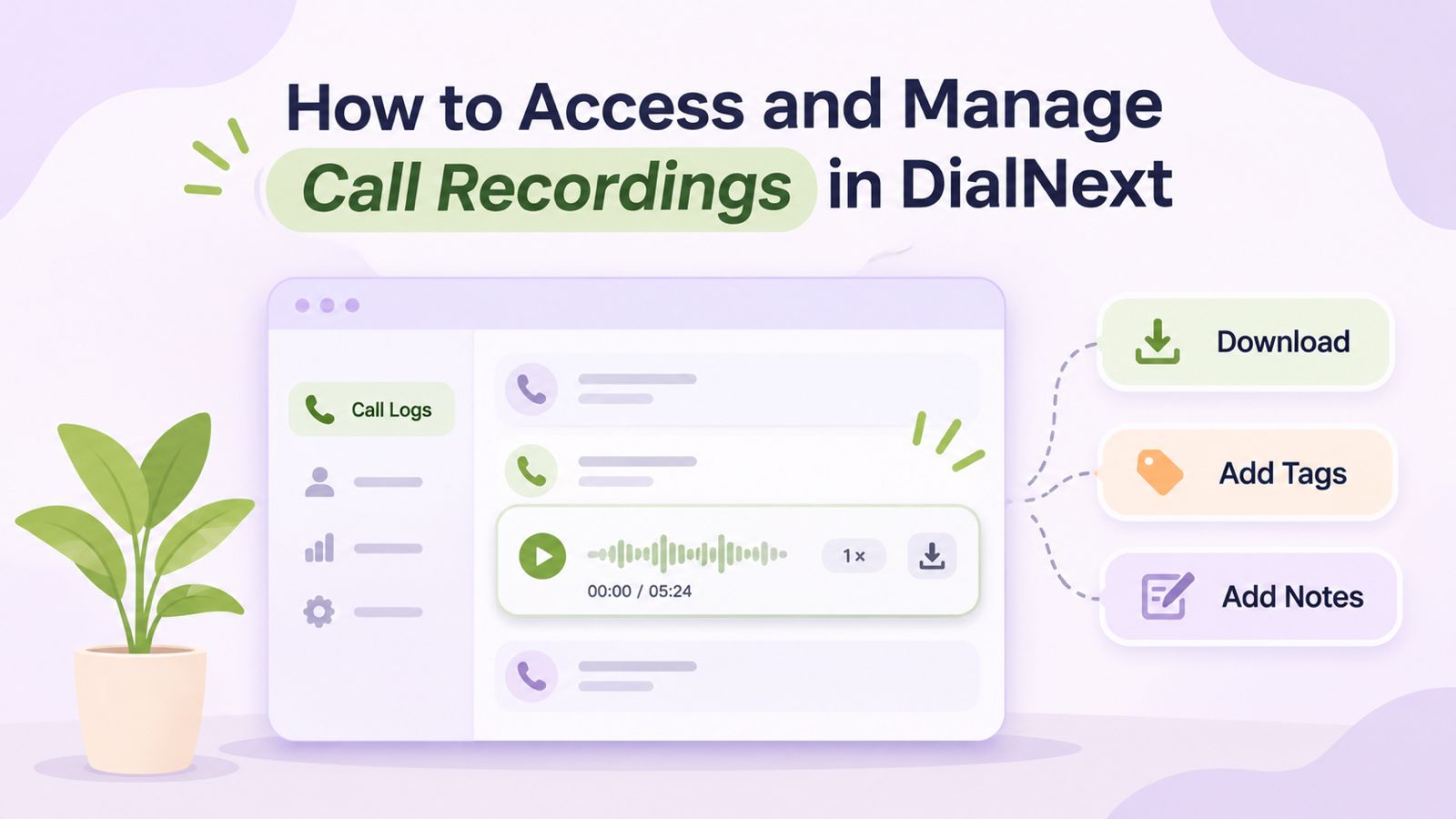
Call recordings in DialNext help businesses review customer conversations, revisit important details, and maintain useful records of previous interactions. Through the Call Logs section, users can access available recordings, listen to conversations, download audio files, and organize call information using notes and tags.
Moreover, these features make it easier for teams to understand previous customer interactions and find relevant information when needed. Whether you want to review a customer query, check a conversation, or organize call details, DialNext provides useful tools to manage your calling activity.
In this guide, you will learn how to access, play, download, and manage call recordings in DialNext, along with practical tips for keeping your call records organized.
How to Access Call Recordings in DialNext
You can access available call recordings directly through the Call Logs section of your DialNext dashboard. Before proceeding, make sure you can sign in to your account and access the relevant call records.
Follow these steps to find and play a recording.
Step 1: Navigate to Call Logs in DialNext
First, log in to your DialNext account using your login credentials.
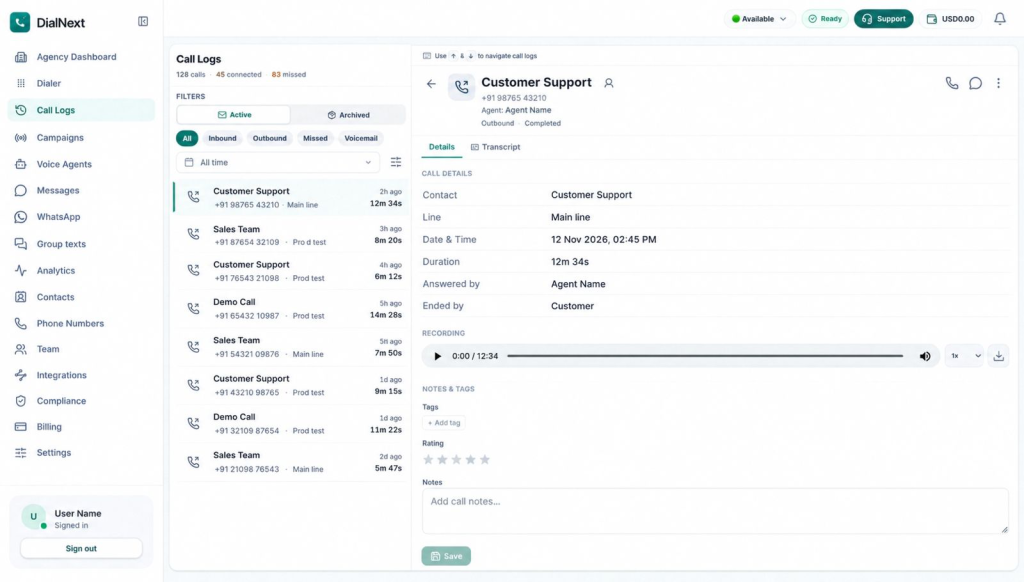
Next, locate the navigation menu on the left side of your dashboard. Then, click Call Logs to open your call history and view the available call records.
Step 2: Select a Call Record
Once the Call Logs page opens, browse the available records to find the conversation you want to review.
Additionally, you can use the available filters, such as Inbound, Outbound, Missed, and Voicemail, to narrow down the list. This makes it easier to locate a specific call without reviewing your entire call history.
After finding the relevant record, select it to open its details.
For more information about using these filters, read our guide on How to View and Filter Call Logs in DialNext.
Step 3: Open the Call Details
After selecting a call, locate the Details tab in the call details panel on the right side of the screen.
Here, you can review information associated with the selected call, including the contact, calling line, date and time, duration, and answering agent.
Next, locate the Recording section to check whether an audio recording is available for that call.
Step 4: Play Call Recordings in DialNext
If a recording is available, locate the audio player in the Recording section.
Then, click the Play button to listen to the conversation. Additionally, you can use the playback speed control to adjust how quickly the recording plays, depending on the available options.
As a result, you can revisit important parts of a conversation, understand customer queries, and check specific details without relying only on written notes.
Step 5: Download Call Recordings in DialNext
If you want to save an available recording to your device, locate the Download icon next to the audio player.
Next, select the icon to download the audio file, provided the download option is available for that recording.
This allows you to keep a copy for future reference. However, always follow your organization’s recording, privacy, and data-handling policies when accessing or downloading customer conversations.
How to Manage Call Recordings in DialNext
Accessing a recording is only one part of managing call information. In addition to listening to conversations, DialNext provides options to organize additional details associated with individual call records.
For example, you can use notes, tags, and ratings to make previous interactions easier to understand and review.
1. Add Tags to Call Records in DialNext
Tags help categorize call records based on their purpose or outcome.
To add a tag, follow these steps:
- First, open the required call record from the Call Logs section.
- Next, navigate to the Notes & Tags section in the call details panel.
- Then, click + Add tag under the Tags section.
- Finally, select the relevant tag from the available options.
For example, your team may use suitable tags to identify calls that require follow-up or additional attention, depending on the available tag options.
Furthermore, using consistent tags can make it easier to organize and identify important call records.
2. Review Call Ratings in DialNext
DialNext also provides a star-rating field in the Notes & Tags section.
You can review the rating associated with an individual call record to understand its recorded assessment. Additionally, this information provides more context when reviewing previous customer interactions.
3. Add and Save Call Notes in DialNext
Call notes help your team retain important information about a conversation. For instance, you can add a short summary or mention details that another team member may need later.
To add notes:
- First, open the required call record.
- Next, navigate to the Notes & Tags section.
- Then, locate the Notes text box.
- Enter a short summary or other relevant information about the conversation.
- Before saving, review the note to ensure it contains the correct details.
- Finally, click Save to store your changes.
As a result, your team can refer to relevant call information without having to listen to the entire recording again.
You can also explore How to Use Call Transcription and AI Insights in DialNext to learn more about reviewing call conversations and accessing available call insights.
Benefits of Using Call Recordings in DialNext
Call recordings can support several everyday business activities. When used appropriately, they help teams revisit conversations and maintain better visibility into customer interactions.
Here are some practical ways businesses can use call recordings:
- Review customer conversations: Listen to previous interactions to understand customer queries, responses, and important discussion points.
- Maintain useful call records: Keep available recordings for future reference, subject to organizational policies.
- Support team coordination: Provide relevant conversation context to team members when appropriate.
- Organize call information: Use notes and tags to keep important details associated with individual call records.
- Verify conversation details: Revisit recordings when specific information needs to be checked.
Furthermore, combining recordings with call details, notes, and tags can make it easier to review customer interactions. Therefore, teams can find relevant information and understand previous conversations more efficiently.
Best Practices for Managing Call Recordings in DialNext
Managing recordings effectively requires more than simply accessing and downloading audio files. Instead, a consistent process can help teams keep call information organized and handle customer data responsibly.
Consider the following best practices:
Follow Recording and Privacy Policies
First, make sure your team follows applicable recording requirements and organizational privacy policies. Additionally, access recordings only when there is a legitimate business need.
Use Relevant Tags
Apply consistent tags to categorize calls based on their purpose or outcome. As a result, your team can identify relevant records more easily.
Add Clear and Useful Notes
Keep call notes short, accurate, and relevant. For example, include information that may help another team member understand the conversation without listening to the entire recording.
Review Recordings When Needed
Use recordings to revisit important conversation details, clarify information, or support internal call reviews. However, avoid accessing recordings unnecessarily.
Handle Downloaded Files Carefully
If you download a recording, store it only in approved locations. Furthermore, follow your organization’s access, privacy, and retention policies. Avoid sharing customer recordings through unauthorized channels.
Frequently Asked Questions About Call Recordings in DialNext
1. When are Call Recordings Available in DialNext?
Call recordings are available through Call Logs when a recording has been generated and is accessible for the selected call. Therefore, you can open the relevant call record and check its Recording section.
2. Where Can I Find Call Recordings in DialNext?
You can find available recordings in the Call Logs section of your DialNext dashboard. First, select the relevant call. Then, open its Details tab and locate the Recording section.
3. Can I Listen to a Call Recording More Than Once?
Yes. If a recording is available, you can play it again whenever you need to revisit the conversation. Additionally, this makes it easier to check specific details from previous interactions.
4. Can I Download Call Recordings in DialNext?
Yes. You can download an available recording using the Download icon next to the audio player, provided the download option is enabled for that recording.
5. Can I Adjust the Playback Speed of Call Recordings?
Yes. You can use the playback speed control in the audio player to adjust the listening speed. This allows you to review recordings at a pace that suits your requirements.
6. Can I Add Notes and Tags to a Call Record?
Yes. The Notes & Tags section provides options to add notes and tags to the selected call record. Additionally, you can review the available star rating associated with that call.
7. What Should I Do If a Call Recording Is Unavailable?
First, open the correct call record and check its Details tab for the Recording section. If no recording is available, contact your workspace administrator to confirm the relevant recording settings and access permissions.
However, if the issue continues, contact DialNext Support for further assistance.
Conclusion
DialNext makes it easier to access and manage available call recordings through the Call Logs section. Users can listen to previous conversations, download recordings when the option is available, and organize call information using notes and tags.
Moreover, keeping relevant call details organized helps teams revisit customer interactions and refer to important conversation details whenever needed. By following appropriate recording and data-handling practices, businesses can manage their call records more effectively.
Manage Your Business Calls with DialNext
Looking for a simpler way to manage business conversations? DialNext brings business calling and call management features together to help teams handle customer interactions more effectively.
Explore DialNext to learn more about its business communication solutions.
Need assistance? Contact our team at support@dialnext.io.
Related Articles
Explore these guides to learn more about managing calls and using DialNext features: