Group Texting in DialNext allows users to bring multiple participants together in a shared SMS conversation. Instead of sending the same message individually, you can create a group, assign it a name, select a sending number, and send an initial message to all participants.
Moreover, Group Texting makes it easier to organize business communication when multiple people need to receive the same information. In this guide, you’ll learn how to create a Group Text in DialNext, select a sending number, add participants, and send your first message step by step.
Before You Begin
Before creating a Group Text in DialNext, make sure you have:
- Access to your DialNext account.
- At least two participants to create a group.
- The phone numbers of the participants you want to add.
- Access to a DialNext line for sending the group message.
Additionally, keep your group name and initial message ready before starting the creation process.
How to Use Group Texting in DialNext to Create a Group
Follow these steps to create a new Group Text conversation in DialNext.
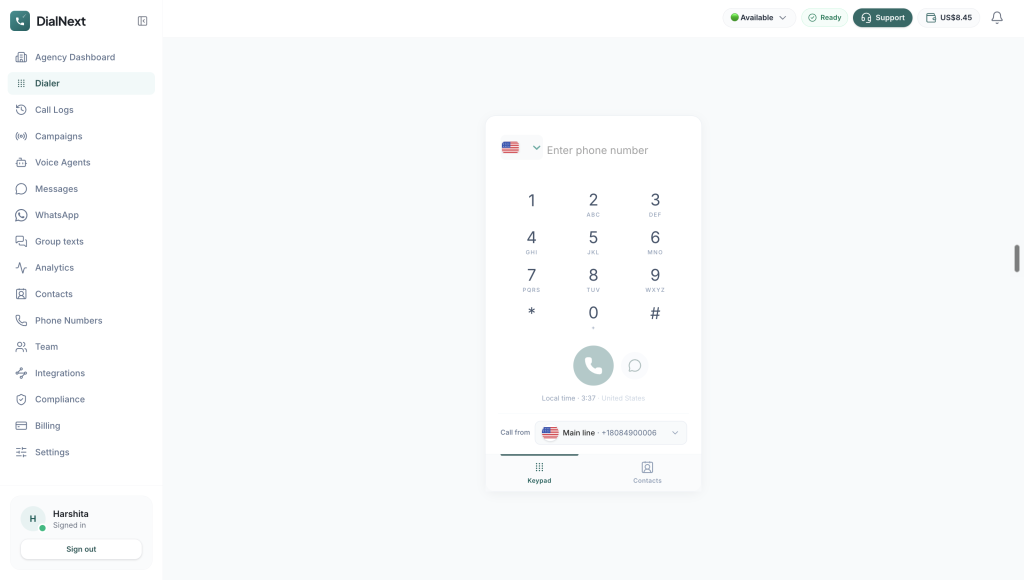
Step 1: Access Group Texting in DialNext
First, log in to your DialNext account using your credentials.
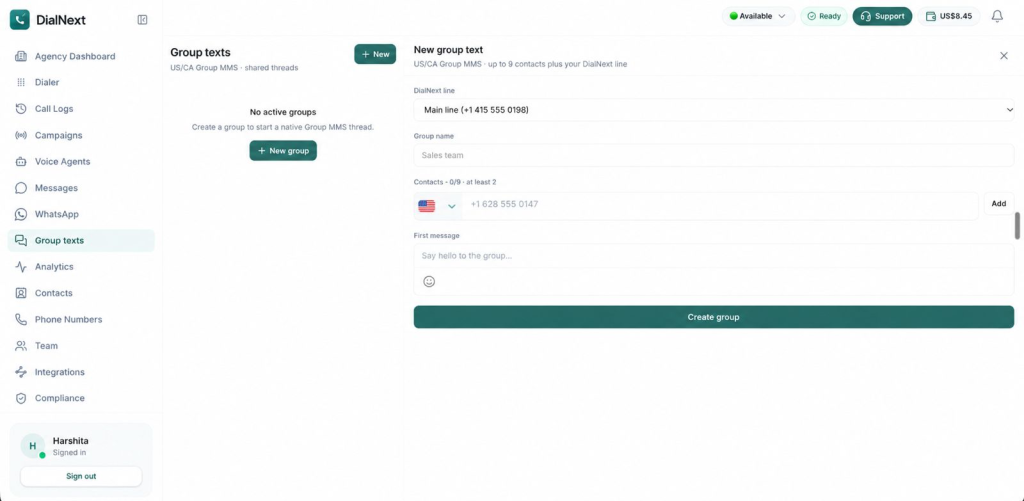
Next, locate the left-hand navigation menu in your dashboard. Then, click Group texts to access the Group Texts dashboard.
Here, you can start creating a new group conversation.
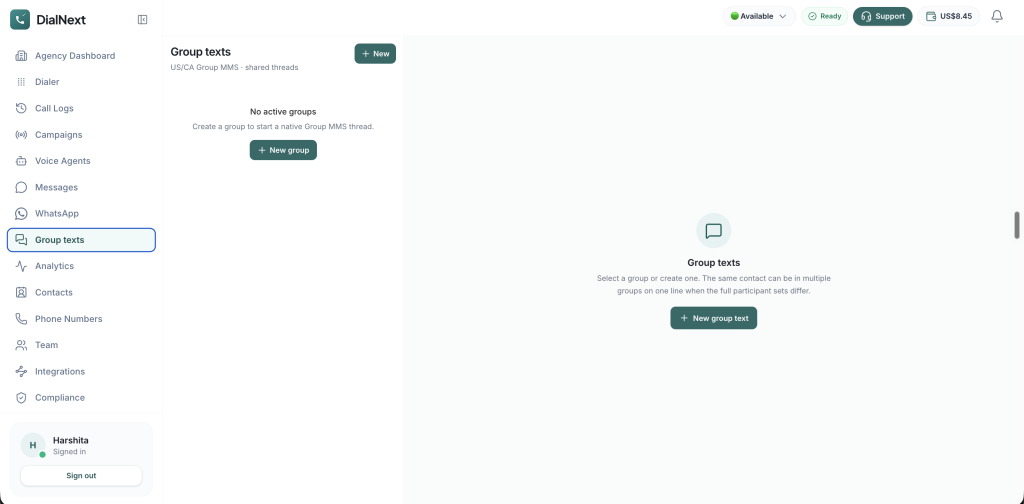
Step 2: Start a New Group Text Conversation
Once the Group Texts dashboard opens, locate the New group text button.
Next, click this button to open the group creation form. You can then enter the required group details and add participants.
Step 3: Select a DialNext Line
Under the DialNext line field, select the phone number you want to use for the group conversation.
This number will serve as the sending line for your Group Text. Therefore, make sure you select the correct number before proceeding.
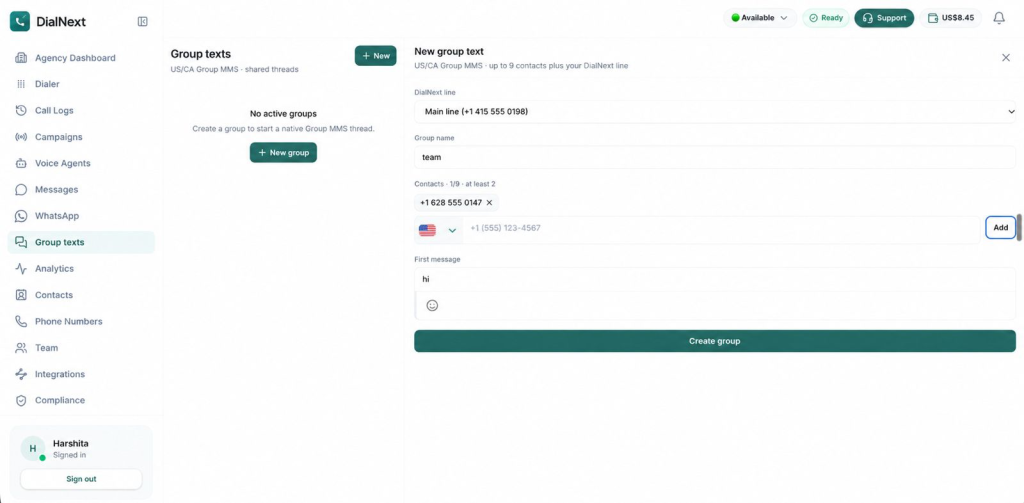
Step 4: Enter a Group Name
Next, locate the Group name field and enter a suitable name for your conversation.
For example, choose a name that clearly identifies the purpose of the group. This makes it easier to recognize the conversation when reviewing your group messages later.
Step 5: Add Participants to Your Group Text
Under the Contacts section, enter the phone numbers of the participants you want to include in your group.
Follow these steps:
- First, select the appropriate country code.
- Next, enter the participant’s phone number.
- Then, click Add to include the contact in the group.
- Finally, repeat the process to add additional participants, if required.
Important: Group Texting in DialNext requires at least 2 participants. You can add up to 9 contacts to a group, in addition to your selected DialNext line.
Before proceeding, review the participant list carefully to make sure the correct contacts have been added.
Step 6: Compose Your First Group Text Message
Once you have added the participants, locate the First message field.
Enter the message you want to send to all participants when the group is created.
For example, you can write a short introductory message explaining the purpose of the group. Additionally, make sure the message is clear and relevant to everyone included in the conversation.
Before proceeding, review your message carefully to check for any errors or missing information.
Step 7: Review and Create Your Group Text
Before creating the group, review all the information you have entered.
Make sure the following details are correct:
- Selected DialNext line.
- Group name.
- Participant phone numbers.
- First message.
Once you have checked these details, click the Create group button to create your Group Text conversation in DialNext.
The initial message is sent to the added participants as part of the group creation process. Therefore, review its content carefully before selecting Create group.
Important Group Texting Requirements in DialNext
Before creating a Group Text conversation, keep the following requirements in mind:
- Minimum participants: At least 2 participants are required to create a group.
- Maximum participants: You can add up to 9 contacts, in addition to your selected DialNext line.
- DialNext line: Select the correct sending number before creating the group.
- Group name: Choose a clear and recognizable name for your conversation.
- First message: Review your initial message carefully because it is sent when the group is created.
Additionally, check the participant details before completing the process to avoid adding an incorrect phone number.
Frequently Asked Questions About Group Texting in DialNext
1. How Many Participants Can I Add to Group Texting in DialNext?
You need at least 2 participants to create a group. Additionally, DialNext allows you to add up to 9 contacts to a group, along with your selected DialNext line.
2. Can I Assign a Custom Name to My Group Text?
Yes. You can enter a custom name in the Group name field while creating a new group. This helps you identify the conversation more easily.
3. Can I Select a Phone Number for Sending Group Texts?
Yes. You can select your preferred number from the DialNext line dropdown before adding participants and creating the group.
4. Can I Send an Initial Message While Creating a Group?
Yes. The First message field allows you to compose your initial message. Once you create the group, this message is sent to the added participants.
5. Is Adding Two Participants Mandatory?
Yes. At least two participants are required to create a Group Text conversation in DialNext.
Conclusion
Group Texting in DialNext makes it easier to bring multiple participants together in a shared SMS conversation. Users can select a sending number, assign a group name, add contacts, and send an initial message when creating the group.
Moreover, organizing participants in a shared conversation can make business communication more convenient when multiple people need to receive the same information. By reviewing the group details before creation, you can ensure that the correct participants and message are included.
Get Started with DialNext Group Texting
Ready to simplify communication with multiple participants? Group Texting in DialNext helps you bring people together in a shared conversation and send messages through your selected business number.
Explore DialNext to learn more about its business communication solutions.
Need assistance? Contact our team at support@dialnext.io.
Related Articles
Explore these resources to learn more about DialNext features and business communication:
- DialNext Help Center – Explore product guides, setup instructions, and tutorials for DialNext features.
- How to View and Filter Call Logs in DialNext – Learn how to access and filter your call records.