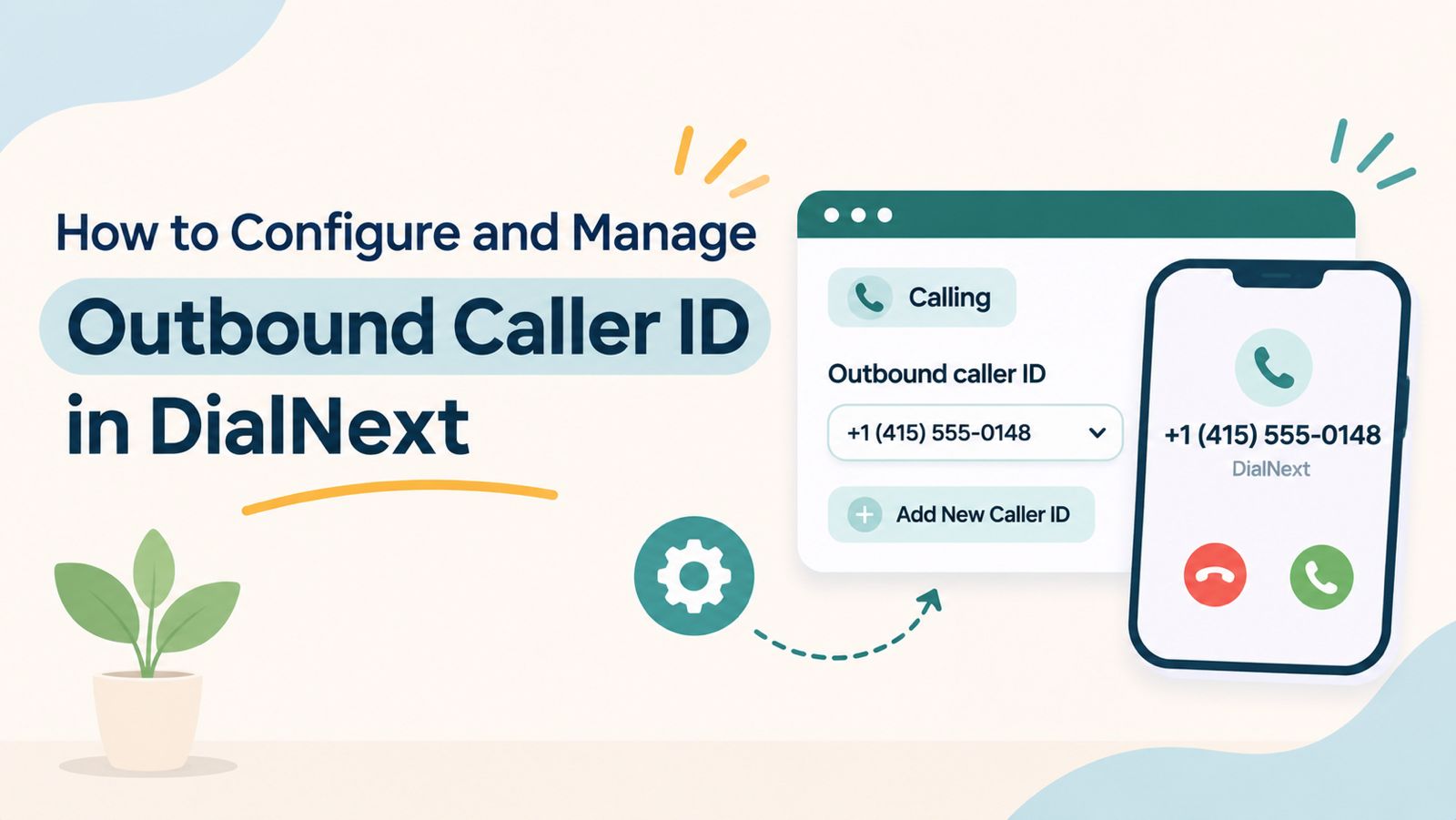
Outbound Caller ID in DialNext helps businesses manage the phone number displayed to recipients when making outgoing calls. Users can access the Outbound Caller ID setting through their phone number configuration.
For sales and customer support teams, displaying an appropriate business number helps recipients identify incoming business calls. Therefore, configuring the correct caller ID is an important part of managing outbound communication.
In this guide, you will learn how to access the Outbound Caller ID setting, add a new caller ID, and select an available phone line from the DialNext Dialer before placing an outgoing call.
What Is Outbound Caller ID?
Outbound Caller ID is the phone number displayed to a recipient when someone makes an outgoing call.
For example, when a sales representative contacts a prospect through DialNext, the configured caller ID determines the number associated with that outgoing call. This helps businesses manage how their outbound calls are presented to recipients.
How to Configure Outbound Caller ID in DialNext
Follow these steps to access and manage the Outbound Caller ID setting in your DialNext account.
Step 1: Open the Phone Numbers Section
First, log in to your DialNext account. Then, navigate to Phone Numbers from the left-hand sidebar.
Once the page opens, you can view the phone numbers available in your workspace. The page also displays important information about each number, including:
Phone Number
Type
Capabilities
Access
This overview helps you identify the phone number you want to configure. Therefore, locate the appropriate number before proceeding.
Step 2: Open Phone Number Configuration
Next, find the phone number you want to manage.
Click the three-dot menu next to the selected phone number.
Select Configure number from the available options.
The phone number configuration page will open.
From this page, you can access different configuration sections, including Overview, Calling, Routing, Messaging, and Access.
Step 3: Navigate to the Calling Tab
After opening the phone number configuration page, select the Calling tab.
Next, locate the Outbound caller ID setting. You will see a dropdown that currently displays Default.
According to the description displayed in DialNext, this setting determines which number appears when you make outgoing calls.
Click the dropdown to view the available options.
Step 4: Add a New Caller ID
If you want to add another caller ID, you can start the process directly through the Outbound Caller ID dropdown.
Follow these instructions:
Click the Outbound caller ID dropdown.
Select Add New Caller ID.
A dialog titled Add Caller ID will appear.
Select the appropriate country code and enter the phone number in the Phone number field.
If applicable, enter an extension in the Extension (Optional) field.
Before proceeding, review the information you have entered.
Important: The subsequent submission, verification, and activation process has not been confirmed in the available DialNext dashboard. Therefore, follow the instructions displayed in your account. Do not assume a particular verification method or activation process.
How to Select a Phone Line from the DialNext Dialer
In addition to the Outbound Caller ID setting, DialNext provides a Call from dropdown in the Dialer. This option allows users to select an available phone line before placing an outgoing call.
To select a phone line, follow these steps:
Navigate to Dialer from the left-hand sidebar.
Locate the Call from option below the dial pad.
Click the dropdown arrow to view the available phone lines.
Review the displayed options.
Select the phone line you want to use for your outgoing call.
Once selected, the chosen phone line will appear in the Call from field. This makes it easier to choose an available line before initiating an outgoing call.
Note: The Outbound Caller ID setting and the Call from dropdown are presented in different areas of DialNext. The first is available in phone number configuration, while the second allows users to select an available phone line from the Dialer. Refer to the options displayed in your account when configuring or selecting a number.
These are separate calling configurations. Therefore, you do not need to change them simply to access the Outbound Caller ID setting.
Frequently Asked Questions
1. What is Outbound Caller ID in DialNext?
Outbound Caller ID determines which phone number is displayed to recipients when making outgoing calls. In DialNext, users can access this setting through the Calling tab in phone number configuration.
2. Where can I find Outbound Caller ID settings in DialNext?
First, navigate to Phone Numbers from the left-hand sidebar. Next, click the three-dot menu beside the required number and select Configure number. Finally, open the Calling tab to find the Outbound caller ID setting.
3. How can I add a new Caller ID in DialNext?
To start adding a new Caller ID, open the Outbound caller ID dropdown and select Add New Caller ID. Then, enter the phone number along with its country code. You can also provide an extension if applicable. Follow any additional instructions displayed in your DialNext account.
4. What is the Call from option in DialNext?
The Call from option appears below the Dialer keypad. It allows users to view available phone lines and select one before placing an outgoing call.
5. Can I select different phone lines in the Dialer?
The Call from dropdown displays the phone lines available in your workspace. You can select an appropriate line from the displayed options before making an outgoing call.
Additional Resources
Explore the following resources to learn more about DialNext and its business communication capabilities.
Note: This external resource explains Twilio’s calling services. Its verification procedures should not be treated as DialNext configuration instructions.
Need Help?
If you need assistance with Outbound Caller ID configuration or have questions about the available phone number settings, contact the DialNext support team at help@dialnext.io.
A Power Dialer can help sales teams save time on outbound calls by reducing repetitive tasks such as finding contacts, dialing phone numbers, waiting for call results, and updating records.
A power dialer automates much of this process by working through a predefined list of contacts and dialing the next number automatically. Instead of spending time manually operating a keypad, sales representatives can focus more of their time on actual conversations.
In this guide, we’ll explain what a power dialer is, how it works, how it compares with manual and predictive dialing, and what businesses should consider when choosing power dialer software.
What Is a Power Dialer?
A power dialer is an outbound calling system that automatically calls contacts from a predefined list, typically one number at a time for an available representative.
The basic workflow is simple:
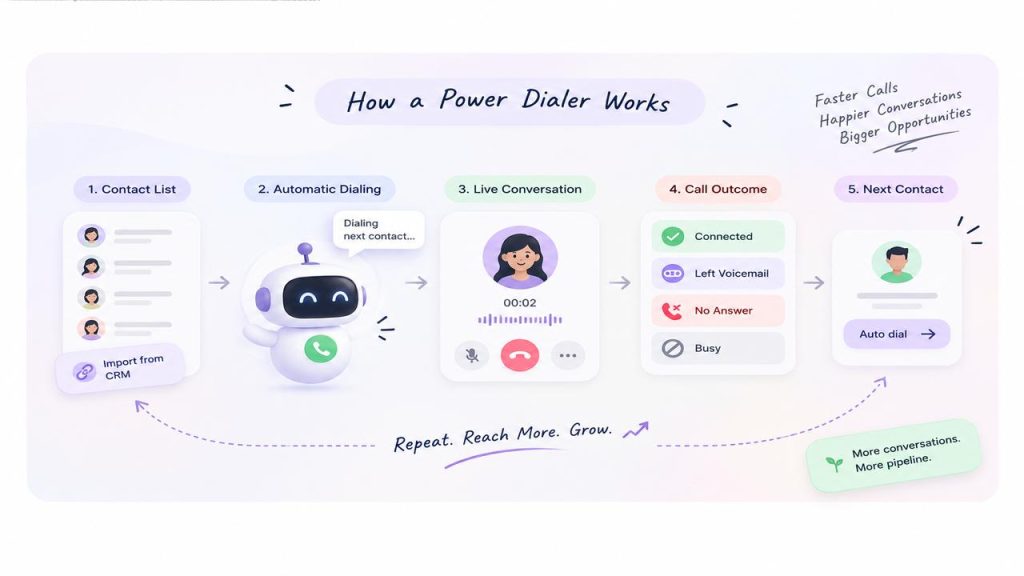
Contact list → Automatic dialing → Live conversation → Call outcome → Next contact
When a call ends, the system can move to the next contact without requiring the representative to manually search for and dial another number.
Power dialers are commonly used as sales dialers, outbound calling tools, and CRM-connected calling systems. They are particularly useful when representatives need to work through a structured list of leads, prospects, customers, or follow-ups.
Unlike other automated dialing methods, a power dialer generally maintains a one-to-one relationship between the representative and the active call. This means the representative is ready to handle the conversation when the prospect answers.
How Does a Power Dialer Work?
A power dialer follows a structured workflow that takes a contact list and turns it into an organized outbound calling session.
1. Create or Import a Contact List
The process starts with a list of contacts.
Depending on the calling system, this list may come from:
A CRM
A sales campaign
An uploaded contact file
A customer database
A lead list
A previously defined follow-up queue
Contacts can also be organized based on factors such as lead status, sales stage, campaign, location, or priority.
2. Load Contacts Into the Dialing Queue
Once the list is ready, the contacts are placed into a calling queue.
The queue determines which contact should be called next. Some systems allow representatives or managers to reorder, skip, remove, or prioritize contacts before or during a calling session.
This is particularly useful for sales teams working with different types of prospects instead of simply calling every contact in random order.
3. The Power Dialer Starts Calling Automatically
When the representative starts the calling session, the power dialer places the first call automatically.
The representative does not need to manually type the phone number.
If the call is unanswered, busy, disconnected, or otherwise unavailable, the system can move through the calling workflow according to its configured rules.
4. The Representative Handles the Conversation
When the prospect answers, the representative handles the conversation normally.
Depending on the calling platform, the representative may also have access to customer information, previous interactions, notes, scripts, or other CRM data while speaking with the prospect.
This context can help the representative understand who they are calling and why the contact is being reached.
5. The Call Outcome Is Recorded
After the call, the representative may select an outcome such as:
Connected
No answer
Busy
Voicemail
Interested
Not interested
Follow-up required
Meeting booked
The exact options depend on the calling system and workflow.
Recording the outcome makes the calling process easier to measure and helps determine what should happen next.
6. The System Moves to the Next Contact
Once the current call is complete, the dialer can automatically move to the next number in the queue.
This removes one of the biggest sources of downtime in manual calling: deciding who to call next and entering their number.
The representative can therefore move from one calling attempt to the next with fewer interruptions.
Power Dialer vs. Manual Dialing
The biggest difference between a power dialer and manual dialing is who handles the repetitive dialing work.
With Manual Dialing, a representative typically has to:
Find the contact.
Open the contact record.
Find the phone number.
Enter or click the number.
Wait for the call result.
Record the outcome.
Find the next contact.
Repeat the process.
With a Power Dialer, much of that sequence can be automated:
Prepare the contact list.
Start the calling session.
Let the system dial the next contact.
Handle the conversation.
Record the outcome.
Continue to the next contact.
The representative still controls the conversation, but spends less time operating the dialing interface.
This does not mean a power dialer guarantees a particular number of calls per hour. Actual calling volume depends on answer rates, conversation length, voicemail handling, call outcomes, list quality, and the workflow configured by the business.
What Are the Benefits of a Power Dialer?
A power dialer can help sales and outbound teams reduce repetitive work and create a more consistent calling process. The main benefits include:
1. Less Manual Dialing
The most obvious benefit is that representatives no longer need to manually enter every phone number.
This can be especially valuable for teams making dozens or hundreds of outbound attempts during a working session.
2. More Time for Conversations
When repetitive dialing tasks take less time, representatives can spend more of their working time on conversations, qualification, follow-ups, and other sales activities.
The objective isn’t simply to make more calls. It’s to reduce unnecessary work around each call.
3. A More Consistent Calling Process
A structured dialing queue gives representatives a repeatable process.
Instead of deciding what to do after every call, the next contact is already available. This can make outbound calling campaigns easier to manage and standardize.
4. Easier Follow-Up Management
Power dialing can work particularly well for follow-up campaigns.
For example, a representative may have a list of prospects who:
Requested a demo
Were contacted previously
Did not answer an earlier call
Asked to be contacted later
Need a post-meeting follow-up
Putting these contacts into an organized queue makes it easier to work through them systematically.
5. Better CRM Data Flow
When the dialer is integrated with a CRM, call activity can be connected to the relevant customer record.
This reduces the need for representatives to manually copy call information between systems and helps teams maintain a more complete history of customer interactions.
6. Better Visibility Into Calling Performance
Calling systems can provide data such as:
Calls attempted
Answered calls
Missed calls
Call duration
Call outcomes
Follow-up activity
Representative activity
Conversion-related metrics
Managers can use this information to understand where the outbound process is working and where it needs improvement.
How Does a Power Dialer Work With a CRM?
A CRM dialer connects the calling workflow with customer information stored in a CRM.
Without an integration, a representative may need to switch between the CRM and calling application before, during, and after a call.
With an integrated workflow, the process can look more like this:
For example, imagine a sales representative is following up with a prospect.
The CRM contains the prospect’s name, company, previous interaction history, notes, and sales stage. The dialer uses the contact information to initiate the call. After the conversation, the call outcome and relevant activity can be associated with the customer’s record.
This reduces repetitive data entry and helps keep customer information connected to communication activity.
A CRM-connected calling workflow can be particularly useful for sales teams that need to manage a large number of prospects while keeping customer records up to date.
Power Dialer vs. Predictive Dialer
Power dialer vs. predictive dialer is an important distinction when evaluating outbound calling software.
A power dialer generally calls contacts sequentially, with one active call handled by an available representative.
A predictive dialer uses algorithms to estimate representative availability and may place multiple calls before an agent becomes available. Its goal is to maximize calling volume and reduce idle time across a larger team.
Power Dialer
A power dialer is generally suited to workflows where representatives need:
A structured calling queue
More control over call pacing
One conversation at a time
Customer context before conversations
A balance between calling efficiency and personalization
Predictive Dialer
Predictive dialers are often designed for:
Very high-volume campaigns
Larger outbound teams
Workflows where maximizing call attempts is a primary objective
The right approach depends on the team’s call volume, staffing model, customer experience requirements, and calling process.
A power dialer is not simply a slower predictive dialer. The two systems are designed around different dialing approaches.
Common Power Dialer Use Cases
A power dialer can support many business workflows where teams regularly make outbound calls.
Sales Prospecting
Sales representatives can work through lists of prospects without manually dialing every number.
Lead Follow-Ups
Teams can create calling queues for new leads, demo requests, inbound inquiries, or prospects who previously expressed interest.
Cold Calling
Outbound sales teams can organize large prospect lists and systematically work through them.
Customer Success
Customer success teams can use structured calling workflows for check-ins, renewals, onboarding, or proactive customer outreach.
Recruitment
Recruiters can work through candidate lists and follow up with applicants or potential candidates.
Real Estate
Real estate teams can organize property inquiries, buyer leads, seller leads, and follow-up calls into structured calling lists.
Event and Campaign Follow-Ups
After a webinar, trade show, product launch, or marketing campaign, sales teams can create a targeted list and systematically contact participants.
Who Should Use a Power Dialer?
A power dialer can be useful for businesses where employees make a significant number of outbound calls and repetitive dialing takes time away from customer conversations.
It may be particularly relevant for:
Sales development representatives (SDRs)
Inside sales teams
Business development teams
Lead-generation teams
Customer success teams
Recruitment teams
Real estate teams
Outbound contact centers
Customer outreach teams
It may be less appropriate when every call requires extensive research and preparation before dialing. For highly personalized, high-value conversations, a slower workflow may sometimes give representatives more time to prepare.
The key question is not simply “How many calls do we make?”
A better question is:
“How much repetitive work happens around each call?”
If representatives spend significant time searching for numbers, dialing, finding the next contact, and updating records, dialing automation may have a meaningful impact on the workflow.
Important Features to Look for in Power Dialer Software
When evaluating power dialer software, look beyond the basic ability to automatically dial numbers. The right features should support the entire outbound calling workflow.
1. CRM Integration
The dialer should work with the CRM your team already uses. Check whether it can access contact information and whether call activity can be logged back to the appropriate customer record.
2. Contact List Management
Look for the ability to import, organize, prioritize, filter, skip, or update calling lists.
3. Call Outcome Tracking
Representatives should be able to record what happened after each call so managers can understand campaign performance and trigger appropriate follow-ups.
4. Call Recording and History
Call recordings and call history can help with training, quality monitoring, compliance workflows, and reviewing customer conversations where appropriate.
5. Analytics and Reporting
Useful reporting can include call volume, connection activity, call duration, outcomes, and team-level performance.
6. Follow-Up Workflows
A good outbound workflow should make it easy to identify contacts that require another call, message, or action.
7. Voicemail Handling
For teams that frequently reach voicemail, efficient voicemail workflows can reduce repetitive work.
8. Calling Controls
Representatives may need the ability to pause, skip, stop, or otherwise control the dialing sequence.
9. Data Quality and Security
The system should provide appropriate controls for protecting customer information and managing access to calling data.
How a Power Dialer Improves Sales-Team Efficiency
A power dialer should be viewed as part of a broader outbound workflow rather than simply an automated keypad.
Consider a representative making 50 outbound attempts manually.
Between those attempts, they may repeatedly:
Search for the next contact
Find a phone number
Enter the number
Wait for the call result
Update the CRM
Write notes
Decide who to call next
A power dialer can automate or streamline several of these repetitive steps.
The result is not necessarily “more calls at any cost.” The goal is to remove avoidable administrative work so representatives can dedicate more of their working time to meaningful customer conversations.
A well-organized calling workflow can also make it easier for managers to monitor activity, identify bottlenecks, and improve outbound sales processes over time.
Best Practices for Using a Power Dialer
A power dialer works best when the underlying calling process is well organized.
Before starting a campaign:
Keep contact data accurate and up to date.
Segment contacts by campaign, priority, or sales stage.
Define clear call outcomes.
Give representatives access to relevant customer context.
Establish a consistent follow-up process.
Review calling performance regularly.
Remove outdated or invalid contacts from calling lists.
Make sure your calling process follows applicable telemarketing, privacy, and consent requirements.
Automation can make a poor process faster, but it cannot fix inaccurate customer data or an unclear sales workflow.
Frequently Asked Questions
What Is a Power Dialer?
A power dialer is an outbound calling system that automatically dials contacts from a predefined list, generally one at a time for an available representative. It reduces the need for manual number entry and helps representatives move efficiently between calls.
How Does a Power Dialer Work?
A power dialer loads a contact list, starts the first call automatically, connects the representative when appropriate, records the call outcome, and moves to the next contact according to the configured workflow.
What Is a Power Dialer for Sales?
A power dialer for sales helps representatives work through prospect and follow-up lists without manually dialing each number. It can reduce repetitive tasks and keep outbound calling organized.
What Is the Difference Between a Power Dialer and a Predictive Dialer?
A power dialer generally works through contacts sequentially, with an available representative handling each active call. A predictive dialer uses pacing algorithms and can place multiple calls to maximize agent utilization. The two approaches prioritize different combinations of speed, control, and call volume.
Can a Power Dialer Integrate With a CRM?
Yes. Many modern power dialers can connect with CRM systems so representatives can use customer data during calls and automatically associate call activity with customer records.
Does a Power Dialer Make More Calls Than Manual Dialing?
A power dialer can reduce the time spent manually entering numbers and moving between contacts, which can allow representatives to spend more time on calling activity. Actual call volume depends on factors such as answer rates, call duration, list quality, and the team’s workflow.
Is a Power Dialer the Same as an Auto Dialer?
“Auto dialer” is a broad term for software that automates outbound dialing. A power dialer is one specific type of automated dialing system. Other approaches include predictive, progressive, preview, and parallel dialing.