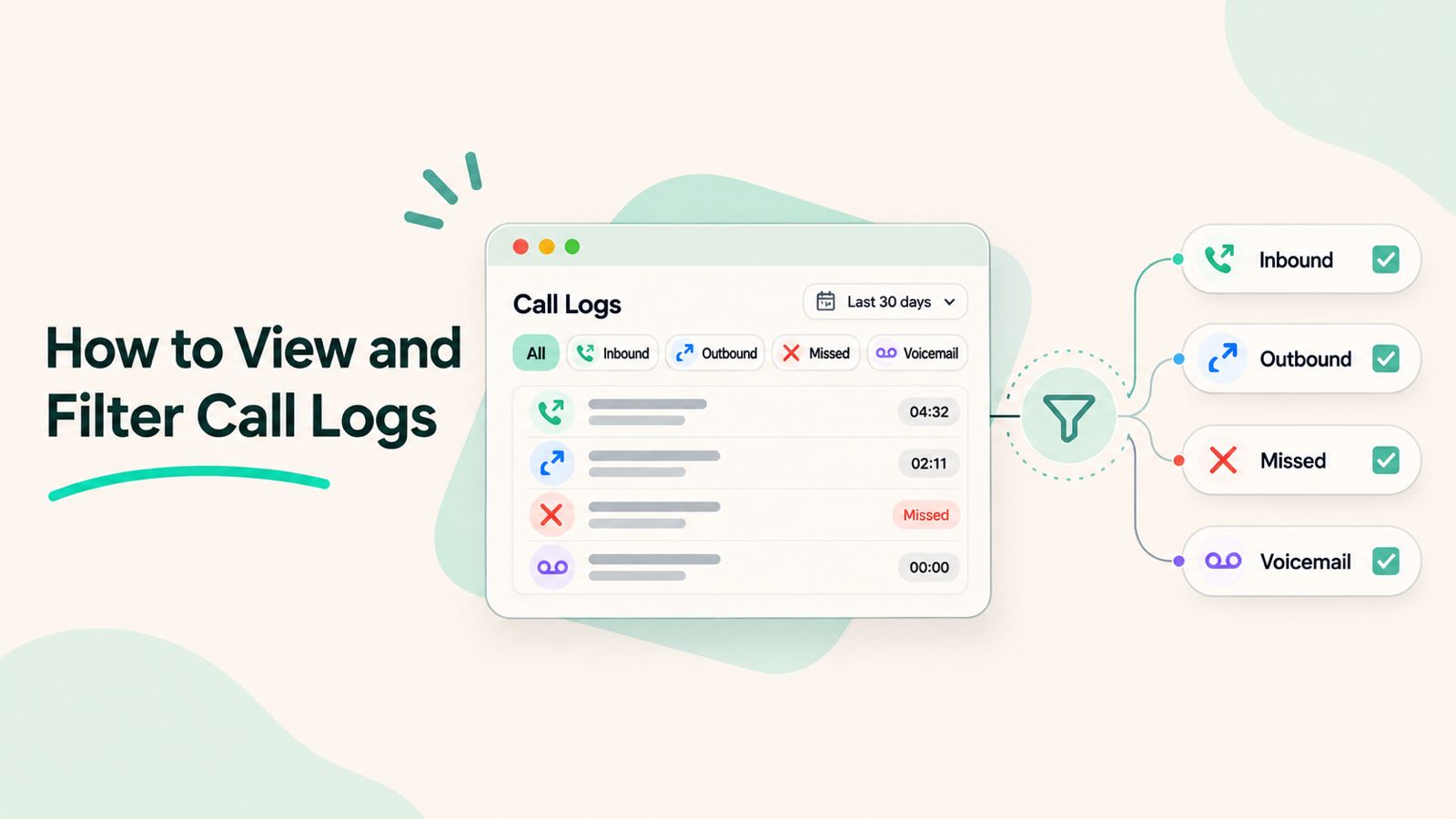
DialNext Call Logs help you review your previous calling activity in one place. You can view incoming calls, outgoing calls, missed calls, and voicemail records directly from your dashboard.
Additionally, you can select individual call records to review call details, recordings, notes, and other available information. Moreover, you can use the available filters to find specific calls without reviewing your entire call history.
In this guide, you will learn how to access DialNext Call Logs, filter records by call type and date, view archived calls, and review important call details step by step.
Before You Begin
Before you access Call Logs, first make sure that:
- You can sign in to your DialNext account.
- Your workspace has calling activity available to review.
- You can access the Call Logs section from your dashboard.
Step 1: Access Call Logs in DialNext
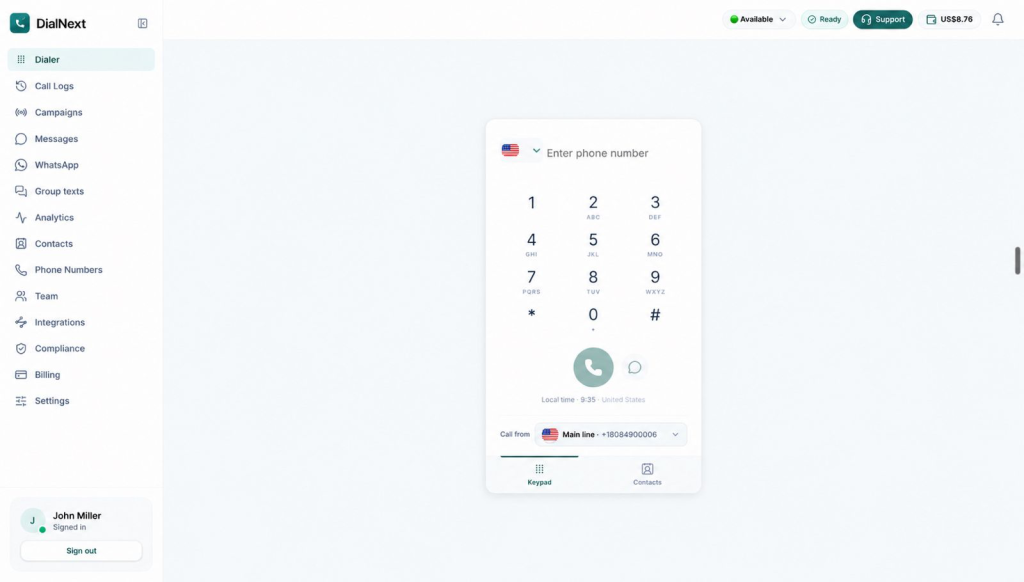
- First, log in to your DialNext account.
- Next, locate the navigation menu on the left side of your dashboard.
- Then, click Call Logs, located directly below the Dialer option.
- Once the Call Logs page opens, you can review your previous calling activity.
Step 2: Understand the Call Logs Interface
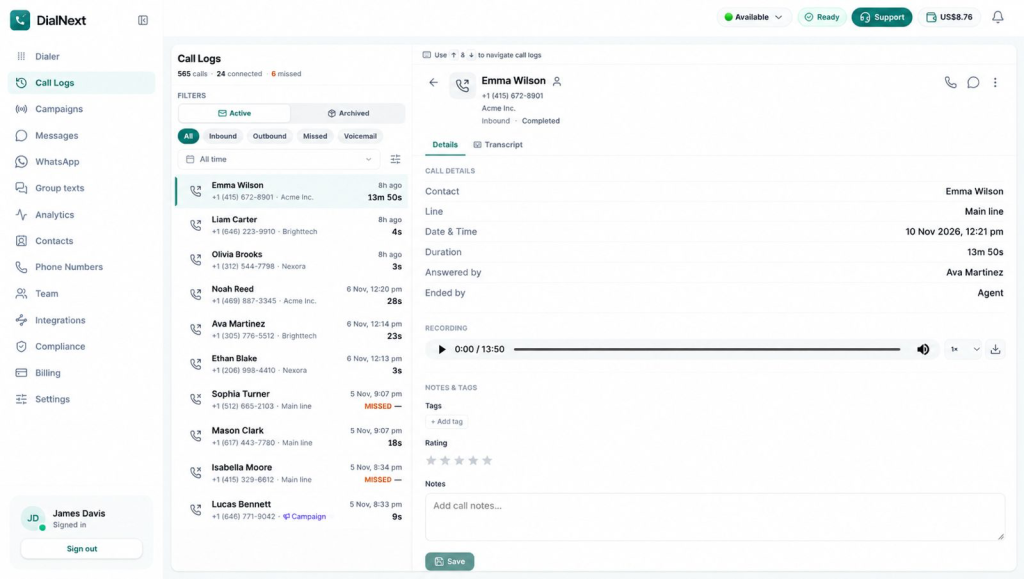
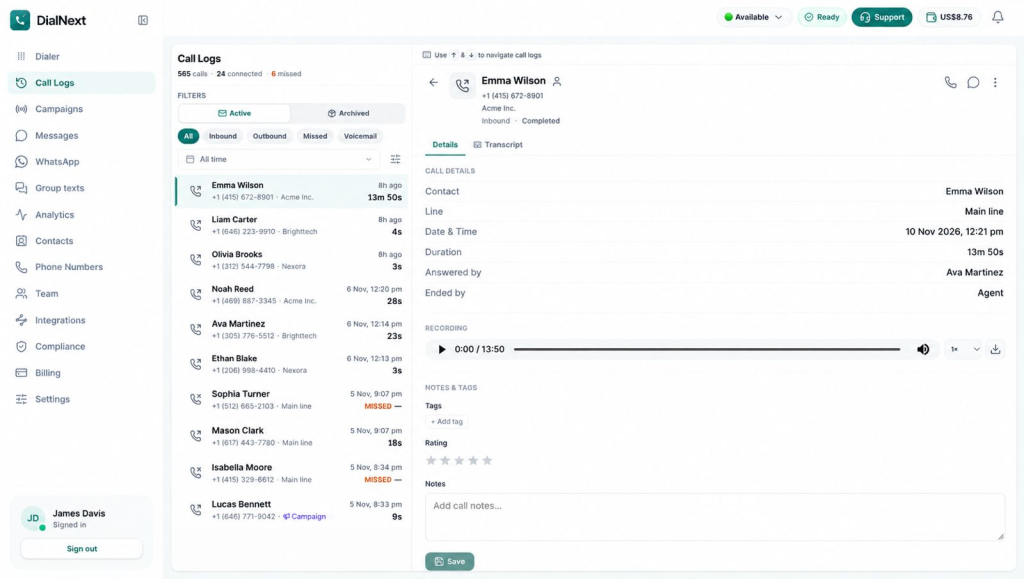
After opening Call Logs, you can review your calling activity in the records panel.
The call records list displays several details to help you identify each call:
- Contact Name: Shows the contact associated with the call.
- Phone Number: Displays the phone number linked to the record.
- Call Direction: Indicates whether the call was inbound or outbound.
- Date and Time: Shows when the call took place.
- Call Duration: Displays how long the call lasted.
- Missed Status: Identifies calls that were not answered.
Next, select a call record from the list to view more information. Its details will appear in the panel on the right.
Additionally, the details panel displays information such as the contact, calling line, date and time, call duration, answering agent, and available call recording. The panel also includes sections for notes, tags, and ratings.
Step 3: Filter Calls by Type
DialNext provides different call-type filters to help you find specific records. For example, instead of reviewing your entire call history, you can select a filter to narrow down the list.
You will find the following options below the Active and Archived sections:
- All: Displays all available call records.
- Inbound: Shows calls received by your team.
- Outbound: Shows calls made by your team.
- Missed: Displays calls that were not answered.
- Voicemail: Displays records associated with voicemail.
How to Apply a Call-Type Filter
Follow these steps to filter your call records:
- First, open the Call Logs page.
- Next, locate the call-type filters below the Active and Archived options.
- Then, select the required filter, such as Inbound, Outbound, Missed, or Voicemail.
- Once selected, DialNext will update the records list to show matching calls.
- Finally, select any record to review its details in the right-side panel.
Moreover, you can switch between the available filters whenever you need to review a different type of calling activity.
Step 4: Filter Call Logs by Date
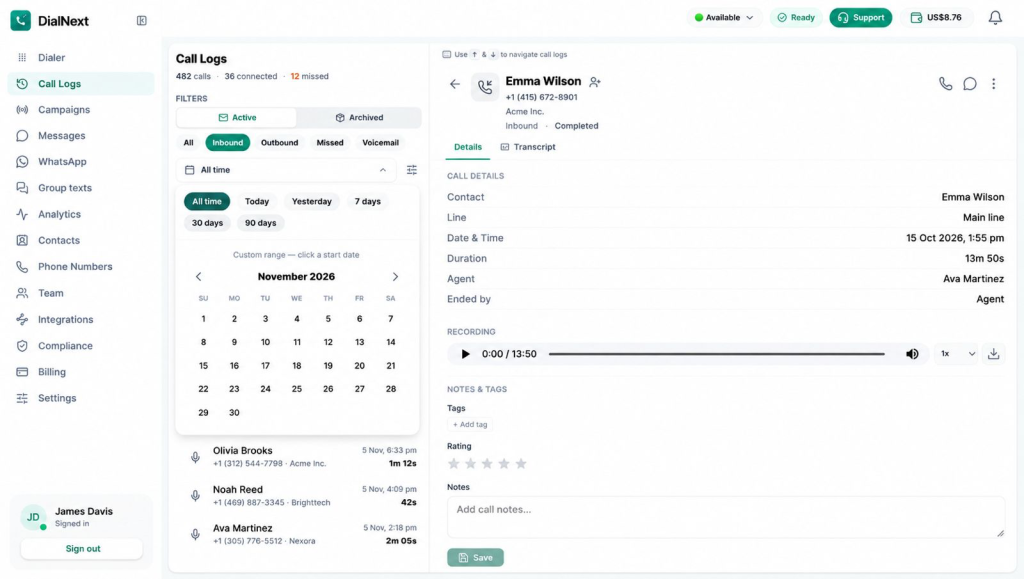
DialNext allows you to filter call records by date. This makes it easier to find calls from a specific day or review calling activity over a selected period.
To apply a date filter, follow these steps:
- First, open the Call Logs page.
- Next, locate the All time dropdown below the call-type filters.
- Then, click the dropdown to view the available date options.
- Select a predefined date range based on your requirements:
- All time: View call records from all available dates.
- Today: View calls from the current day.
- Yesterday: View calls from the previous day.
- 7 days: View calls from the last seven days.
- 30 days: View calls from the last 30 days.
- 90 days: View calls from the last 90 days.
- Alternatively, select Custom range to choose specific start and end dates using the calendar.
Once you select a date range, DialNext updates the call records to match your selection. For example, you can select Today to review calls from the current day or use Custom range to check records from a specific period.
Step 5: View Archived Call Logs
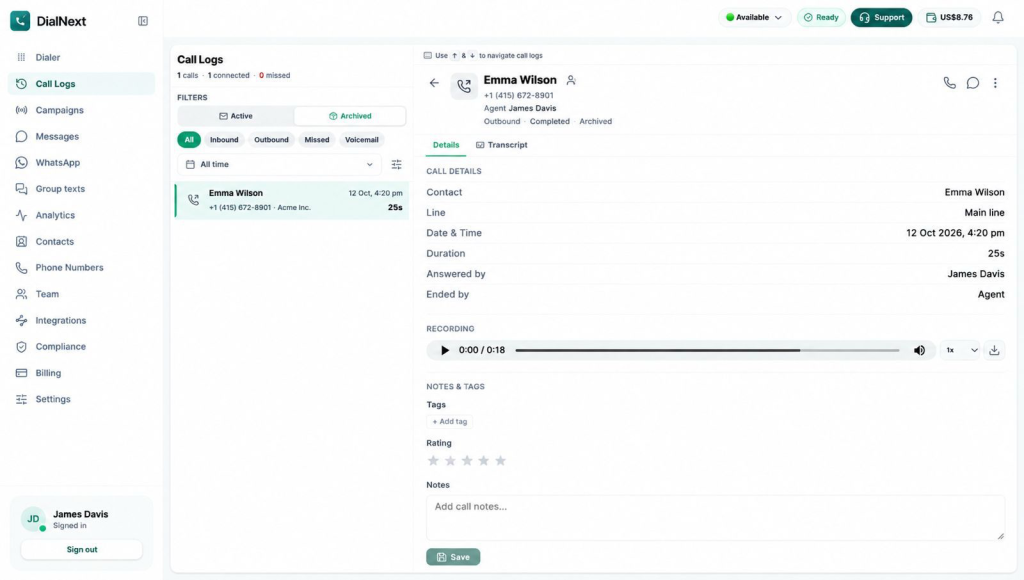
In addition to active call records, DialNext provides an Archived tab where you can view archived call records separately.
To access archived calls, follow these steps:
- First, open the Call Logs page.
- Next, locate the Active and Archived options under Filters.
- Then, click Archived to view archived call records.
- Once the archived records appear, review the available calls and select a record to check its details.
However, if no records appear, check whether any call-type or date filters are active. You can also click Clear filters to remove the applied filters and check again.
Step 6: Review Call Details and Recordings
DialNext allows you to review additional information about individual calls. To access these details, simply select a call record from the list.
Review Call Details
To review a call, follow these steps:
- First, open the Call Logs page.
- Next, select the call you want to review.
- The call details will then appear in the panel on the right.
- Under the Details tab, review the available information:
- Contact: Displays the contact associated with the call.
- Line: Shows the calling line used for the call.
- Date & Time: Displays when the call took place.
- Duration: Shows the total call duration.
- Answered by: Identifies the agent who answered the call.
- Ended by: Shows who ended the call.
Listen to or Download Call Recordings
Additionally, if a recording is available, you can listen to it directly from the call details panel.
- First, locate the Recording section.
- Click the Play button to listen to the recording.
- Next, use the playback speed dropdown to select an available playback speed.
- Finally, select the Download icon to download the recording, if this option is available.
As a result, you can review previous conversations and keep track of important call information.
Step 7: Add Call Notes, Tags, and Ratings
DialNext provides a Notes & Tags section where you can add information to individual call records. Additionally, this helps your team keep track of important conversations and customer interactions.
Add Tags to a Call
To add a tag to a call record, follow these steps:
- First, open the required call record.
- Next, navigate to the Notes & Tags section.
- Then, click + Add tag under the Tags section.
- Select the relevant tag from the available options.
Add Notes to a Call
You can also add notes to keep important information about a conversation.
- First, locate the Notes text box.
- Next, enter the information you want to save about the call.
- Before saving, review your note to make sure it contains the relevant details.
- Finally, click Save to save your changes.
Review Call Ratings
In addition to notes and tags, the Notes & Tags section also displays a star-rating field. You can review the rating associated with an individual call record here.
Step 8: Troubleshoot Common Call Log Issues
Sometimes, you may not find the call record you are looking for. In such cases, try the following checks to identify the issue.
1. No Call Records Are Displayed
If the Call Logs page does not display any records:
- First, check whether you have selected the correct call-type filter.
- Next, review the selected date range.
- Additionally, switch between the Active and Archived tabs.
- If no matching records appear, click Clear filters to remove the applied filters.
2. Unable to Find a Specific Call
If a call does not appear in the records list:
- First, check the contact name or phone number.
- Next, select the appropriate filter, such as Inbound, Outbound, Missed, or Voicemail.
- Then, change the date range to include the expected call date.
- Finally, check both Active and Archived records.
3. Call Recording Is Not Available
If you cannot find a recording for a selected call, first check whether the Recording section is displayed in the call details panel.
However, if the recording is still unavailable, contact your workspace administrator or DialNext Support for further assistance.
4. Call Notes Are Not Saved
If your call notes do not appear after entering them:
- First, check that you entered the information in the Notes text box.
- Next, click Save after adding your note.
- Then, reopen the call record to check whether the note appears.
If the issue continues, contact DialNext Support for assistance.
Frequently Asked Questions (FAQs)
1. Where can I find Call Logs in DialNext?
You can access Call Logs from the left navigation menu of your DialNext dashboard. Simply click Call Logs to view your calling activity.
2. Can I filter calls by type in DialNext?
Yes. DialNext provides filters such as All, Inbound, Outbound, Missed, and Voicemail. Simply select the required option to find specific call records.
3. Can I filter call records by date?
Yes. You can use predefined date filters, including Today, Yesterday, 7 days, 30 days, and 90 days. Additionally, you can select a Custom range to review calls from a specific period.
4. Can I listen to or download call recordings?
Yes, if a recording is available for the selected call. First, open the call record and locate the Recording section. From there, you can play the recording or use the download option, if available.
5. Can I add notes to individual call records?
Yes. First, open the required call record and navigate to the Notes & Tags section. Next, enter your information in the Notes text box. Finally, click Save to save your changes.
Need Help with DialNext Call Logs?
Still have questions about viewing or managing your call records? Don’t worry! The DialNext team is here to help.
Visit our official website to learn more about DialNext’s calling solutions and features.
For assistance with Call Logs, recordings, or other product-related queries, contact our support team at support@dialnext.io.
We’re always happy to help!
Related Articles
Explore these resources to learn more about DialNext features and integrations: