Category: Help Articles

Product documentation, setup guides, feature explanations, and step-by-step tutorials for DialNext users.

  • What Is Bulk SMS? How It Works and How Businesses Use It

    What Is Bulk SMS? How It Works and How Businesses Use It

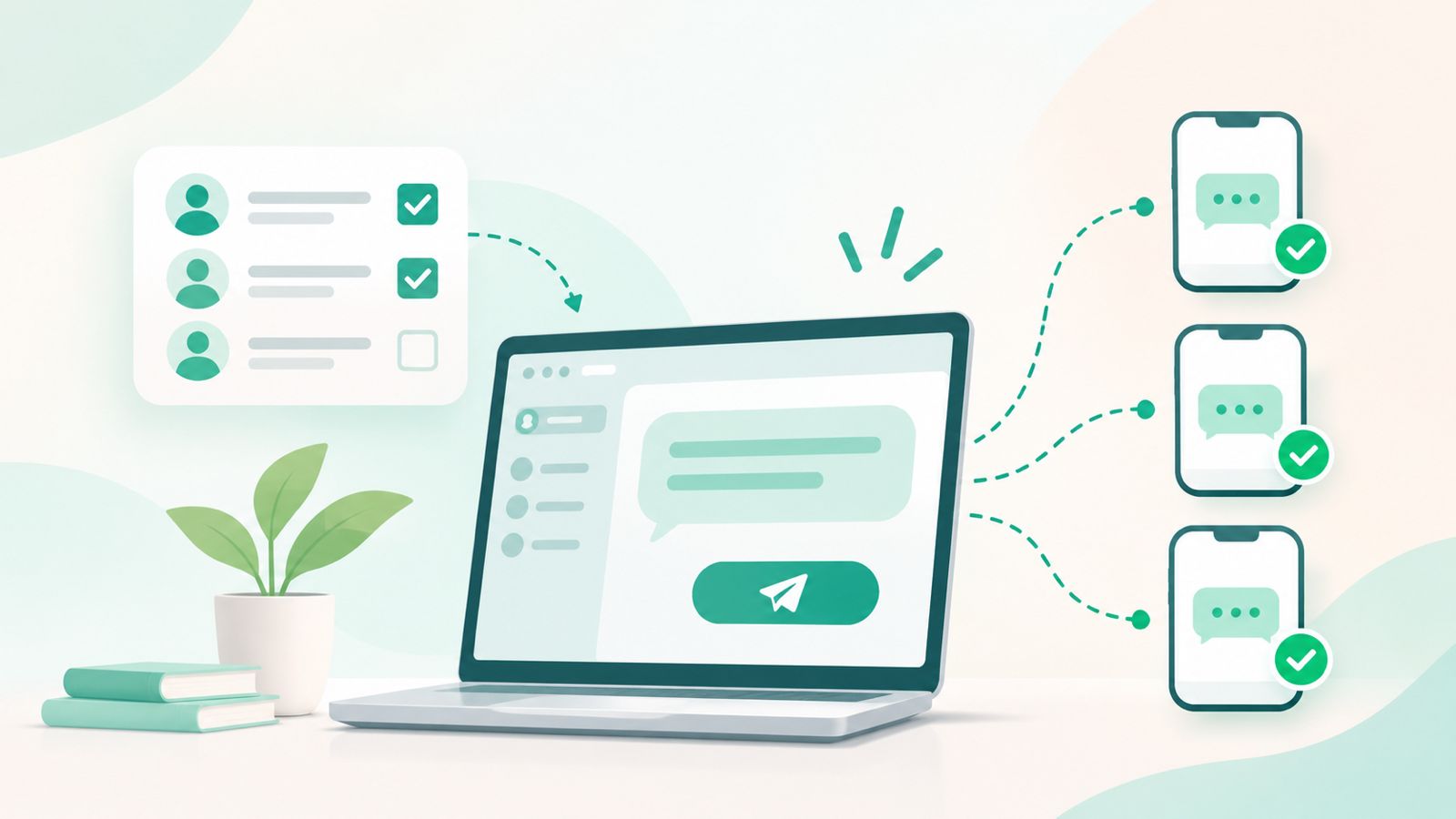
    Bulk SMS helps businesses send text messages to many customers at once. It can be used for promotions, reminders, updates, alerts, and sales follow-ups.

    Instead of sending each message manually, businesses can use a messaging service to reach more customers quickly. With the right audience, timing, and consent, text messaging can become a simple part of a business communication plan.

    In this guide, you will learn what bulk SMS is and how it works. You will also learn how businesses use it, its benefits and limits, and the best ways to send effective messages.
    What Is Bulk SMS?

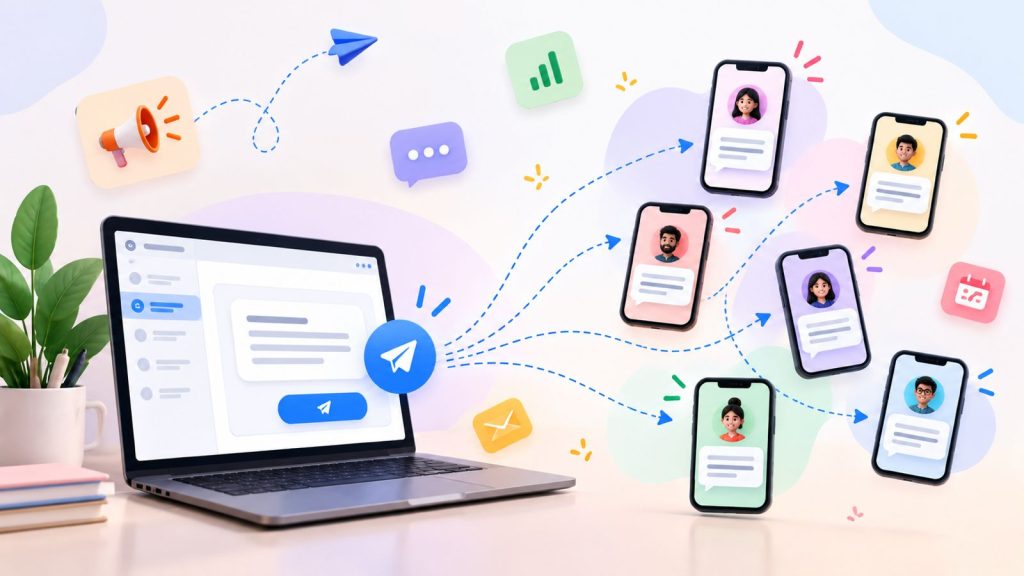
    Bulk SMS lets businesses send the same or similar text message to many people at once. Companies can use it for promotions, reminders, alerts, updates, and other important information.

    Unlike regular SMS, which usually goes to one person at a time, this method is made for large-scale messaging. Businesses can select a contact list, write a message, and send it to the right audience through a messaging platform.

    For example, a retail business can send a sale announcement to its customers. Similarly, a service business can send appointment reminders to customers with upcoming bookings.

    However, effective messaging is not just about reaching a large list. Businesses also need to focus on audience selection, consent, message relevance, timing, and clear communication.

    How Does Bulk SMS Work?

    Bulk SMS follows a simple process. It helps businesses send messages to many recipients at once.

    1. Select Your Audience

    First, create or select a contact list. This list can include customers, leads, subscribers, or other relevant contacts.

    2. Create the Message

    Next, write the SMS. Keep the message clear, short, and relevant to the audience.

    3. Segment the Audience

    Then, group contacts based on factors such as customer type, location, interests, or past interactions. This helps businesses send more relevant messages.

    4. Send the Messages

    After that, the messaging platform sends the SMS to the selected recipients. Depending on the setup, messages may be sent in batches when working with large contact lists.

    5. Monitor Responses

    Finally, review delivery information and customer responses if the messaging platform supports these features. This information can help teams understand customer responses and improve future SMS campaigns.

    Why Do Businesses Use Bulk SMS?

    Businesses use this messaging method to reach many customers quickly. It can support marketing, sales, customer service, and daily business communication.

    Common reasons include:

    • Reach customers quickly: Businesses can send important messages to many people at once.
    • Send timely updates: SMS can help share reminders, alerts, and status updates.
    • Support sales follow-ups: Sales teams can use SMS to follow up with leads and existing customers.
    • Promote offers: Marketing teams can share promotions, new products, and event announcements.
    • Improve customer communication: Businesses can use SMS with other channels to keep customers informed.

    However, the goal is not just to reach more people. Businesses should send useful messages to the right audience at the right time.

    Common Bulk SMS Use Cases

    Businesses use SMS for many types of customer communication. The best use case depends on the audience, message, and goal.

    Promotional Messages

    Businesses can send offers, discounts, product launches, and event announcements to customers who have agreed to receive them.

    Customer Updates

    SMS can help businesses share important updates. For example, a company can notify customers about service changes, business hours, or planned maintenance.

    Appointment Reminders

    Service businesses can send reminders about upcoming appointments. This can help customers remember important dates and may reduce missed appointments.

    Order and Delivery Updates

    Retail and e-commerce businesses can use SMS to share order confirmations, shipping updates, and delivery notifications.

    OTP and Verification Messages

    Businesses can send one-time passwords and verification codes through SMS. Customers can use these codes to confirm their identity or complete an action.

    Sales and Follow-Up Messages

    Sales teams can use SMS to follow up with leads and share useful information. They can also remind prospects about an earlier conversation.

    Overall, SMS works best when each message reaches the right audience and provides useful information.

    Benefits of Bulk SMS for Businesses

    This messaging method helps businesses reach many customers while keeping messages short and clear.

    Fast Communication

    Businesses can send important messages to many people without contacting each customer one by one. This makes SMS useful for urgent updates and reminders.

    Scalable Messaging

    As a business grows, its contact list may also grow. A messaging service can help reach larger groups without sending every message manually.

    Direct Customer Reach

    SMS sends business messages directly to a customer’s phone. Therefore, it can be useful for reminders, updates, alerts, and other important information.

    Supports Different Business Teams

    Marketing teams can use SMS campaigns for promotions. Sales teams can send follow-ups, while support teams can share customer updates and notifications.

    Easy to Combine With Other Channels

    SMS does not have to work alone. Businesses can combine it with calls, email, CRM workflows, and other channels. As a result, teams can create a more connected customer communication process.

    Bulk SMS vs Regular SMS

    Bulk SMS and regular SMS both use text messages. However, they serve different communication needs.

    Bulk SMSRegular SMS
    Sent to multiple recipientsUsually sent to one recipient
    Designed for large-scale messagingDesigned for one-to-one communication
    Useful for campaigns, updates, and notificationsUseful for personal conversations and individual follow-ups
    Often managed through a business messaging platformCan be sent directly from a mobile phone

    For example, a business can use regular SMS to follow up with one customer. In contrast, bulk messaging can help send an important update to a larger group of customers.

    The main difference is scale and purpose. Bulk SMS is built for reaching multiple recipients efficiently, while regular SMS is better suited to individual conversations.

    Bulk SMS vs SMS Marketing

    Bulk SMS and SMS marketing are related. However, they do not mean the same thing.

    Bulk SMS means sending text messages to many recipients at once. These messages can include promotions, reminders, alerts, notifications, or customer updates.

    SMS marketing means using text messages to promote products, services, offers, or other marketing activities.

    For example, a business may use bulk SMS to send an appointment reminder to 500 customers. This is bulk messaging, but it is not necessarily SMS marketing.

    On the other hand, a business can send a special offer to opted-in customers through a bulk SMS campaign. In this case, the message is both bulk SMS and SMS marketing.

    In simple terms, bulk SMS explains how messages are sent, while SMS marketing explains why they are sent.

    Best Practices for Sending Bulk SMS

    Businesses can improve bulk SMS campaigns by choosing the right audience and writing clear messages. Good timing and responsible messaging also play an important role.

    Get the Right Permission

    First, send messages only to people who have agreed to receive them. Also, follow the messaging and privacy rules that apply to your business.

    Keep Messages Clear and Short

    Keep your message simple and easy to understand. Instead of adding too much detail, share the main information and a clear next step.

    Segment Your Audience

    Next, group contacts based on factors such as customer type, location, or interests. As a result, you can send more useful messages to each group.

    Personalize When Useful

    Where possible, use relevant customer details in your messages. This personal touch can make a message more useful than a generic message sent to everyone.

    Send at the Right Time

    Timing can affect how people respond to an SMS. Therefore, consider the recipient’s location, routine, and the urgency of the message.

    Make Opt-Outs Easy

    Always give recipients a clear way to stop receiving messages when required. This also helps keep your contact list up to date.

    Review Before Sending

    Finally, check the contact list, message, links, and sender details before sending a bulk SMS campaign. This simple check can help prevent common mistakes.

    Common Bulk SMS Mistakes to Avoid

    Bulk SMS can help businesses reach customers quickly. However, simple mistakes can reduce the value of a campaign and create a poor customer experience.

    Sending Without Proper Consent

    First, make sure recipients have agreed to receive your messages. Sending unwanted texts can damage trust. It may also break local messaging rules.

    Sending the Same Message to Everyone

    A single message may not suit every customer. Instead, divide your audience into relevant groups. Then, send messages that match their needs.

    Sending Too Many Messages

    Too many texts can annoy customers. Therefore, send messages only when they provide useful or timely information.

    Ignoring Messaging Rules

    Messaging rules can vary by country and message type. Before sending a campaign, check the rules that apply to your business and audience.

    Using Unclear Sender Information

    Recipients should know who sent the message. Clear sender information makes business text messages easier to recognize and trust.

    Writing Long or Confusing Messages

    SMS works best when the message gets to the point. Keep the wording simple. Include only the information the recipient needs.

    Failing to Review the Campaign

    Finally, check your contact list, message, links, timing, and opt-out details before sending. A quick review can help prevent avoidable mistakes.

    How Bulk SMS Fits Into a Business Communication Workflow

    Bulk SMS works best as part of a wider communication process. Businesses can use SMS with calls, CRM tools, email, and other channels to keep customer communication organized.

    Bulk Messaging for Marketing

    Marketing teams can use SMS to share offers, product updates, event announcements, and other relevant messages with customers who have agreed to receive them.

    SMS Follow-Ups for Sales

    Sales teams can use SMS after calls or other customer interactions. For example, a sales representative can send the next steps or share useful information with a prospect.

    SMS Updates for Customer Support

    Support teams can use SMS to share reminders, status updates, and other important information. This gives customers another way to receive timely updates.

    Connecting SMS With CRM Records

    When SMS works with a CRM, teams can keep customer conversations and other interactions in one place. As a result, sales and support teams can get better context before contacting a customer.

    A connected workflow can reduce manual work. It can also make customer communication easier to manage.

    Frequently Asked Questions About Bulk SMS

    What is bulk SMS?

    Bulk SMS is a way for businesses to send text messages to multiple recipients at the same time. It can be used for promotions, reminders, updates, alerts, and other business messages.

    How does bulk SMS work?

    Businesses select a relevant contact list, create a message, and send it through a messaging platform. The platform then delivers the message to the selected recipients.

    What is bulk SMS used for?

    Businesses use bulk SMS for promotional campaigns, customer updates, appointment reminders, order notifications, sales follow-ups, and other time-sensitive communication.

    Is bulk SMS the same as SMS marketing?

    No. Bulk SMS refers to sending messages to multiple recipients at scale. SMS marketing refers to using text messages for marketing purposes. A bulk SMS campaign can be promotional or non-promotional.

    What are the benefits of bulk SMS?

    Bulk SMS helps businesses reach multiple customers quickly. It can also support sales, marketing, customer support, and other business communication.

    Can businesses send bulk SMS to customers?

    Yes, businesses can use bulk SMS to communicate with customers. However, they should first obtain the required permission and follow the messaging rules that apply to their audience and location.

    What should businesses consider before sending bulk SMS?

    Businesses should consider consent, audience selection, message content, timing, opt-out options, and applicable messaging rules before sending a campaign.
  • DialNext Help Scout Integration: How to Connect Help Scout with DialNext

    DialNext Help Scout Integration: How to Connect Help Scout with DialNext

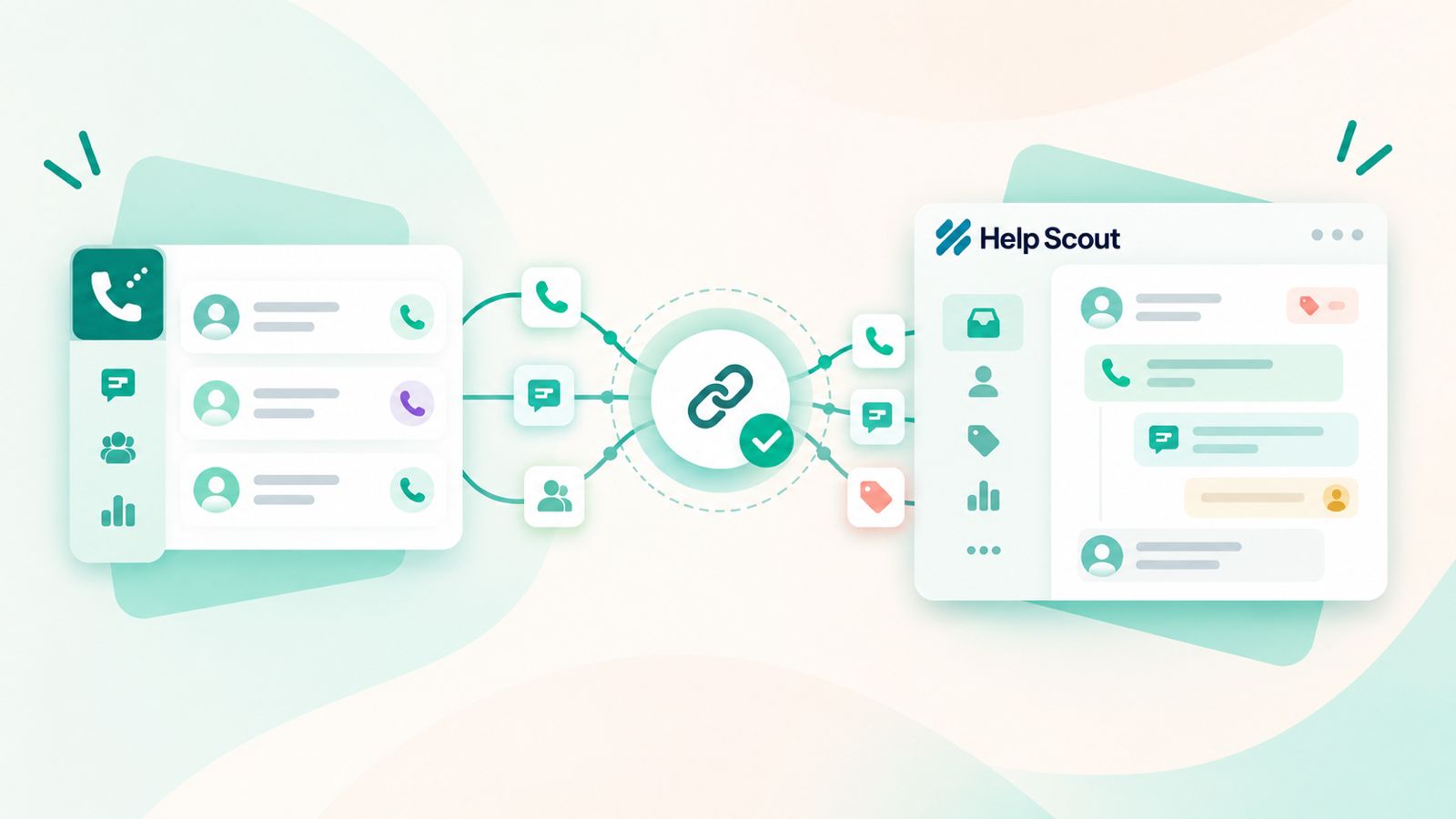
    Connect Help Scout with DialNext to keep your customer communication workflow connected. The DialNext Help Scout integration lets you connect your Help Scout account with DialNext and log calling activity within Help Scout.

    How to Integrate DialNext with Help Scout

    Follow these steps to connect DialNext with Help Scout :

    1. Log in to your DialNext account

    First, log in to your DialNext account using your registered credentials.

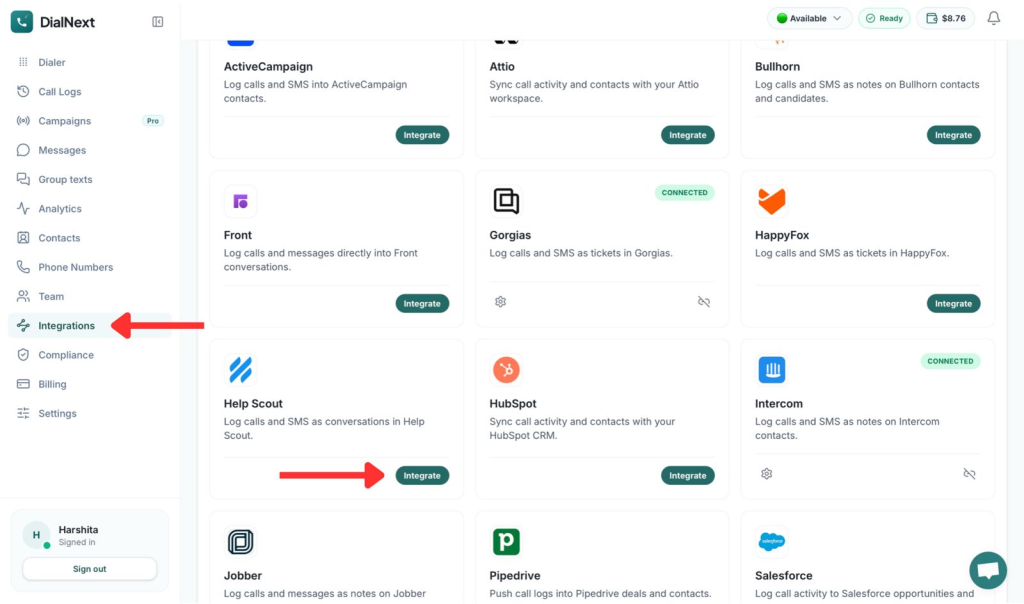
    2. Open Integrations

    Next, open the Integrations section from your DialNext dashboard. Here, you can view the available integrations.

    3. Select Help Scout

    Find Help Scout in the integrations list. Then, select it to start the connection process.

    4. Connect your Help Scout account

    Click the relevant connection button to connect your Help Scout account with DialNext.

    5. Authorize the connection

    Next, authorize the connection between DialNext and Help Scout. This allows the two platforms to connect.

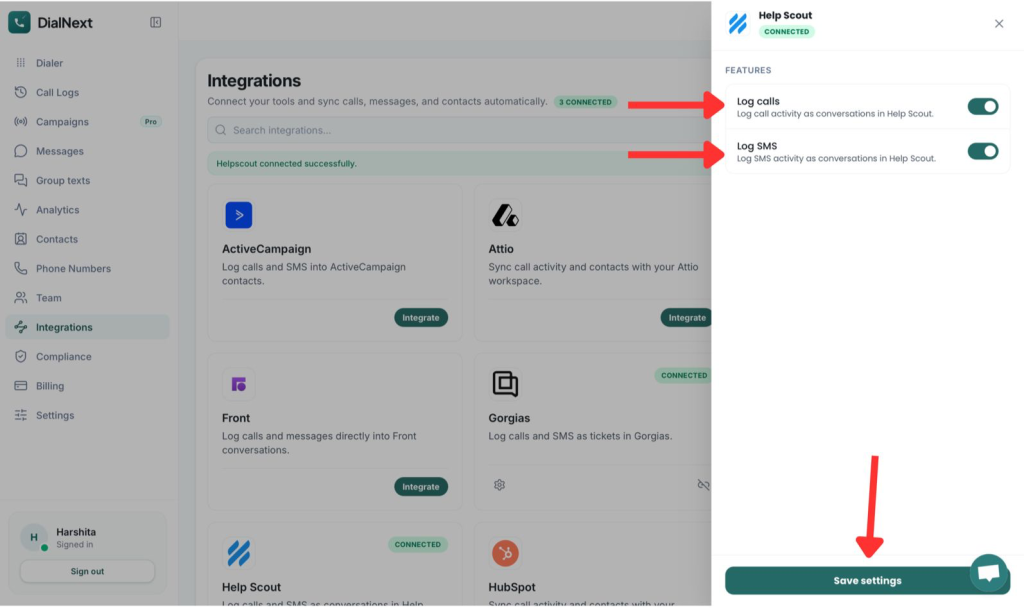
    6. Configure the integration

    Choose the available settings or features you want to enable. Then, save your settings to complete the setup.

    7. Verify the integration

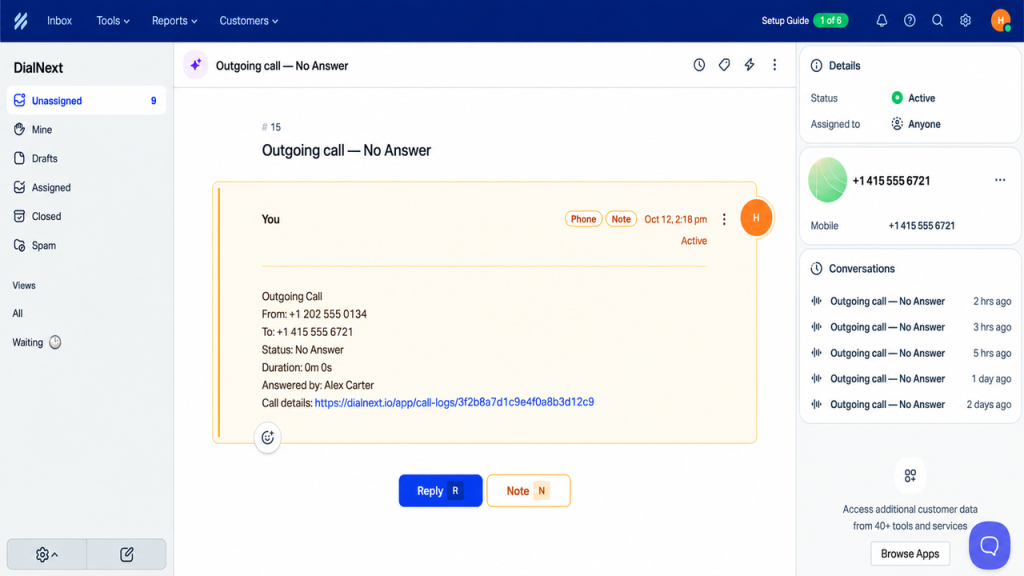
    Finally, make a test call or send a test message from DialNext. Check Help Scout to confirm that the activity is synced correctly.

    Your DialNext Help Scout integration is now connected.

    What does the DialNext Help Scout integration do?

    The DialNext Help Scout integration allows calling activity from DialNext to be logged in Help Scout. This helps support teams keep relevant customer communication activity alongside the customer’s conversation history.

    As a result, teams can keep their calling workflow connected to their Help Scout support workflow.

    How to use the integration

    Once the DialNext Help Scout integration is connected, use DialNext for your calling workflow. Help Scout can then keep the related call activity with the customer conversation.

    • Make and manage calls through DialNext.
    • View logged call activity in the relevant Help Scout conversation.
    • Check available call details to keep track of customer interactions.
    • Manage customer conversations in Help Scout while keeping calling activity connected.

    If you encounter any issues, you can reach us at help@dialnext.io

  • DialNext Intercom Integration: How to Connect Intercom with DialNext?

    DialNext Intercom Integration: How to Connect Intercom with DialNext?

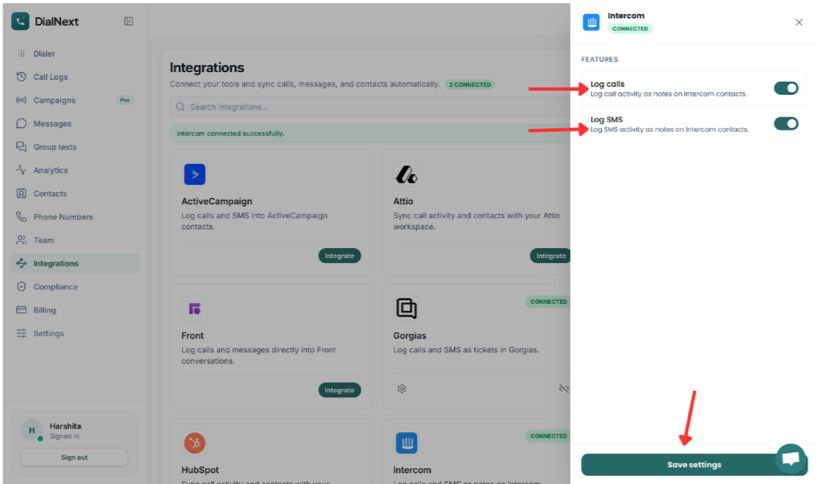
    DialNext Intercom integration lets you connect your DialNext account with Intercom and manage your customer communication from one place. Follow the steps below to complete the integration quickly and start keeping your communication organized.

    How to integrate DialNext with Intercom

    1. Log in or sign up to your DialNext account.

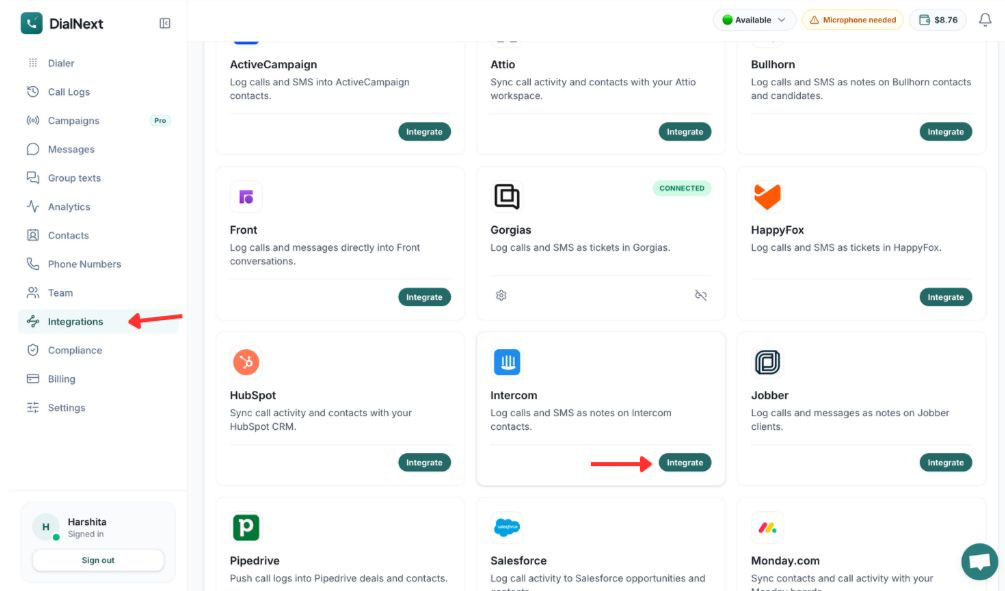
    2. In the left sidebar, click Integrations.

    3. Find Intercom in the integrations list and click Integrate.

    4. Authorize the connection between DialNext and Intercom.

    5. Choose the features you want to enable.

    6. Click Save settings to complete the integration.

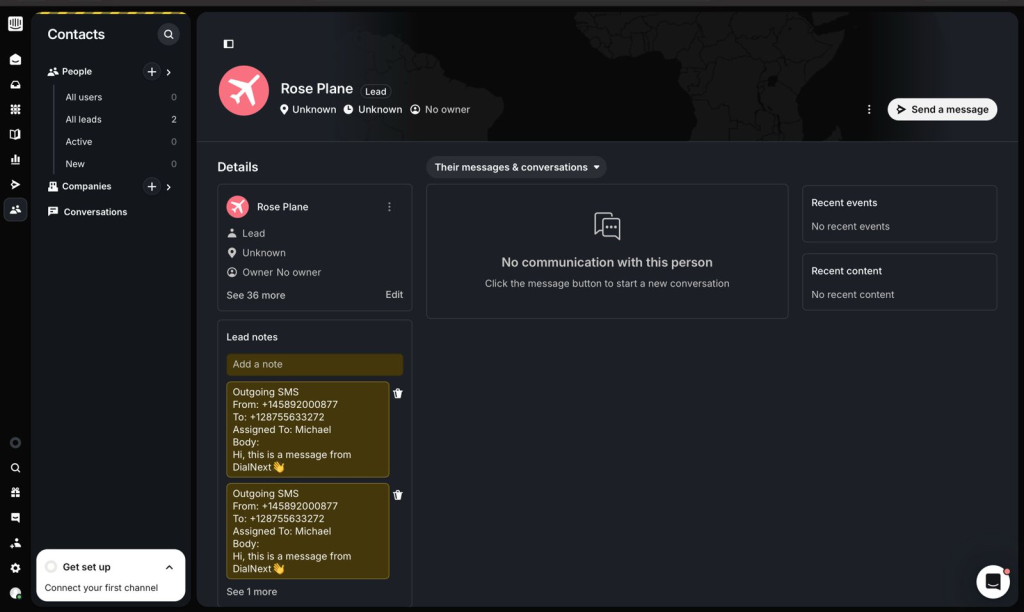
    7. Make a test call or send an SMS from DialNext to verify that the activity is logged in Intercom.

    Your DialNext account is now connected to Intercom successfully.

    What does the DialNext Intercom integration do?

    The integration helps you keep your customer communication organized by connecting your DialNext account with Intercom. Once connected, your DialNext communication activity can be recorded in Intercom, making it easier to keep track of customer interactions without manually adding communication details.

    How to use the integration

    After completing the DialNext Intercom integration, make sure the required features are enabled in the integration settings.Once you save the settings, Intercom can record your DialNext communication activity.

    You can also explore our DialNext Jobber Integration guide for another CRM integration.

  • Group Texting: Keep Everyone in the Same Conversation

    Group Texting: Keep Everyone in the Same Conversation

    Group texting makes it easier to keep everyone updated without managing multiple 1:1 text threads.

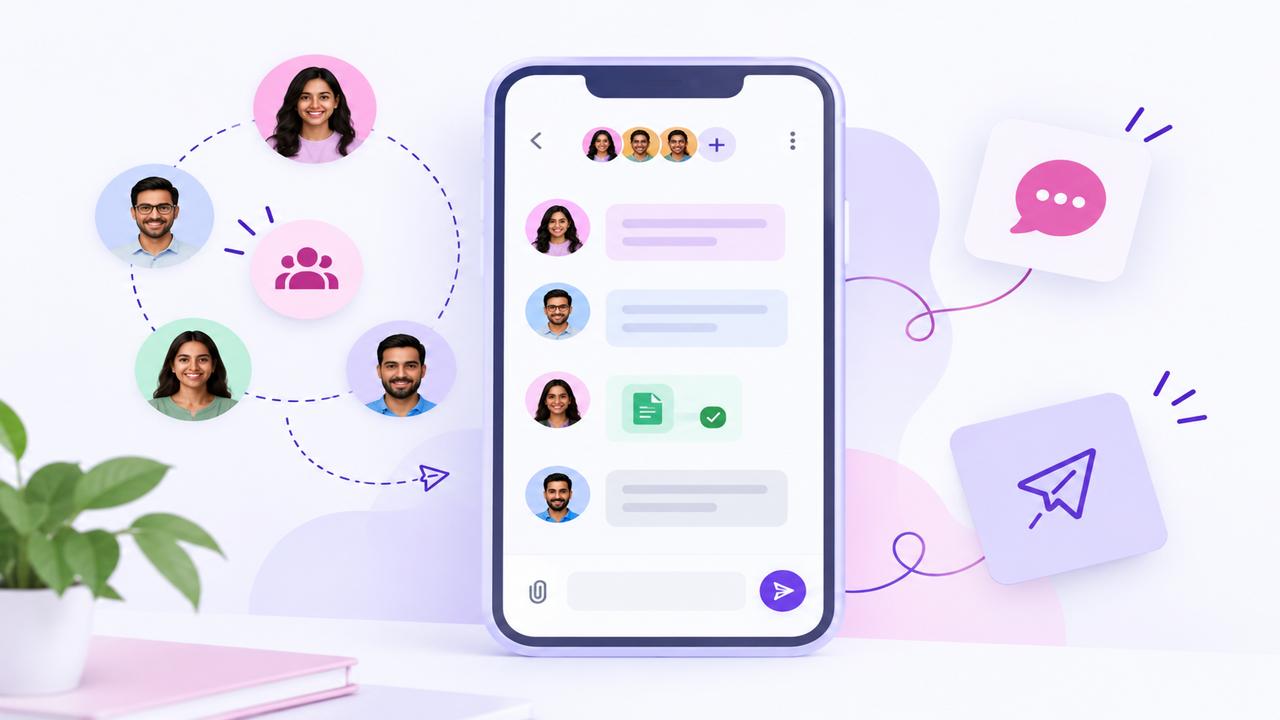
    With DialNext Group Texting, your business can bring multiple customers or participants into one shared SMS conversation, so everyone can see the same messages and replies in one place.

    Whether you’re coordinating a buyer and co-buyer, keeping a patient and caregiver aligned on appointment logistics, or connecting a customer with multiple people from your team, everyone stays in the same conversation.

    What Makes DialNext Group Texting Different?

    Group Texting isn’t just about sending the same SMS to several people. It creates a shared conversation.

    When your DialNext number sends a message, everyone in the group receives it. When any participant replies, that reply appears in the same group conversation—so everyone stays on the same page without managing separate 1:1 threads.

    Create a Group Text in a Few Steps

    Setting up a Group Text is simple:

    1. Open Group texts in your DialNext app.
    2. Choose a US/Canada DialNext number that can send and receive SMS.
    3. Give the group an internal name so your team can easily identify it.
    4. Add 2–9 US/Canada client numbers to the group.
    5. Write your first message.
    6. Select Create.

    Keep Conversations Flexible

    A customer can be part of more than one active Group Text, as long as each group has a different full participant list.

    For example:

    Group A: DialNext number + Buyer + Co-buyer + Agent
    Group B: DialNext number + Buyer + Co-buyer + Lender

    Both groups can stay active because their complete participant lists are different. This lets teams create separate conversations for different topics without forcing everyone into one large group thread.

    However, the exact same participant list cannot be active in two groups at the same time. To reuse that exact group, close the existing conversation first.

    Know the Limits

    Group Texting is designed for focused, multi-party conversations. Keep these limits in mind:

    • Group Texting currently supports US and Canada numbers (+1) for both the DialNext line and client numbers.
    • Each group requires at least 2 client numbers and supports up to 9 client numbers, for a maximum of 10 participants including the DialNext line.
    • The same exact participant list cannot be active in multiple groups at the same time, while partial overlap between different groups is allowed.
    • For US messaging, the DialNext number should be properly registered for US application-to-person business messaging.
    • Group Texts have a dedicated inbox separate from standard 1:1 messages.
    • Delivery may succeed for some recipients and fail for others, so delivery status can vary by participant.
    • Blocked contacts should not be added to a group.
    • Group Texting is designed for focused conversations rather than large multi-party threads.

    How Group Texting Is Billed

    Group Texting uses your workspace’s existing messaging allowance, the same SMS segment pool used for regular messages. There is no separate group-text-only meter.

    For outbound messages, usage depends on both the number of SMS segments and the number of client recipients.

    Outbound usage = SMS segments × number of client phones

    For example:

    • A 1-segment message sent to 2 clients uses 2 messaging units.
    • A 2-segment message sent to 3 clients uses 6 messaging units.
    • A 2-segment message sent to 5 clients uses 10 messaging units.

    Your DialNext number is not counted as a recipient. Included plan messaging segments are used first, followed by prepaid wallet usage for overage at the standard outbound SMS segment rates. Failed sends have their usage reversed. 

    Important: Group Texting does not use a separate group-text-only meter. Outbound usage is based on SMS segments multiplied by the number of client recipients.

    Where Group Texting Works Best

    Group Texting is useful whenever multiple people need to stay informed and respond within the same conversation.

    Real Estate

    Keep buyers, co-buyers, and other stakeholders aligned on showing times, offer updates, links, and important conversation details.

    Healthcare

    Coordinate scheduling and logistics between patients, caregivers, and coordinators. Group texting should remain focused on logistics, while applicable privacy and clinical communication policies continue to apply.

    Automotive

    Keep buyers, co-signers, sales managers, and other relevant team members connected. Separate groups can also be created for different stages, such as sales and service.

    Other Use Cases

    Group Texting can also support shared communication in home services, education and camps, and professional services. 

    Best Practices for Better Group Conversations

    A well-structured group makes communication easier for everyone involved. Keep these practices in mind:

    • Build the group around visibility: Add only the people who need to see and participate in the conversation.
    • Use overlapping groups intentionally: A customer can be part of multiple groups when each group has a different participant list.
    • Avoid unnecessary mega-groups: Keep conversations focused on the people and topic involved.
    • Name groups clearly: Use names such as “4481 Oak — Buyers” to make conversations easy for your team to identify.
    • Close completed conversations: Closing a group ends the live thread and makes that exact participant set available for reuse.
    • Stay within the supported limits: Use US/Canada numbers and keep the group within the 10-person total limit.
    • Keep messages concise: Longer messages may use multiple SMS segments, which affects messaging usage.
    • Choose the right conversation type: Use Group Texting when everyone needs to see the conversation, and 1:1 messaging when the conversation is private. 

    Frequently Asked Questions

    Can the same customer be part of two active Group Texts?

    Yes. A customer can be part of multiple active groups on the same DialNext line as long as the complete participant lists are different.

    Can I create the exact same Group Text twice?

    No. The exact same participant list cannot be active in two groups at the same time. Close the existing group first if you want to create that exact group again.

    How many people can be in a Group Text?

    Each Group Text includes one DialNext US/Canada number and 2–9 client numbers, for a maximum of 10 total participants.

    Is Group Texting the same as sending a broadcast or campaign?

    No. Group Texting creates a shared, two-way conversation where participants can see messages and replies. It is different from one-way campaigns or broadcasts.

    How is Group Texting billed?

    Outbound usage is based on SMS segments × number of client recipients. Group Texting uses the workspace’s existing messaging allowance, followed by prepaid wallet usage for overage. Replies use the normal messaging allowance, and failed sends are not charged.

    What happens when I close a Group Text?

    Closing a group ends the live conversation for that exact participant set and makes the participant set available to be used again later. 

  • Call Routing System: What Is It and How Does It Work?

    Call Routing System: What Is It and How Does It Work?

    Call routing is a phone system feature that directs incoming calls to the right person, team, or destination based on predefined rules. It helps businesses manage incoming calls more efficiently, reduce unnecessary transfers, and connect callers with the appropriate agent faster.

    What Is Call Routing?

    Call routing is a phone system feature that automatically directs incoming calls to the right person, team, department, or destination based on predefined rules. These rules can consider factors such as the caller’s needs, business hours, agent availability, or the caller’s location.

    Instead of manually transferring every call, businesses can use call routing to create an organized call flow. This helps callers reach the appropriate destination faster and makes it easier for teams to manage incoming calls efficiently.

    For example, a business can route sales calls to the sales team, support calls to customer service, and calls received outside business hours to voicemail or an after-hours team.

    How Does Call Routing Work?

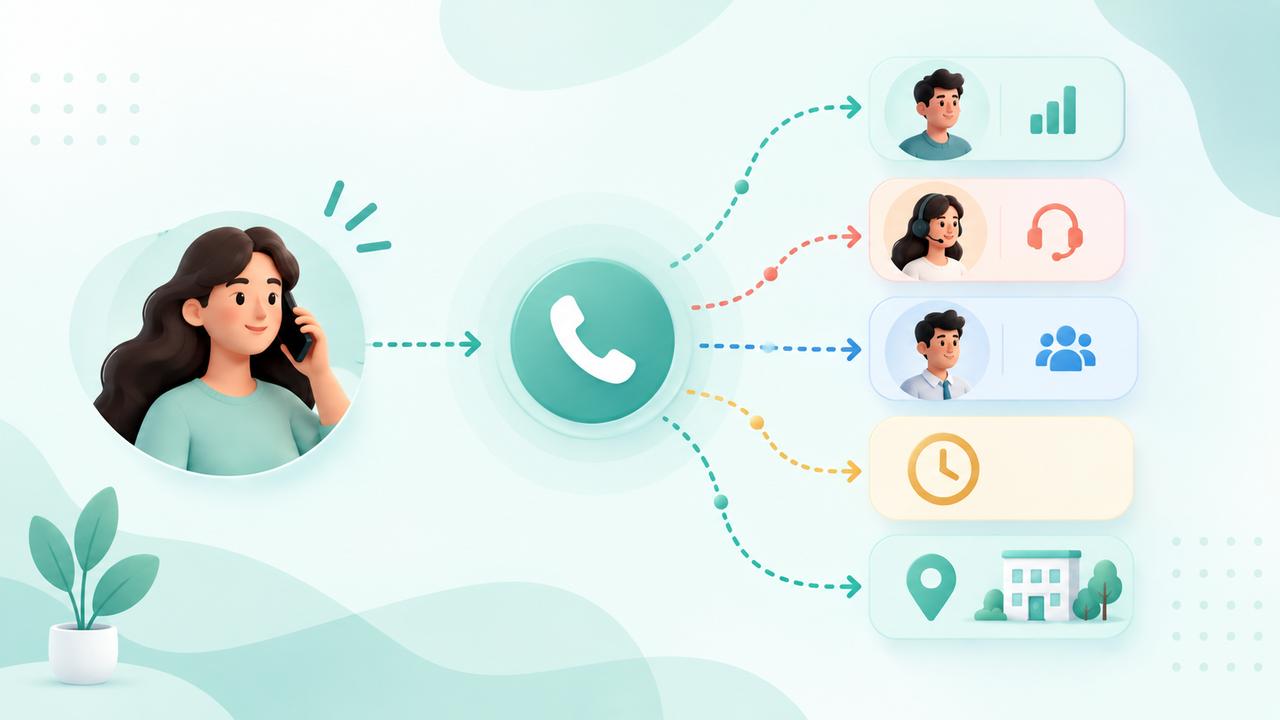
    Call routing works by applying predefined rules to incoming calls and directing each call to the most appropriate person, team, or destination.

    A typical call routing process works like this:

    1. Incoming call: A customer calls the business phone number.
    2. Routing rules are checked: The system evaluates rules such as business hours, agent availability, caller location, or team.
    3. Call is directed: The system sends the call to the appropriate agent, team, queue, or destination.
    4. Fallback routing: If the selected agent is unavailable, the call can be redirected to another agent, voicemail, or a backup destination.

    This process helps businesses handle incoming calls efficiently without requiring someone to manually transfer every call.

    Types of Call Routing

    1. Round-Robin Routing

    Calls are distributed evenly among available agents, giving each agent a turn to handle the next incoming call.

    2. Sequential Routing

    The system tries agents in a specific order. If the first agent does not answer, the call moves to the next available agent.

    3. Skills-Based Routing

    Calls are directed to agents based on their skills, expertise, or department, helping callers reach the most suitable person.

    4. Time-Based Routing

    Calls are routed differently depending on the time of day and business hours. For example, calls outside working hours can be sent to voicemail or an after-hours team.

    5. Location-Based Routing

    Calls are routed based on the caller’s location or region. This can help businesses connect customers with the appropriate local team or office.

    Benefits of Call Routing

    Call routing helps businesses manage incoming calls more efficiently and create a better experience for callers. Key benefits include:

    • Faster call handling: Connect callers with the right person or team without unnecessary transfers.
    • Better agent efficiency: Distribute calls based on agent availability, skills, or other routing rules.
    • Fewer missed calls: Route unanswered calls to another agent, team, or backup destination.
    • Improved customer experience: Help callers reach the appropriate department faster.
    • Flexible call management: Adjust routing rules for business hours, holidays, locations, and changing team availability.

    Common Business Use Cases

    • Sales teams: Route new customer inquiries directly to sales representatives.
    • Customer support: Send support calls to the appropriate support team or queue.
    • Remote teams: Connect callers with available employees regardless of their location.
    • After-hours calls: Route calls received outside business hours to voicemail, an on-call team, or another destination.
    • Multi-location businesses: Direct callers to the appropriate office or regional team based on routing rules.

    Call Routing vs IVR

    Call routing and Interactive Voice Response (IVR) are related phone system features, but they serve different purposes.

    IVR interacts with callers by providing voice prompts and allowing them to select options, such as pressing a number to choose Sales or Support. Call routing determines where the call should go based on predefined rules such as department, agent availability, business hours, or caller information.

    For example, an IVR can ask a caller to “Press 1 for Sales or 2 for Support,” while call routing sends the caller to the appropriate team after the selection is made.

    Businesses can use both features together to create an organized and efficient incoming call flow.

    Call Routing vs Call Queues

    Call routing determines where an incoming call should be sent, while a call queue manages callers waiting to speak with an available agent.

    For example, call routing can direct a customer to the Support team, while the call queue can place the customer in a waiting line until a support agent becomes available.

    Businesses often use both together to manage incoming calls efficiently and reduce missed calls.

    Common Call Routing Problems

    • Incorrect routing rules: Calls may reach the wrong team or agent if routing rules are not configured correctly.
    • Uneven call distribution: Some agents may receive more calls than others, affecting response times and workload.
    • Missed calls: Calls can be missed when agents are unavailable and no backup routing is configured.
    • Complex call flows: Too many routing conditions can make the call flow difficult to manage and maintain.
    • Outdated routing settings: Changes in team availability, working hours, or business structure can make existing routing rules ineffective.

    Call Routing Best Practices

    • Keep routing rules simple: Use clear and straightforward rules that are easy to manage and update.
    • Route calls based on agent availability: Send calls only to available agents whenever possible.
    • Set up fallback options: Configure voicemail, backup teams, or alternate numbers for unanswered calls.
    • Review routing rules regularly: Update rules when business hours, team structure, or agent availability changes.
    • Test call flows: Regularly test different scenarios to make sure calls reach the correct destination.

    How to Set Up a Call Routing System

    Setting up a call routing system involves defining how incoming calls should be handled and where they should be directed.

    1. Define your call flow: Decide how incoming calls should move through your phone system.
    2. Choose routing rules: Set rules based on factors such as agent availability, business hours, department, or location.
    3. Assign call destinations: Select the appropriate agents, teams, queues, or external numbers for each rule.
    4. Set up fallback options: Configure voicemail or alternate destinations for calls that cannot be answered.
    5. Test the call flow: Make test calls to confirm that each routing rule works as expected.
    6. Monitor and update: Review call performance and adjust routing rules as your business needs change.

    When Should a Business Use Call Routing?

    Call routing is useful for businesses that receive a high volume of incoming calls or need to connect callers with specific teams or agents.

    Businesses should consider call routing when they:

    • Receive calls for multiple departments, such as Sales and Support.
    • Have remote or distributed teams handling customer calls.
    • Need to manage calls outside regular business hours.
    • Want to reduce missed calls and unnecessary transfers.
    • Need to route calls based on agent availability, location, or specific business rules.

    A well-configured call routing system can make incoming call management more organized and help businesses provide a faster, more consistent caller experience.

    FAQs

    What is call routing?

    Call routing is a phone system feature that directs incoming calls to the appropriate person, team, department, or destination based on predefined rules.

    How does call routing work?

    Call routing uses configured rules such as agent availability, business hours, location, or department to determine where an incoming call should be sent.

    What is the difference between call routing and IVR?

    IVR interacts with callers through voice prompts and menu options, while call routing determines where the call should be directed based on predefined rules.

    Can call routing reduce missed calls?

    Yes. Businesses can configure fallback options such as another agent, team, external number, or voicemail when the primary destination is unavailable.

    Can call routing work outside business hours?

    Yes. Time-based routing can direct after-hours calls to voicemail, an on-call team, or another designated destination.

    Is call routing useful for remote teams?

    Yes. Call routing can direct incoming calls to available agents regardless of their physical location, making it useful for remote and distributed teams.

    Conclusion

    Call routing helps businesses manage incoming calls by directing callers to the right person, team, or destination based on predefined rules. With the right routing strategy, businesses can reduce missed calls, improve agent efficiency, and provide a smoother caller experience.

    As business needs change, regularly reviewing and updating routing rules can help keep the call flow efficient and reliable.

  • What Is IVR? How Does Interactive Voice Response Work?

    What Is IVR? How Does Interactive Voice Response Work?

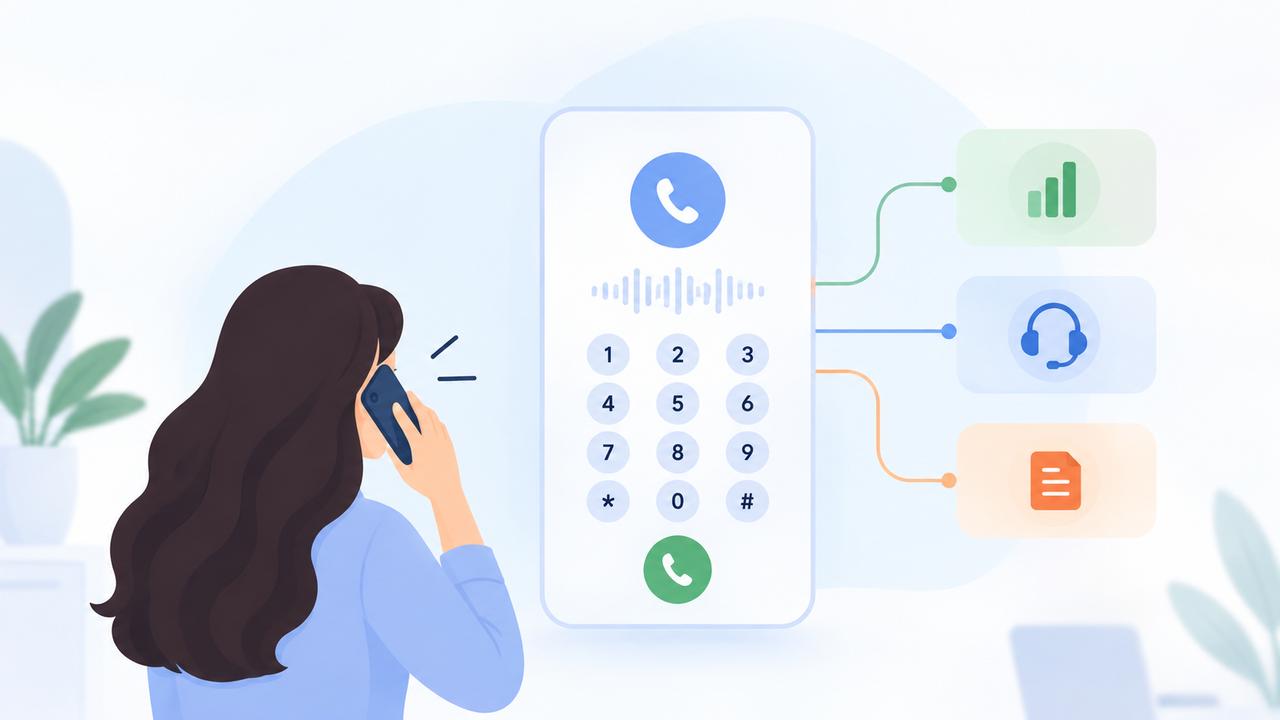
    Interactive Voice Response (IVR) is an automated phone technology that lets callers interact with a business using keypad selections or spoken responses. It helps businesses manage incoming calls, understand customer needs, and connect callers with the right team.

    For example, when you call a company and hear, “Press 1 for Sales, Press 2 for Support, or Press 3 for Billing,” you are using an IVR system.

    Instead of sending every caller to the same person, businesses can use automated menus to organize calls. As a result, customers can reach the right department more easily.

    In this guide, we’ll explain what IVR is, how it works, its main types, benefits, common use cases, and best practices.

    What Is IVR?

    Interactive Voice Response (IVR) is a phone system technology that allows callers to interact with automated prompts using their phone keypad or, where supported, their voice.

    The system presents callers with a set of options and uses their responses to determine the next step.

    For example:

    Incoming call → Greeting → Caller selects Support → Call routed to Support team

    Depending on the configuration, an IVR can do more than route calls. It can help collect information, provide automated instructions, handle simple requests, and connect callers with the appropriate agent or queue.

    This makes it particularly useful for businesses that receive calls from customers, prospects, partners, or other external contacts and need a consistent way to manage those conversations.

    How Does an IVR System Work?

    An IVR system follows a set call flow to understand what the caller needs. It then uses the caller’s input to determine the next step.

    Although every setup can be different, a typical call follows these steps:

    1. First, the caller dials the business number
    The call reaches the business phone system, which activates the configured call flow.

    2. Next, an automated greeting plays
    The caller hears a welcome message and instructions, such as which number to press for different departments.

    3. After that, the caller provides an input
    The caller can select an option using the phone keypad (DTMF) or, where supported, by speaking their response.

    4. The system then processes the selection
    It matches the caller’s input with the configured call flow and determines the appropriate destination.

    5. Based on the response, the call is routed
    The call can then be sent to a specific team, agent, queue, or another destination.

    6. Finally, the caller reaches the appropriate destination
    The call connects to the selected destination, helping the caller reach the right person without manual transfers.

    Different Types of Interactive Voice Response

    Businesses can configure automated phone menus in different ways depending on their customer communication needs.

    1. Menu-Based IVR

    This is the traditional approach where callers choose from predefined options.

    For example:

    • Press 1 for Sales
    • Press 2 for Support
    • Press 3 for Billing

    It works well when a business has clearly defined departments or call reasons.

    2. Self-Service IVR

    Self-service flows allow callers to complete simple tasks without speaking with an agent.

    Depending on the system, this could include providing information, confirming details, or following automated instructions.

    Self-service can reduce unnecessary agent involvement when the caller’s request does not require human assistance.

    3. Call Routing IVR

    Here, the caller’s selection determines where the call should go.

    For example:

    Press 1 → Sales team
    Press 2 → Customer Support
    Press 3 → Accounts

    This is useful for organizations with multiple teams handling inbound communication.

    4. Hybrid IVR

    A hybrid approach combines automation with human assistance.

    The automated flow can handle simple interactions first and transfer the caller to an agent when additional help is required.

    The best approach depends on the business’s call volume, team structure, customer expectations, and the complexity of its workflows.

    Benefits of Using IVR for Business Calls

    A well-designed IVR can make incoming calls easier to manage. It can also improve the experience for customers and employees.

    Here are some of the main benefits:

    1. Faster Call Routing

    Callers can select the department they need instead of waiting for an employee to manually redirect them.

    2. Better Customer Experience

    Clear instructions give callers a predictable path and make it easier to find the right team.

    3. Less Manual Call Handling

    The initial interaction and routing process can happen automatically, reducing repetitive work for employees.

    4. Consistent Call Management

    Businesses can provide a consistent experience to callers throughout the day. This also reduces the need for employees to manage every incoming call manually.

    5. Easier High-Volume Call Management

    When several customers call at the same time, automated menus can help organize traffic before calls reach agents or queues.

    6. Better Use of Agent Time

    Agents can spend more time handling conversations that require human assistance instead of repeatedly answering calls only to transfer them elsewhere.

    7. More Structured Business-Hour Handling

    Different call flows can be configured for working hours, after-hours, weekends, or holidays, depending on the phone system.

    Common Business Use Cases

    Automated call flows are useful anywhere a business needs to organize inbound conversations.

    Sales

    Route prospects directly to the sales team based on the option they select.

    Customer Support

    Send callers to the appropriate support team instead of making them explain their issue to the wrong department first.

    Billing and Accounts

    Create a dedicated path for billing, payment, or account-related questions.

    Appointments and Service Requests

    Help customers reach the team responsible for scheduling or service-related requests.

    Multi-Department Organizations

    Companies with Sales, Support, Billing, Operations, and other teams can create separate paths for each department.

    High-Volume Inbound Calls

    Organizations that receive many calls at the same time can combine automated menus with queues and routing rules. This makes incoming call traffic easier to manage.

    IVR vs. Call Routing: What’s the Difference?

    IVR and call routing are closely connected, but they perform different jobs.

    IVR interacts with the caller and collects their input.

    Call routing determines where the call should go.

    For example:

    Customer calls → Automated greeting → “Press 1 for Sales” → Caller presses 1 → Routing sends the call to Sales

    In this example, the voice menu collects the caller’s choice, while the routing logic determines the destination.

    A simple way to remember the difference is:

    IVR = What does the caller need?
    Call routing = Where should the caller go?

    IVR vs. AI Voice Agents: What’s the Difference?

    Traditional automated menus and AI voice agents can both automate phone interactions, but they are designed for different types of conversations.

    Traditional IVR

    A traditional setup generally follows a predefined call flow. Callers choose from available options, and the system follows the configured path.

    For example:

    “Press 1 for Sales. Press 2 for Support. Press 3 for Billing.”

    This approach works well when a business needs simple and predictable call routing.

    AI Voice Agents

    AI voice agents are designed for more conversational interactions. Instead of requiring callers to choose from a fixed menu, they can understand spoken requests and respond based on the configured workflow.

    For example:

    AI voice agent:
    “How can I help you today?”

    Caller:
    “I need to reschedule my appointment.”

    The conversation can then continue based on the caller’s request, depending on the available workflow and integrations.

    Can They Work Together?

    Yes. Businesses can combine both technologies to create a more flexible calling experience.

    For example, an automated menu can handle the initial call routing, while an AI voice agent can manage more conversational requests. A human agent can also take over when the caller needs personal assistance.

    Ultimately, the right approach depends on the business’s needs. IVR is well suited to simple, predictable routing, while AI voice agents are better suited to flexible and conversational interactions.

    Common Problems With Automated Call Menus

    Automation can improve call management. However, a poorly designed menu can make the customer experience worse.

    The most common problems include:

    1. Too Many Options

    Long menus can overwhelm callers and make it difficult to find the right choice.

    2. Too Many Menu Levels

    Forcing callers through several layers before they reach an agent can increase frustration and unnecessary call abandonment.

    3. Unclear Instructions

    Prompts should clearly explain what each option does. Long or confusing messages can cause callers to select the wrong option.

    4. No Clear Human-Agent Option

    Some customers need to speak with a person. A well-designed flow should provide a reasonable path to human assistance when automation cannot solve the request.

    5. Incorrect Routing

    If routing rules are outdated or incorrectly configured, callers may end up with the wrong department or an unavailable team.

    6. Outdated Information

    Business hours, department names, and other recorded information should be reviewed regularly.

    The purpose of automation should be to make the caller’s journey shorter and clearer, not to create more steps.

    IVR Best Practices for Businesses

    A good IVR should help callers reach the right destination quickly. Therefore, the menu should be simple, clear, and easy to follow.

    Keep these best practices in mind when creating your call flow:

    1. Keep Menus Simple

    Include only the options callers actually need.

    Avoid creating a separate menu option for every possible request.

    2. Use Short, Clear Prompts

    Tell callers exactly what each option does.

    Avoid unnecessary explanations before presenting the choices.

    3. Put Common Options First

    Place frequently selected options where callers can access them quickly.

    4. Provide a Path to a Human Agent

    Not every issue can be handled through automation. Make it easy for callers to reach an employee when necessary.

    5. Plan for Business Hours

    Your call flow should account for working hours, after-hours periods, weekends, and holidays where relevant.

    6. Configure Fallback Paths

    Decide what should happen if:

    • The caller does not select an option
    • The selected team is unavailable
    • The caller chooses an invalid option
    • The queue reaches its limit

    7. Test the Complete Flow

    Call the number yourself and test every available path.

    Don’t test only the successful path. Also check incorrect inputs, no response, unavailable agents, and after-hours behavior.

    8. Review the Flow Regularly

    Departments, teams, business hours, and customer needs change over time. Update your call flow whenever the underlying business process changes.

    How Does IVR Fit Into a Business Phone System?

    An automated voice menu is usually one part of a larger business phone system.

    A typical inbound call flow can look like this:

    Incoming Call → IVR → Call Routing → Ring Group or Queue → Agent

    Each component has a different role.

    • IVR collects the caller’s choice.
    • Call routing determines the destination.
    • Ring groups can distribute calls among selected agents.
    • Queues can hold callers when agents are busy.
    • Business-hour rules can determine what happens during and outside working hours.
    • Caller identification can provide information about the incoming caller.
    • CRM integrations can connect call activity with customer records, depending on the platform.

    Together, these features create a more structured way to manage inbound customer communication.

    How to Create an Effective IVR Call Flow

    Creating an effective IVR starts with understanding why customers call your business. Next, group those requests into a simple and logical call flow.

    Follow these steps:

    Step 1: Identify Common Call Reasons

    List the most frequent reasons customers contact you.

    For example:

    • Sales inquiries
    • Technical support
    • Billing questions
    • Appointments
    • General information

    Step 2: Group Similar Requests

    Avoid creating a separate option for every small request.

    Group related questions under the department or service that handles them.

    Step 3: Define Where Each Call Should Go

    Decide which team, agent, ring group, or queue should handle each category.

    Step 4: Create Fallback Paths

    Determine what happens when the preferred destination is unavailable.

    For example:

    Sales team unavailable → Sales queue → Voicemail or fallback destination

    Step 5: Write the Prompts

    Keep the greeting and menu instructions short.

    For example:

    “Press 1 for Sales, 2 for Support, or 3 for Billing.”

    Step 6: Test the following scenarios:

    • Correct selections
    • Incorrect selections
    • No input
    • Unavailable agents
    • Busy queues
    • After-hours calls

    Step 7: Review and Improve

    Monitor how the call flow performs and make changes when customer needs or internal processes change.

    The best call flow is not necessarily the most complex one. It is the one that helps callers reach the right destination with the fewest unnecessary steps.

    When Should a Business Use IVR?

    IVR can be useful for businesses that receive regular incoming calls. It is especially helpful when different teams handle different types of requests.

    A business may benefit from IVR when:

    • Customers frequently contact different departments.
    • Your team receives enough calls that manual transfers become inefficient.
    • Sales, Support, Billing, or other teams handle different types of calls.
    • You need different call behavior during and outside business hours.
    • Multiple agents handle incoming calls.
    • You want to reduce unnecessary transfers.
    • Call queues and routing rules are an important part of your workflow.

    However, not every business needs an elaborate setup.

    If a small team receives a limited number of calls and the same person handles most inquiries, a complex menu may add unnecessary friction.

    Use automation when it makes the customer journey simpler—not simply because the feature is available.

    Frequently Asked Questions About IVR

    What does IVR stand for?

    IVR stands for Interactive Voice Response. It is a phone technology that allows callers to interact with automated prompts using keypad inputs or supported voice responses.

    What is the main purpose of IVR?

    The main purpose is to organize inbound calls and guide callers to the appropriate department, agent, queue, or service.

    Can IVR route calls to different departments?

    Yes. A business can configure different options for departments such as Sales, Support, Billing, or Operations and route callers based on their selection.

    Is IVR the same as an auto attendant?

    The terms are sometimes used interchangeably, but they can describe slightly different capabilities.

    An auto attendant primarily provides a menu and directs callers to the appropriate destination. IVR can include similar routing functionality while also supporting interactive inputs and, depending on the system, automated self-service workflows.

    Can IVR work with AI voice agents?

    Yes. Businesses can combine structured automated routing with AI voice agents.

    For example, an automated menu can handle the initial routing, while an AI voice agent can handle a more conversational interaction afterward.

    Does IVR work only with keypad inputs?

    No. Many systems support keypad inputs, while some also support spoken responses. The available input methods depend on the phone platform and configuration.

    Conclusion

    IVR gives businesses a structured way to manage inbound calls. It can help callers reach the right department faster while reducing repetitive manual transfers for employees.

    The most effective setup is usually a simple one: clear options, short prompts, accurate routing, useful fallback paths, and an easy way to reach human assistance when needed.

    When combined with features such as call routing, queues, ring groups, business-hour rules, caller identification, and CRM integrations, an automated voice menu can become an important part of a modern business phone system.

    The goal isn’t to automate every conversation. The goal is to make every incoming call easier to manage—for both the customer and the business.

  • DialNext Gorgias Integration: Connect Gorgias with DialNext

    DialNext Gorgias Integration: Connect Gorgias with DialNext

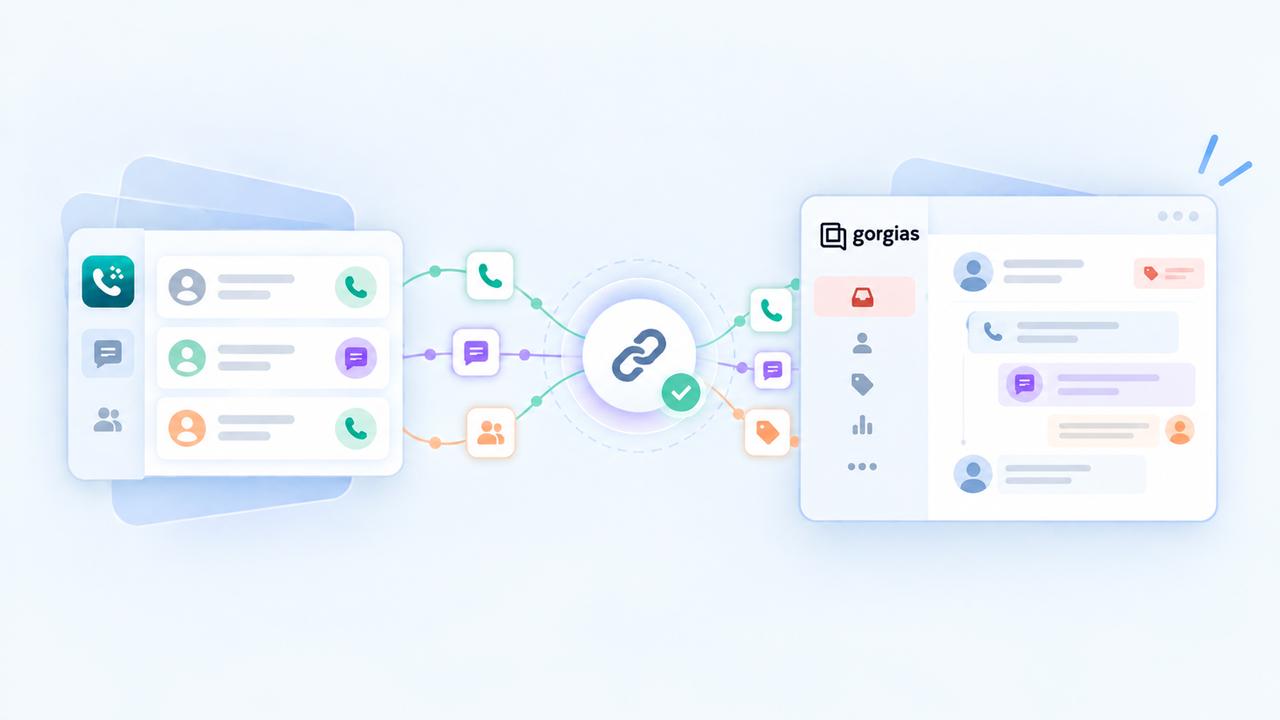
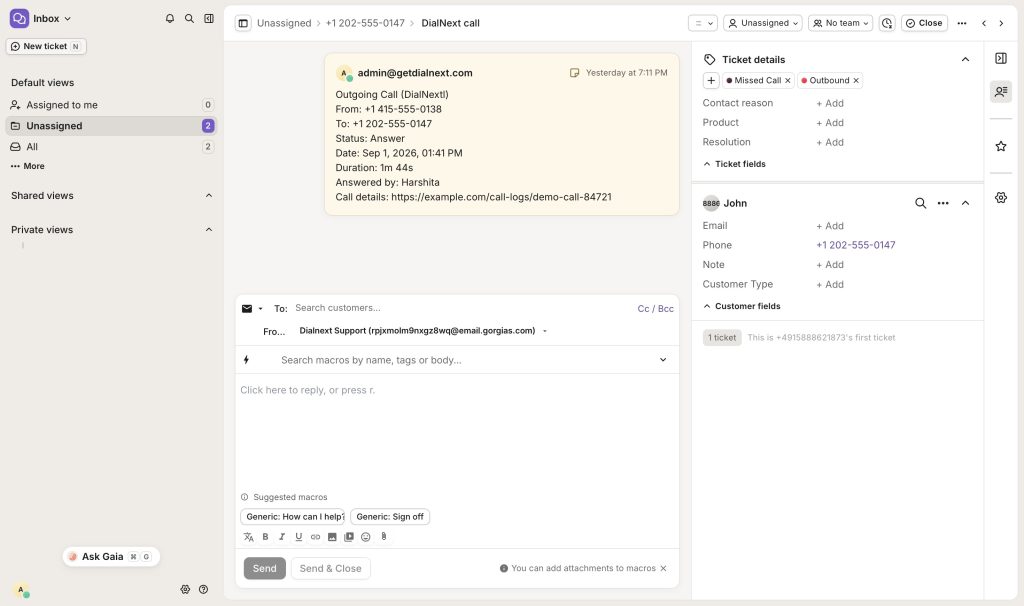
    DialNext Gorgias integration lets you connect your DialNext account with Gorgias and log call and SMS activity directly as tickets in Gorgias. Follow the steps below to complete the integration and keep your customer communication organized.

    How to integrate DialNext with Gorgias

    1. Log in or sign up to your DialNext account.
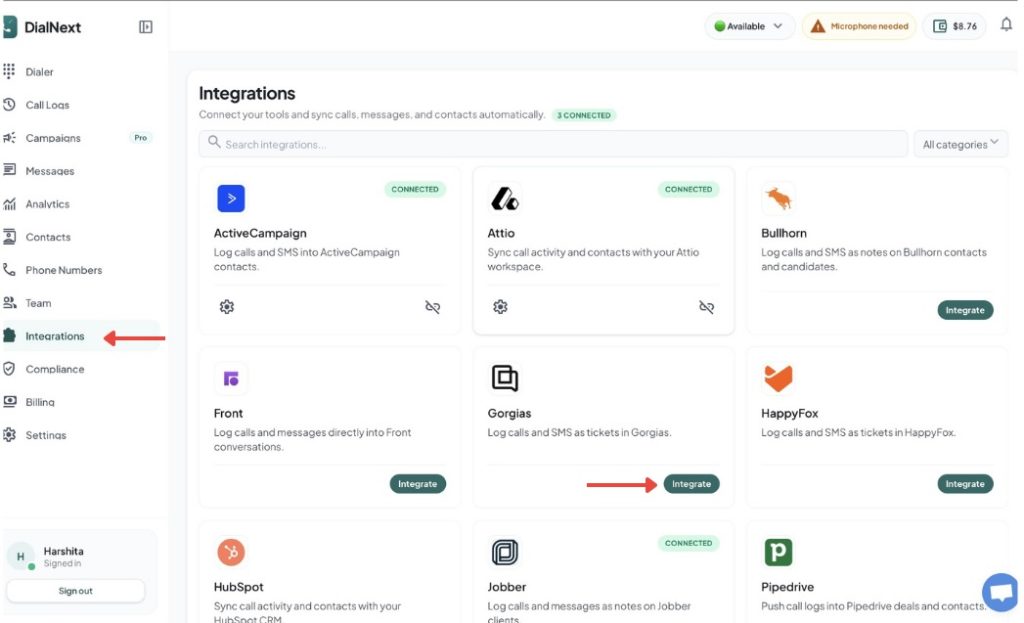
    2. In the left sidebar, click Integrations.
    3. Find Gorgias in the integrations list and click Integrate.

    4. Authorize the connection between DialNext and Gorgias.

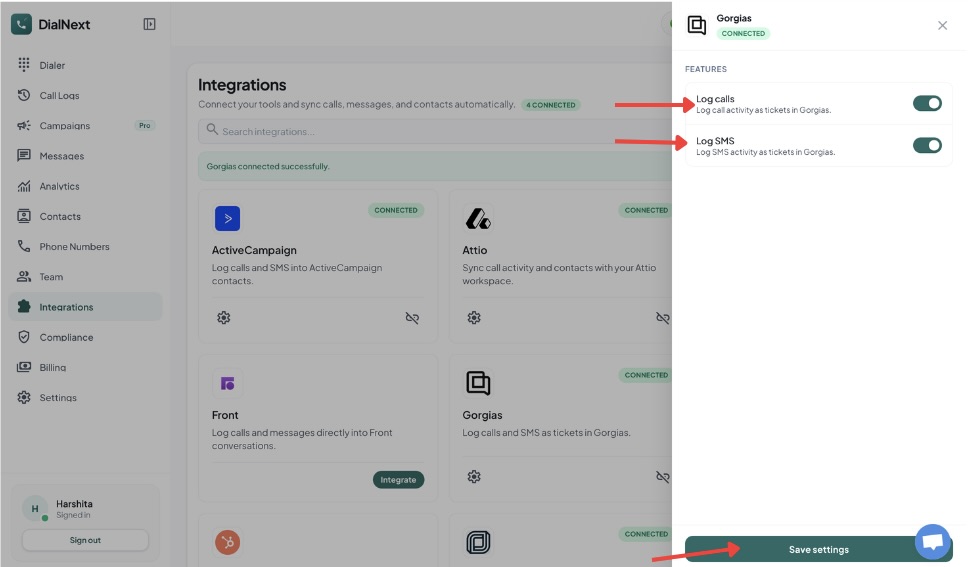
    5. Choose the features you want to enable.

    6. Click Save settings to complete the integration.

    7. Make a test call or send an SMS from DialNext to verify that the activity is logged in Gorgias.

    Your DialNext account is now successfully connected to Gorgias.

    What does the DialNext Gorgias integration do?

    The DialNext Gorgias integration connects your DialNext account with Gorgias so your team can manage customer communication in one place. Once connected, DialNext can log call and SMS activity directly in Gorgias tickets.

    This integration helps support teams keep communication records organized. Instead of manually adding call or SMS details to each ticket, the activity can be recorded automatically. Your team can then review customer interactions while working inside Gorgias.

    You can enable the features that match your workflow and save the integration settings. After setup, make a test call or send an SMS from DialNext to confirm that the activity appears correctly in Gorgias.

    How to use the integration

    After completing the DialNext Gorgias integration, make sure the required features are enabled in the integration settings.

    You can enable call logging and SMS logging based on your workflow. Once the settings are saved, calls and SMS messages made through DialNext can be recorded as tickets in Gorgias.

    If you encounter any issues, you can reach us at help@dialnext.io

  • DialNext Jobber Integration: How to Connect Jobber with DialNext?

    DialNext Jobber Integration: How to Connect Jobber with DialNext?

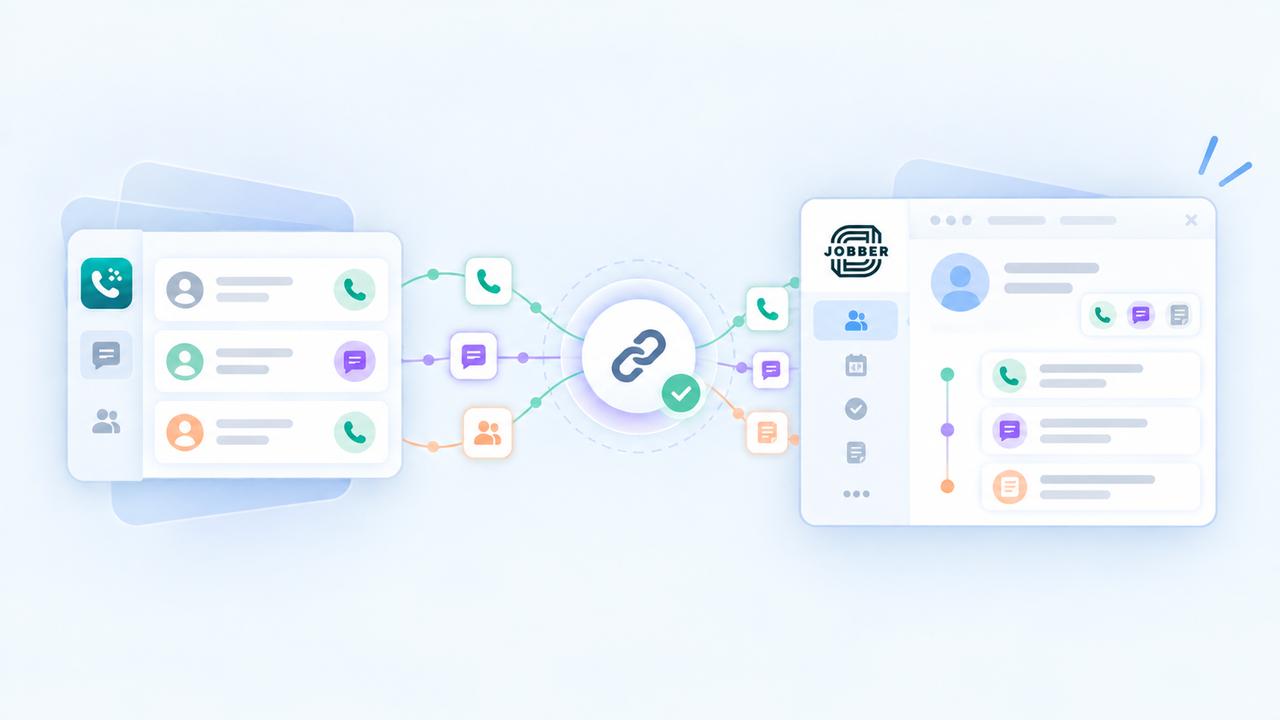
    DialNext Jobber integration lets you connect your DialNext account with Jobber and log call and SMS activity directly as notes on Jobber clients. Follow the steps below to complete the integration quickly and start keeping your client communication organized.

    How to integrate DialNext with Jobber

    1. Log in or sign up to your DialNext account.

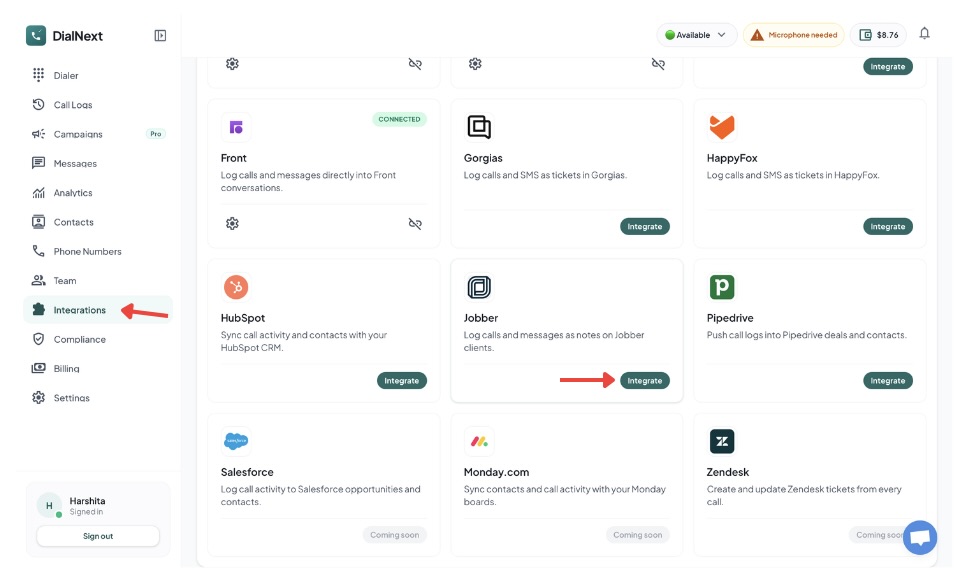
    2. In the left sidebar, click Integrations.

    3. Find Jobber in the integrations list and click Integrate.

    4. Authorize the connection between DialNext and Jobber.

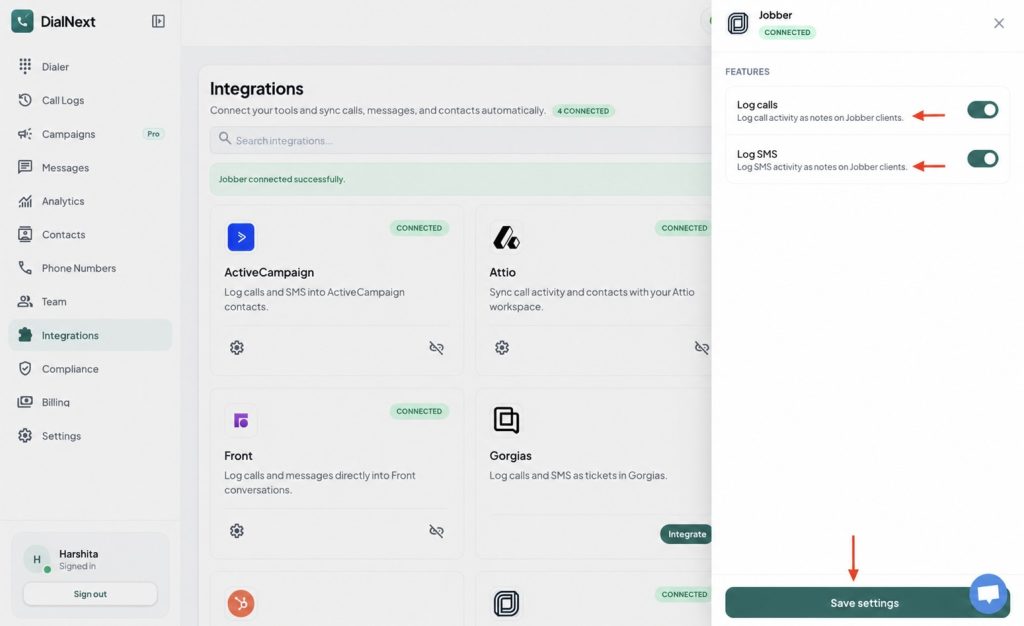
    5. Choose the features you want to enable.

    6. Click Save settings to complete the integration.

    7. Make a test call or send an SMS from DialNext to verify that the activity is logged in Jobber.

    Your DialNext account is now successfully connected to Jobber.

    What does the DialNext Jobber integration do?

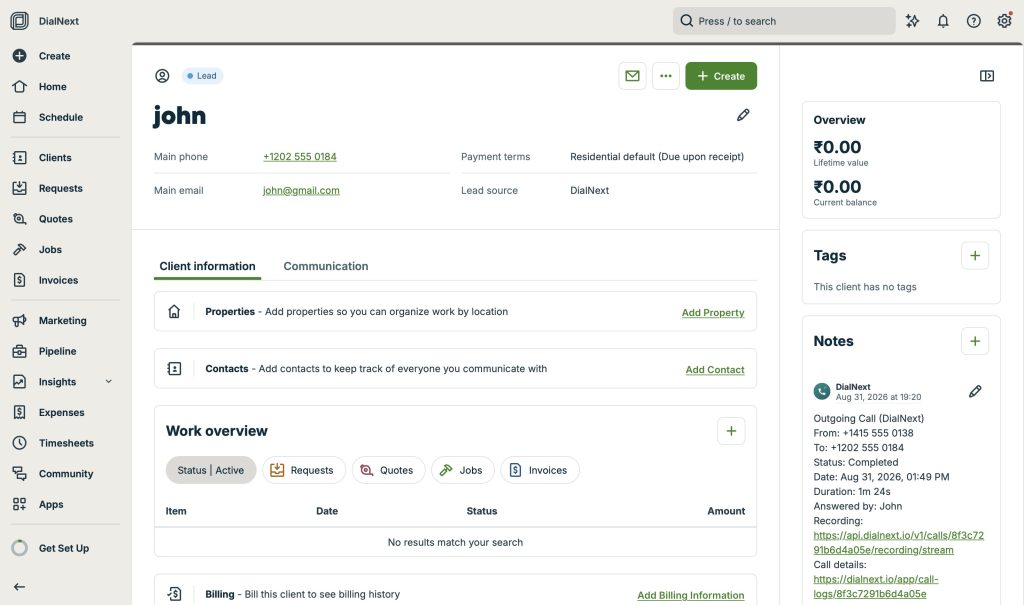
    The DialNext Jobber integration helps you keep your client communication organized by connecting your DialNext account with Jobber. Once connected, call activity and SMS activity can be logged as notes on your Jobber clients. This makes it easier to keep track of customer interactions without manually adding communication details to Jobber.

    How to use the integration

    After completing the DialNext Jobber integration, make sure the required features are enabled in the integration settings. You can enable call logging and SMS logging based on your workflow. Once the settings are saved, your DialNext communication activity can be recorded in Jobber client notes.


    If you encounter any issues, you can reach us at help@dialnext.io

  • How to integrate DialNext with Attio?

    How to integrate DialNext with Attio?

    Integrate DialNext with Attio in a few simple steps.

    How to integrate DialNext with Attio

    1. Log in or sign up to your DialNext account.
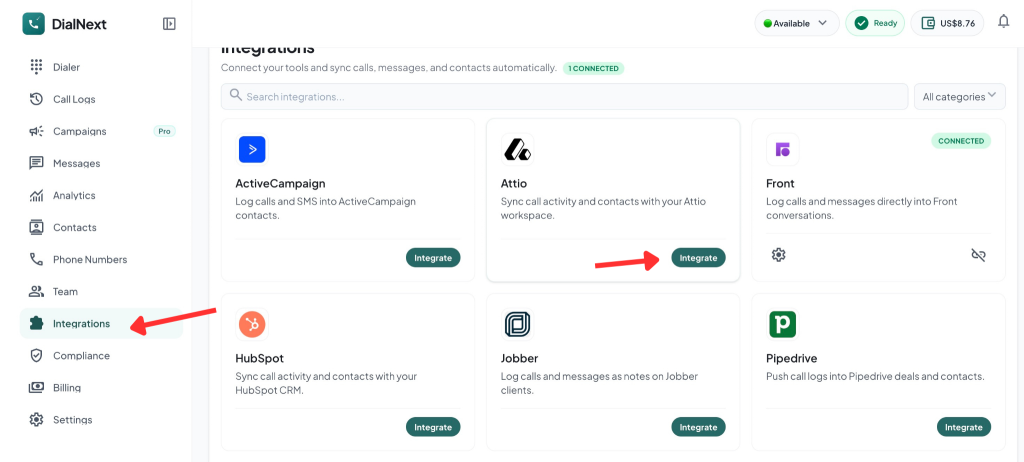
    2. In the left sidebar, click Integrations.
    3. Find Attio in the integrations list and click Integrate.

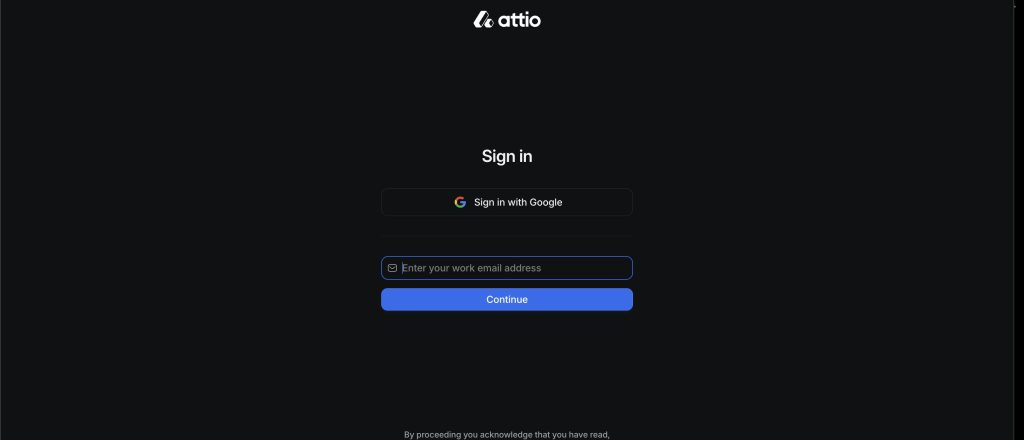
    4. Sign in to your Attio account using your work email or Google.

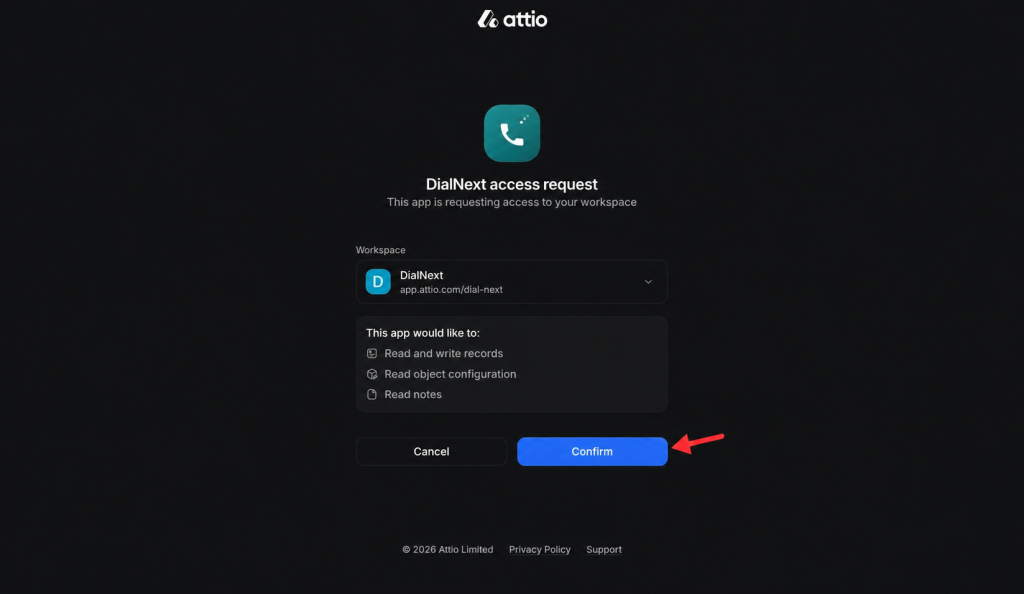
    5. Select your DialNext workspace and click Confirm to Authorize the connection.

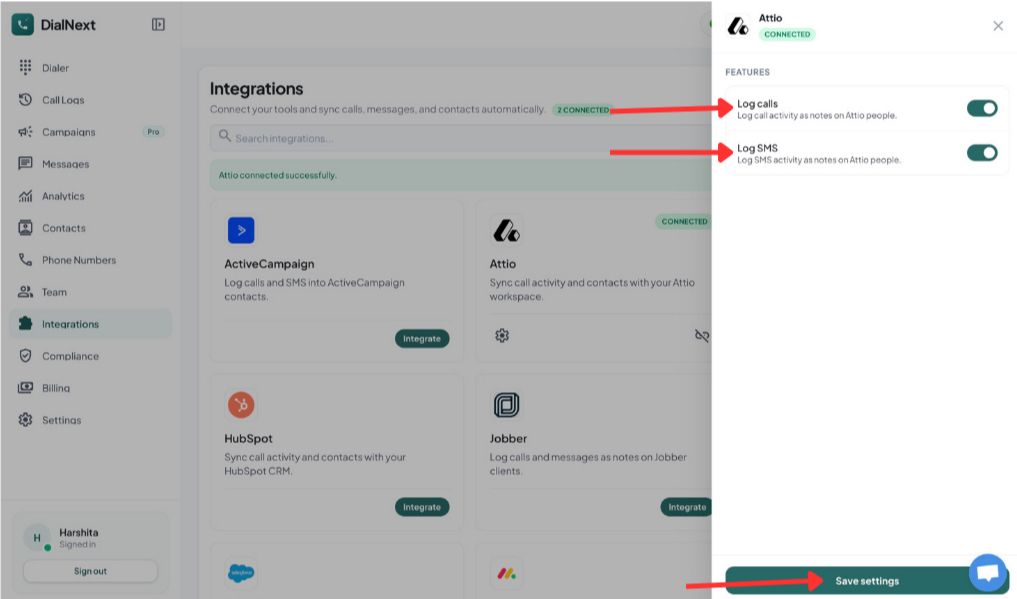
    6.Choose the features you want to enable, then click Save settings.

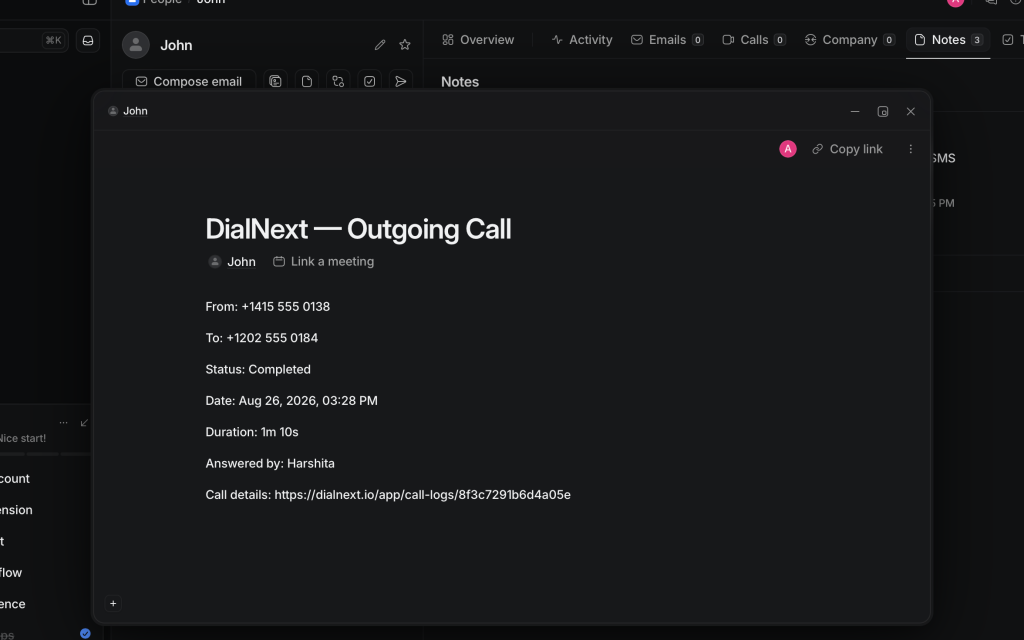
    7. Make a test call or send an SMS from DialNext to verify that the activity is logged in Attio.

    Your DialNext account is now successfully connected to Attio.

    If you encounter any issues, you can reach us at help@dialnext.io.

  • What Are Unicode SMS and GSM Encoding?

    What Are Unicode SMS and GSM Encoding?

    SMS Encoding determines how characters inside a text message are converted and transmitted across mobile networks. Different encoding formats affect which characters you can use and how many characters fit inside a single SMS segment.

    Understanding Unicode SMS and GSM encoding helps businesses avoid unexpected message splitting, higher SMS usage, and formatting issues when sending messages at scale.

    Why Does SMS Encoding Matter?

    Every SMS message has a character limit. However, that limit changes depending on the characters used inside the message.

    For example, a simple English text message usually supports more characters than a message containing emojis or certain special characters.

    SMS Encoding helps determine:

    • How messages are processed
    • How many SMS segments are created
    • Which characters are supported
    • How messages appear on customer devices

    As a result, businesses can better manage messaging costs and customer experience.

    What Is GSM Encoding?

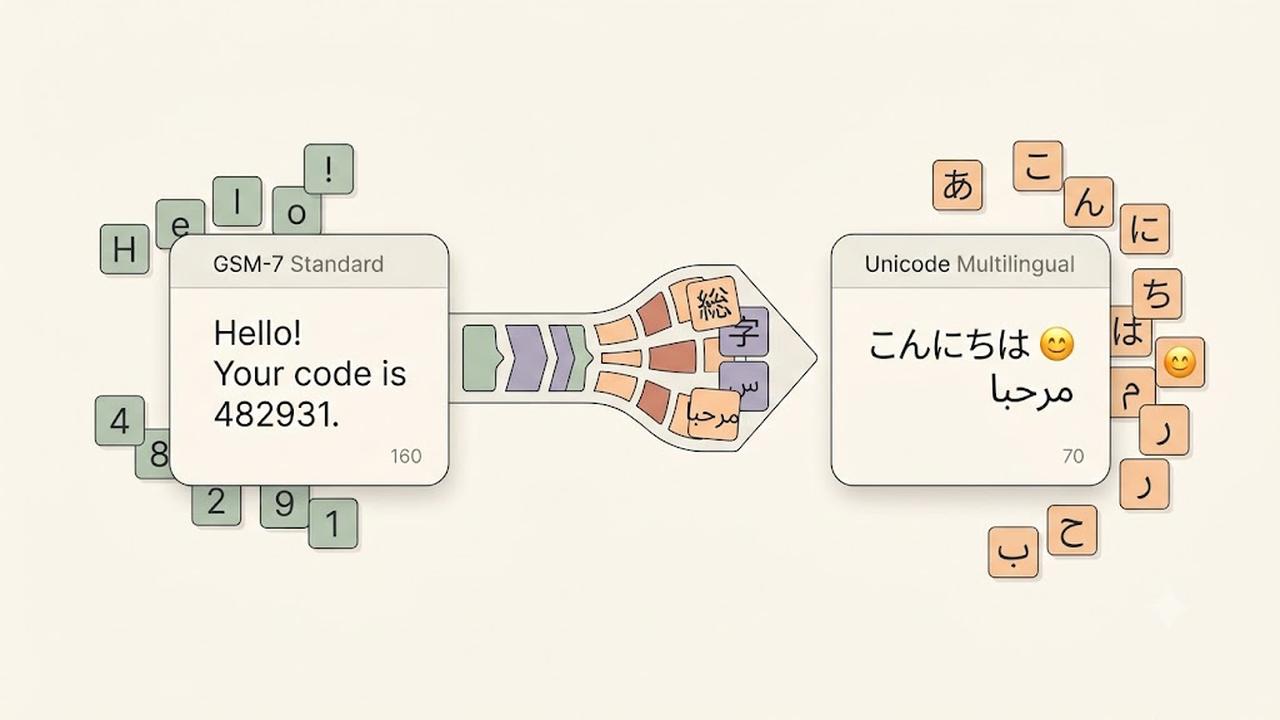
    GSM encoding, also called GSM-7, is the standard character set used for most SMS messages.

    It supports common characters such as:

    • English letters
    • Numbers
    • Basic punctuation
    • Common symbols

    A single GSM encoded SMS message supports up to 160 characters.

    Examples:

    Hello, your appointment is confirmed for tomorrow.
    
    Your verification code is 482931.
    

    Since these messages only contain GSM-supported characters, they can use the full SMS character limit.

    What Is Unicode SMS?

    Unicode SMS uses a broader character set that supports languages and symbols outside GSM encoding.

    Unicode allows messages to include:

    • Emojis
    • Non-Latin languages
    • Special symbols
    • International characters

    Examples include:

    • Chinese
    • Japanese
    • Arabic
    • Hindi
    • Emoji characters

    However, Unicode messages have a smaller character limit because each character requires more data.

    A single Unicode SMS message supports up to 70 characters.

    GSM vs Unicode SMS

    Although both formats deliver text messages, they have different limits.

    GSM EncodingUnicode SMS
    Supports standard charactersSupports global characters
    Up to 160 characters per SMSUp to 70 characters per SMS
    Smaller message sizeLarger message size
    Common for English messagesRequired for emojis and many languages

    Choosing the correct format helps prevent unexpected SMS segmentation.

    What Are SMS Segments?

    When a message exceeds the character limit, mobile networks split it into multiple SMS segments.

    For longer messages:

    • GSM messages usually allow 153 characters per segment.
    • Unicode messages usually allow 67 characters per segment.

    The recipient still sees one complete message, but multiple SMS segments may be used behind the scenes.

    Common Characters That Trigger Unicode SMS

    Some characters may automatically convert a message from GSM to Unicode.

    Examples include:

    • Emojis 😊
    • Curly quotation marks “ ”
    • Certain accented characters
    • Non-English alphabets
    • Special symbols

    Before sending large campaigns, always check whether your message uses Unicode characters.

    How to Reduce SMS Segments

    Businesses can optimize messages by following a few simple practices.

    We recommend:

    • Remove unnecessary emojis.
    • Replace special quotation marks with standard quotes.
    • Keep messages short and clear.
    • Test messages before sending campaigns.
    • Use SMS optimization tools when available.

    Additionally, reviewing message length before sending can help control costs.

    Does DialNext Support SMS Encoding Optimization?

    Yes. DialNext automatically manages SMS Encoding to help improve message compatibility and delivery.

    DialNext detects message formatting and helps businesses send reliable SMS conversations without manually handling encoding rules.

    This allows teams to focus on customer communication while reducing common formatting problems.

    Frequently Asked Questions

    Why Did My SMS Become Multiple Messages?

    Your SMS may become multiple segments if it exceeds character limits or contains Unicode characters such as emojis or unsupported symbols.

    Are Emojis Supported in SMS?

    Yes. Emojis are supported through Unicode SMS, but they reduce the number of characters available in each message segment.

    Should Businesses Avoid Unicode SMS?

    No. Unicode is important for global communication. However, businesses should understand how it affects message length and usage.

    Does GSM Encoding Support Every Language?

    No. GSM encoding supports a limited character set. Many international languages require Unicode.

    Related Articles

    Additional Resources

    Learn more about GSM SMS character encoding:

    https://www.unicode.org

    Need Help?

    If you have questions about SMS Encoding, message limits, or business messaging, contact us at help@dialnext.io.