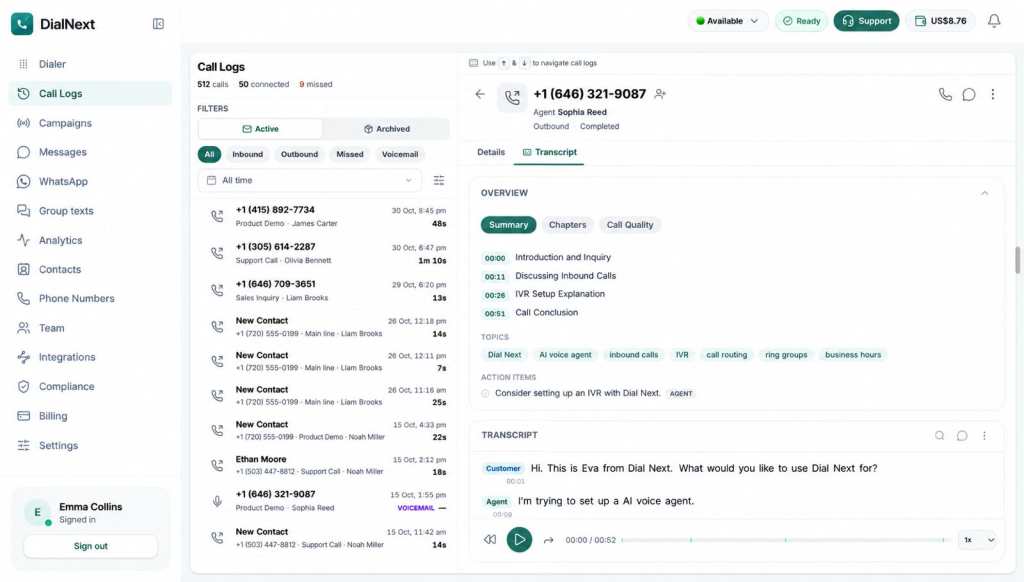
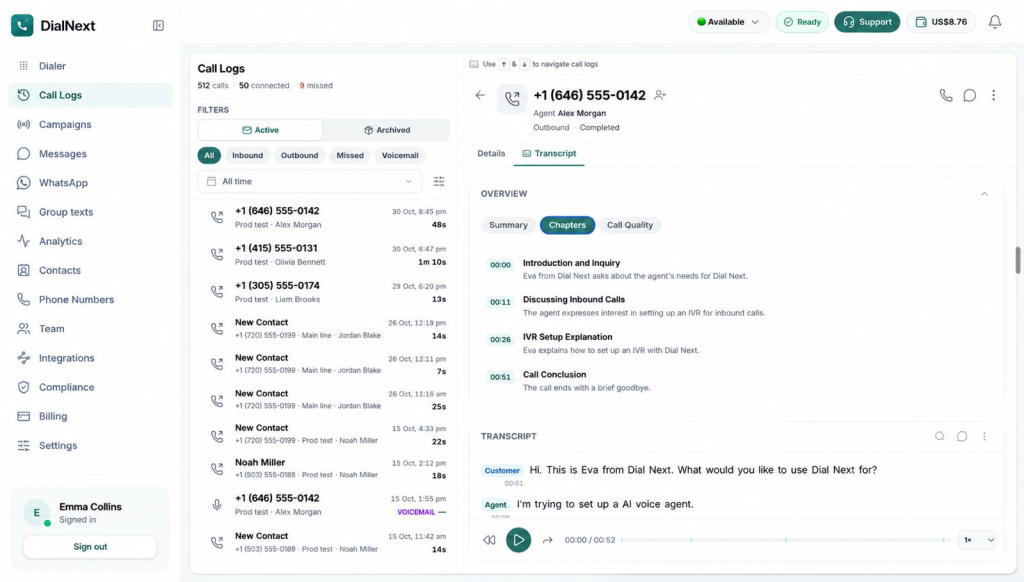
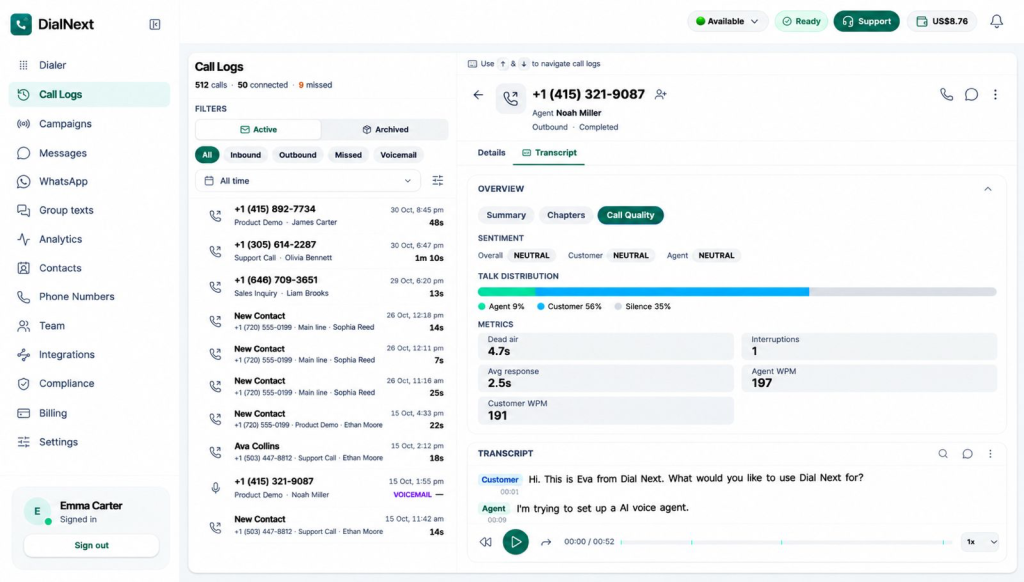
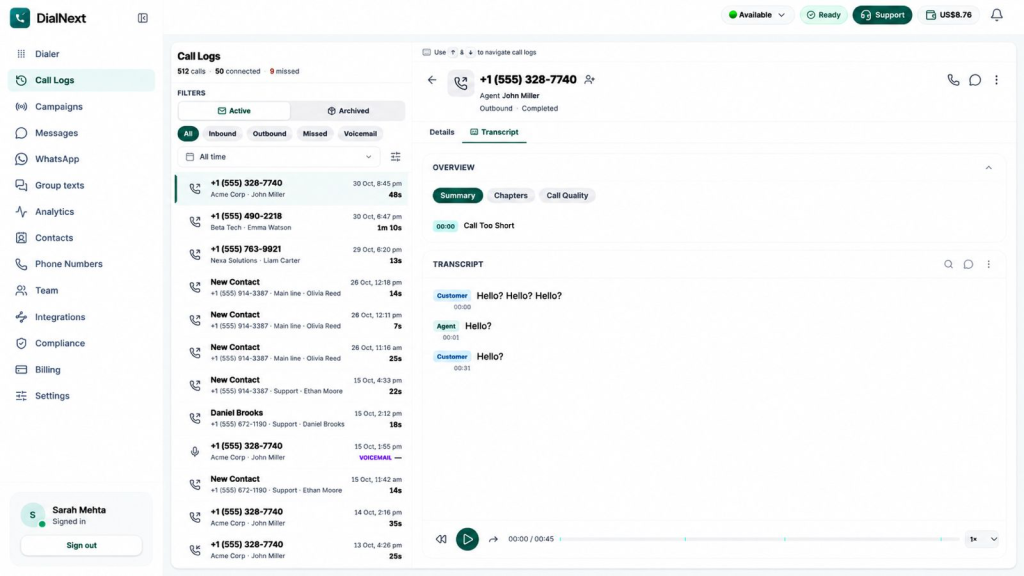
Group Texting in DialNext allows users to bring multiple participants together in a shared SMS conversation. Instead of sending the same message individually, you can create a group, assign it a name, select a sending number, and send an initial message to all participants.
Moreover, Group Texting makes it easier to organize business communication when multiple people need to receive the same information. In this guide, you’ll learn how to create a Group Text in DialNext, select a sending number, add participants, and send your first message step by step.
Before You Begin
Before creating a Group Text in DialNext, make sure you have:
Access to your DialNext account.
At least two participants to create a group.
The phone numbers of the participants you want to add.
Access to a DialNext line for sending the group message.
Additionally, keep your group name and initial message ready before starting the creation process.
How to Use Group Texting in DialNext to Create a Group
Follow these steps to create a new Group Text conversation in DialNext.
Step 1: Access Group Texting in DialNext
First, log in to your DialNext account using your credentials.
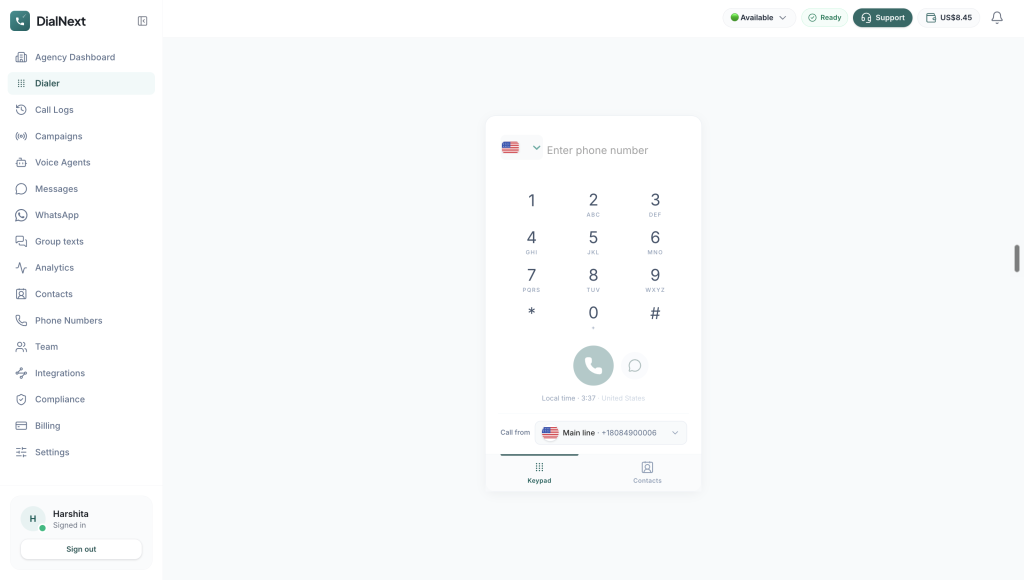
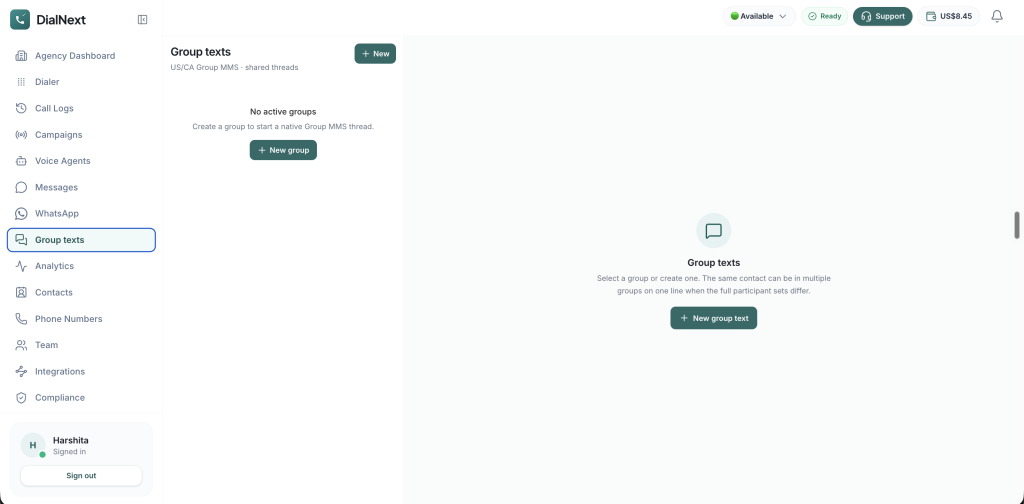
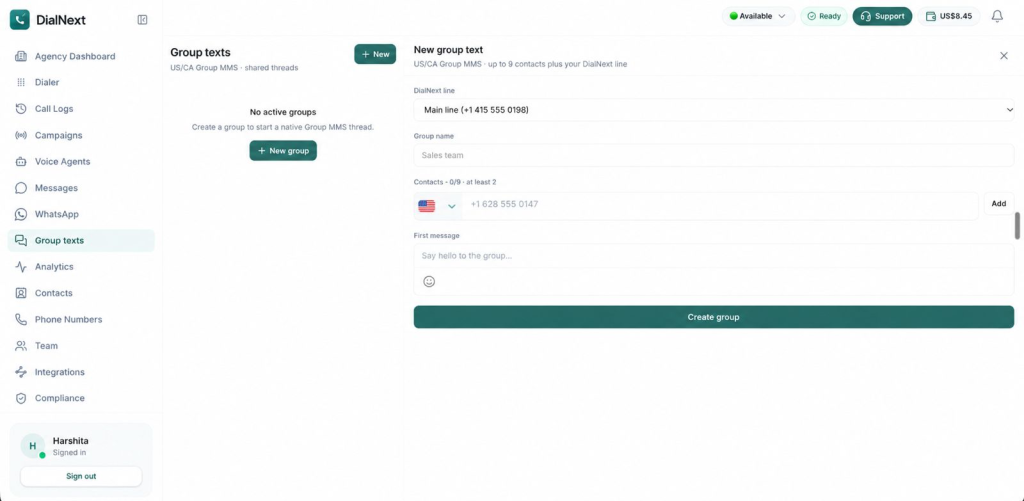
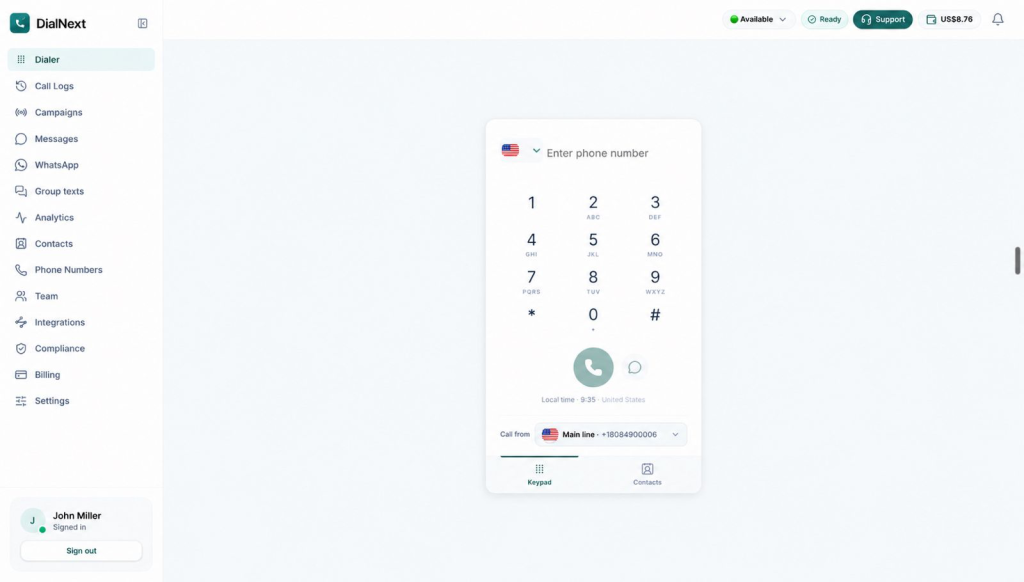
Next, locate the left-hand navigation menu in your dashboard. Then, click Group texts to access the Group Texts dashboard.
Here, you can start creating a new group conversation.
Step 2: Start a New Group Text Conversation
Once the Group Texts dashboard opens, locate the New group text button.
Next, click this button to open the group creation form. You can then enter the required group details and add participants.
Step 3: Select a DialNext Line
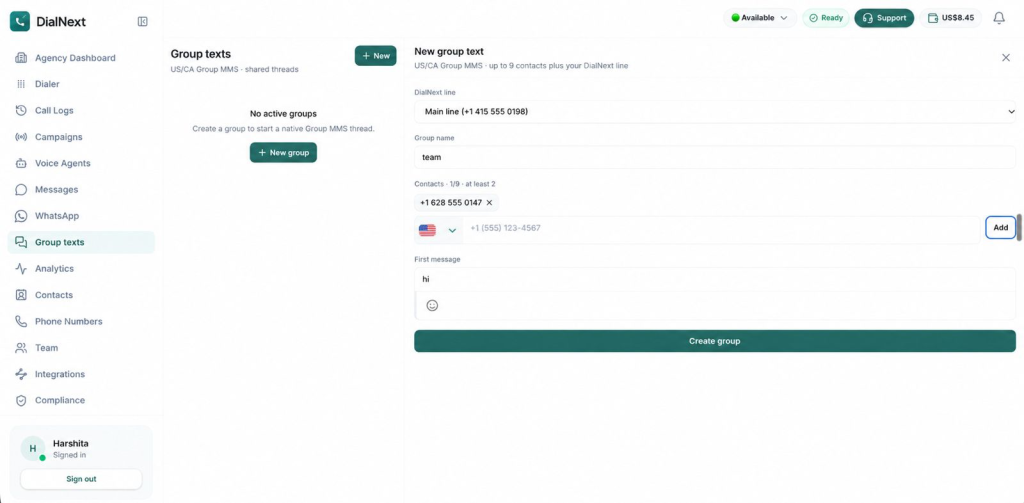
Under the DialNext line field, select the phone number you want to use for the group conversation.
This number will serve as the sending line for your Group Text. Therefore, make sure you select the correct number before proceeding.
Step 4: Enter a Group Name
Next, locate the Group name field and enter a suitable name for your conversation.
For example, choose a name that clearly identifies the purpose of the group. This makes it easier to recognize the conversation when reviewing your group messages later.
Step 5: Add Participants to Your Group Text
Under the Contacts section, enter the phone numbers of the participants you want to include in your group.
Follow these steps:
First, select the appropriate country code.
Next, enter the participant’s phone number.
Then, click Add to include the contact in the group.
Finally, repeat the process to add additional participants, if required.
Important: Group Texting in DialNext requires at least 2 participants. You can add up to 9 contacts to a group, in addition to your selected DialNext line.
Before proceeding, review the participant list carefully to make sure the correct contacts have been added.
Step 6: Compose Your First Group Text Message
Once you have added the participants, locate the First message field.
Enter the message you want to send to all participants when the group is created.
For example, you can write a short introductory message explaining the purpose of the group. Additionally, make sure the message is clear and relevant to everyone included in the conversation.
Before proceeding, review your message carefully to check for any errors or missing information.
Step 7: Review and Create Your Group Text
Before creating the group, review all the information you have entered.
Make sure the following details are correct:
Selected DialNext line.
Group name.
Participant phone numbers.
First message.
Once you have checked these details, click the Create group button to create your Group Text conversation in DialNext.
The initial message is sent to the added participants as part of the group creation process. Therefore, review its content carefully before selecting Create group.
Important Group Texting Requirements in DialNext
Before creating a Group Text conversation, keep the following requirements in mind:
Minimum participants: At least 2 participants are required to create a group.
Maximum participants: You can add up to 9 contacts, in addition to your selected DialNext line.
DialNext line: Select the correct sending number before creating the group.
Group name: Choose a clear and recognizable name for your conversation.
First message: Review your initial message carefully because it is sent when the group is created.
Additionally, check the participant details before completing the process to avoid adding an incorrect phone number.
Frequently Asked Questions About Group Texting in DialNext
1. How Many Participants Can I Add to Group Texting in DialNext?
You need at least 2 participants to create a group. Additionally, DialNext allows you to add up to 9 contacts to a group, along with your selected DialNext line.
2. Can I Assign a Custom Name to My Group Text?
Yes. You can enter a custom name in the Group name field while creating a new group. This helps you identify the conversation more easily.
3. Can I Select a Phone Number for Sending Group Texts?
Yes. You can select your preferred number from the DialNext line dropdown before adding participants and creating the group.
4. Can I Send an Initial Message While Creating a Group?
Yes. The First message field allows you to compose your initial message. Once you create the group, this message is sent to the added participants.
5. Is Adding Two Participants Mandatory?
Yes. At least two participants are required to create a Group Text conversation in DialNext.
Conclusion
Group Texting in DialNext makes it easier to bring multiple participants together in a shared SMS conversation. Users can select a sending number, assign a group name, add contacts, and send an initial message when creating the group.
Moreover, organizing participants in a shared conversation can make business communication more convenient when multiple people need to receive the same information. By reviewing the group details before creation, you can ensure that the correct participants and message are included.
Get Started with DialNext Group Texting
Ready to simplify communication with multiple participants? Group Texting in DialNext helps you bring people together in a shared conversation and send messages through your selected business number.
Explore DialNext to learn more about its business communication solutions.
Call Abandonment Rate measures the percentage of inbound calls that customers disconnect before reaching a live agent. It helps businesses understand how many callers leave without receiving the support they need.
Long waiting times, confusing call menus, and unavailable agents are common reasons why customers abandon calls. As a result, businesses may lose potential customers, miss important inquiries, and create a poor customer experience.
In this guide, you will learn how to calculate Call Abandonment Rate, understand why customers disconnect, and discover 10 practical ways to reduce abandoned calls. You will also learn how call analytics can help businesses improve call handling and manage incoming calls more effectively.
What Is Call Abandonment Rate?
Call Abandonment Rate is the percentage of eligible inbound callers who disconnect before speaking with a live agent. It usually happens when customers have to wait too long or cannot reach the right department.
For example, imagine a customer calling a company’s support team to ask about an order. The caller enters the phone queue but waits several minutes without receiving an answer. Eventually, the customer hangs up.
This is an example of an abandoned call.
Businesses track this metric to understand whether their support teams can handle incoming calls effectively. A higher rate may point to long queues, poor routing, or a lack of available agents.
However, the metric should not be viewed alone. Managers should also review waiting times, call volumes, and staffing levels to understand the full picture.
How to Calculate Call Abandonment Rate
Businesses can calculate Call Abandonment Rate with a simple formula.
Call Abandonment Rate Formula:
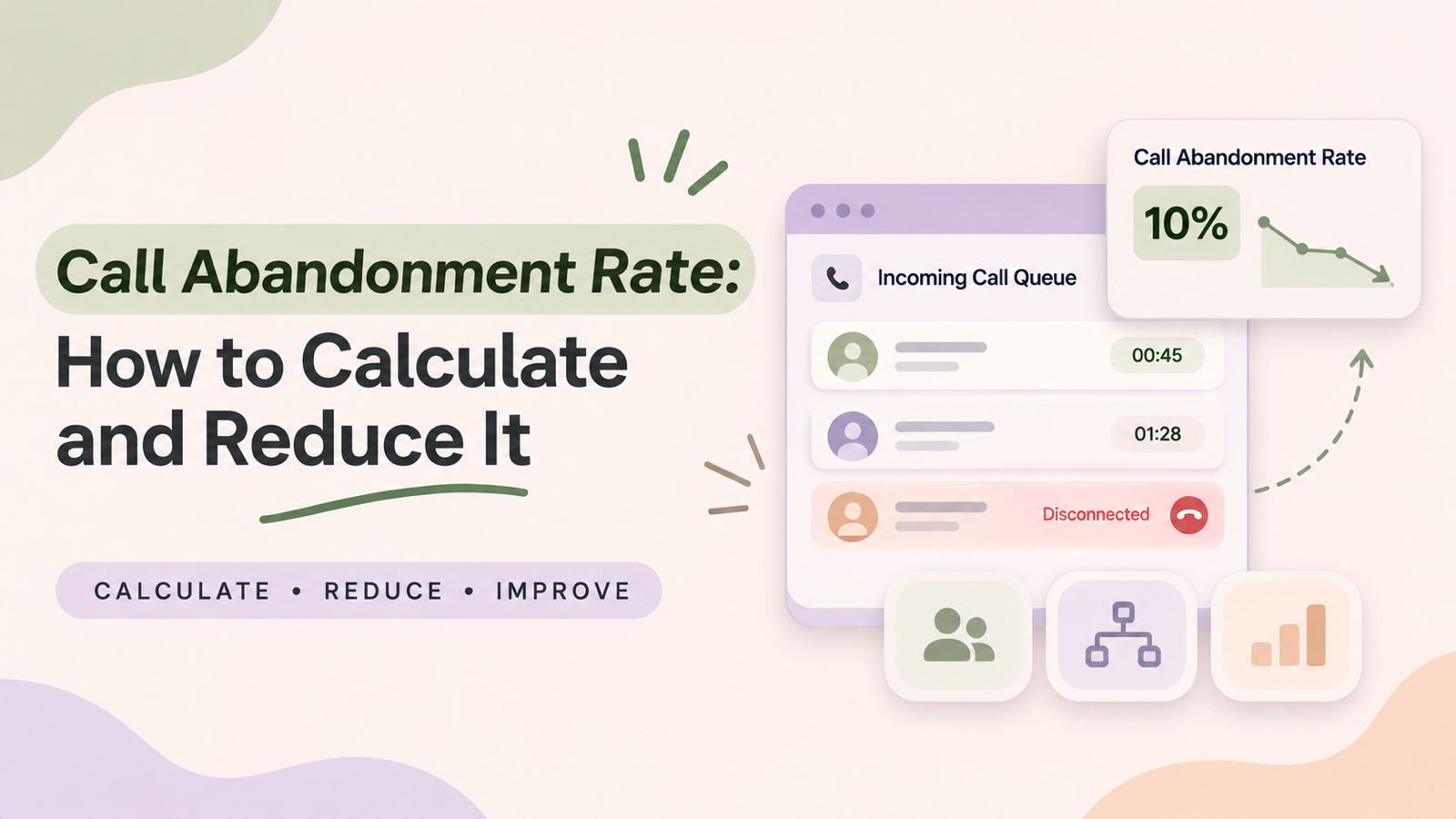
Call Abandonment Rate = (Number of Abandoned Calls ÷ Total Eligible Inbound Calls Offered) × 100
Here:
Abandoned calls: Eligible inbound calls disconnected by customers before reaching a live agent.
Total eligible inbound calls offered: Inbound calls included in the reporting period according to the business’s measurement rules.
Call Abandonment Rate Calculation Example
Suppose a customer support team receives 1,000 eligible inbound calls in one day.
The call results are:
Call outcome
Number of calls
Calls answered
900
Calls abandoned
100
Total eligible inbound calls
1,000
Using the formula:
Call Abandonment Rate = (100 ÷ 1,000) × 100
Call Abandonment Rate = 10%
This means that 10% of eligible incoming calls were abandoned during that reporting period.
For accurate reporting, businesses should define how they treat short abandons, IVR disconnects, callbacks, and technical disconnections. Calls excluded under the measurement policy should not be included in the eligible call count.
The exact calculation can vary depending on the phone system and reporting methodology. Therefore, businesses should document their rules and apply them consistently.
Should You Exclude Short Abandoned Calls?
Some callers disconnect within the first few seconds. They may have dialed the wrong number, called by mistake, or ended the call before entering the queue.
Therefore, some businesses exclude these short abandons from their main calculation.
For example, a company may choose a five-second threshold. However, this is not a universal rule.
The important thing is to document the chosen threshold and use the same method when comparing results.
Tracking this metric helps businesses understand how easily customers can reach their support teams.
Here are five important reasons to monitor it.
1. Better Customer Experience
Customers want quick answers to their questions. When they spend too much time waiting, they may become frustrated.
As a result, they may choose another way to contact the business or stop seeking help altogether.
2. Fewer Lost Sales Opportunities
An incoming call may come from a new customer who wants to learn about a product or service.
If nobody answers, that potential customer may contact a competitor instead.
Therefore, improving call handling can help businesses respond to more sales inquiries.
3. Improved Support Operations
A high abandonment rate can point to problems with agent availability, call routing, or queue management.
Managers can use this information to review their processes and decide where improvements are needed.
4. Better Team Planning
Call volume often changes throughout the day.
For example, a business may receive more calls during the morning or after a promotional campaign.
By reviewing these patterns, managers can plan agent schedules more effectively.
5. More Consistent Customer Communication
Customers should be able to reach the right team without unnecessary transfers or delays.
Therefore, businesses should review their calling processes regularly and make sure each department can handle its incoming calls.
What Causes a High Call Abandonment Rate?
Before trying to reduce abandoned calls, businesses should identify why customers are disconnecting.
The following issues are common causes.
1. Long Call Waiting Times
Long waiting times are a major reason customers leave a phone queue.
When more people call than the available agents can handle, the queue becomes longer.
As a result, some customers may disconnect before receiving assistance.
2. Limited Agent Availability
A support team may not have enough available agents during busy periods.
This can happen because of staff shortages, breaks, unexpected absences, or sudden increases in call volume.
Therefore, businesses should compare agent availability with actual incoming call demand.
3. Poor Call Routing
Call routing problems can send customers to the wrong department or an unavailable employee.
For example, a customer calling about a payment issue should not have to move between several teams before reaching the billing department.
Clear routing rules can make the process easier.
4. Complicated IVR Menus
An Interactive Voice Response (IVR) system helps callers select the department they need.
However, menus with too many options can confuse customers.
In addition, unclear instructions may force callers to repeat the same steps.
A simple menu with clear options can make the calling experience better.
5. Sudden Increases in Call Volume
Marketing campaigns, seasonal demand, product launches, and service issues can increase incoming calls.
If businesses do not prepare for these changes, their support teams may struggle to respond.
As a result, more callers may disconnect while waiting.
6. No Clear Alternative for Customers
Sometimes, customers cannot wait on the phone.
If a business does not provide another suitable contact option, callers may simply disconnect and look elsewhere.
Therefore, businesses should make other available support channels easy to find.
10 Ways to Reduce Call Abandonment Rate
Reducing abandoned calls requires a clear plan. Businesses should improve how calls enter the system, reach agents, and receive follow-up.
Here are ten practical ways to improve call handling.
1. Improve Call Routing
First, make sure incoming calls reach the correct department.
Businesses can organize their phone menus around common customer needs.
For example:
Press 1 for Sales.
Press 2 for Customer Support.
Press 3 for Billing.
This helps customers choose the right option without unnecessary transfers.
2. Monitor Busy Calling Hours
Next, review call activity throughout the day.
Identify the hours when incoming call volume is highest. Then, compare those periods with the number of available agents.
For example, if calls increase between 10 AM and 12 PM, managers can plan additional coverage during those hours.
This helps teams prepare for busy periods instead of reacting after queues become long.
3. Plan Agent Availability
Staffing plans should reflect actual customer demand.
Managers should consider:
Incoming call volume.
Agent availability.
Average call handling time.
Break schedules.
Seasonal changes.
In addition, review these factors regularly because customer demand can change over time.
4. Keep IVR Menus Simple
An IVR menu should help customers reach the right team quickly.
Use clear language and avoid unnecessary options.
For example, separate sales, support, and billing inquiries instead of placing every request under a single menu option.
Also, review menu instructions when departments or business hours change.
5. Use Call Distribution Carefully
When several employees share one business number, call distribution can help organize who receives incoming calls.
For example, a round-robin setup can send each new call to the next available teammate in the configured order.
However, call distribution and call queuing are not the same thing. A hunt group distributes calls among team members, while a queue holds callers until an agent accepts the call.
Businesses should choose the approach that fits their team structure.
6. Communicate Waiting Information Clearly
Customers should not be left unsure about what is happening after they call.
Where the phone system supports it, provide clear queue messages and explain the available options.
In addition, keep recorded messages short and useful.
Clear communication helps customers understand the next step.
7. Review Missed Calls and Follow Up
Not every call will be answered on the first attempt.
Therefore, businesses should review missed calls and decide which customers need a follow-up.
For example, a sales team can prioritize calls from new prospects, while a support team can reconnect with customers who requested assistance.
A clear follow-up process helps prevent missed opportunities.
8. Train Agents to Handle Calls Efficiently
Agent training also plays an important role.
Employees should understand how to handle common questions, transfer calls correctly, and use the available communication tools.
Moreover, clear internal processes can reduce unnecessary transfers and repeated explanations.
9. Track Calling Performance Regularly
Businesses should review their calling data every day or week, depending on call volume.
Look for patterns such as:
Higher abandoned calls during specific hours.
Increased missed calls in one department.
Changes in incoming call volume.
Repeated problems with call routing.
This makes it easier to identify problems and take action.
10. Improve the Process Based on Results
Finally, do not stop after reviewing the numbers.
Use the findings to make practical changes.
For example, adjust schedules when demand increases, simplify confusing menus, or improve the way incoming calls reach agents.
Then, measure the results again.
This creates a continuous improvement process rather than a one-time fix.
Call Abandonment Rate vs. Missed Call Rate
These two metrics are related, but they do not always describe the same outcome.
Metric
Meaning
Call Abandonment Rate
Eligible callers disconnect before reaching an agent.
Missed Call Rate
Incoming calls that the business does not answer.
Call Answer Rate
Percentage of eligible calls answered.
Average Speed of Answer
Average time taken to answer eligible calls.
For example, a customer who disconnects while waiting in a queue may count as an abandoned call.
On the other hand, a call that rings without an employee answering may be recorded as a missed call.
The exact definitions depend on the phone system and reporting rules. Therefore, businesses should keep their measurement methods consistent.
Which Contact Center Metrics Should You Track Alongside Abandonment?
A single metric cannot explain every problem in a support team.
For better decisions, businesses should review several performance indicators together.
Metric
What It Measures
Average Handle Time (AHT)
Time spent handling a call, including related work.
Average Speed of Answer (ASA)
Average waiting time before an agent answers.
First Call Resolution (FCR)
Issues resolved during the first call.
Call Volume
Total incoming and outgoing calls.
Call Answer Rate
Share of eligible calls answered.
Service Level
Calls answered within a defined time target.
Missed Call Rate
Share of calls not answered by the business.
For example, a rise in abandoned calls alongside longer waiting times may suggest that a team needs better staffing or call handling.
Similarly, an increase in missed calls during specific hours may show where additional coverage is required.
According to Genesys’s contact center metric definitions, teams can use performance indicators such as abandonment rate, answer rate, and average wait time to understand contact center operations.
How Call Analytics Helps Businesses Understand Abandoned Calls
Call analytics helps businesses review calling activity and identify areas that need attention.
Instead of relying on assumptions, managers can use call reports and dashboards to understand what is happening.
A useful review process includes:
Check incoming call activity.
Review answered and missed calls.
Identify busy calling hours.
Compare performance across reporting periods.
Review the available abandonment data.
Make changes to the calling process.
Measure the results again.
DialNext provides call reporting that keeps answered and missed calls together in one list. Teams can also see who handled each answered call.
In addition, DialNext Analytics dashboards include metrics such as total calls, inbound and outbound calls, missed rate, average handle time, abandonment rate, and busy hours.
These insights help businesses understand their calling activity and identify areas that may need attention.
Explore DialNext Call Analytics to learn more about call reporting and performance visibility.
Best Practices for Managing Incoming Calls
Businesses can improve their calling processes by following a few simple practices.
Review call activity regularly.
Keep IVR menus clear and easy to follow.
Match agent availability with incoming demand.
Use suitable call routing rules.
Review missed calls and follow up when needed.
Track performance across consistent reporting periods.
Train agents to handle common customer questions.
Use call reports to identify areas for improvement.
Most importantly, focus on making it easier for customers to reach the right person.
A lower abandonment rate is useful, but the real goal is to provide reliable and helpful customer support.
Frequently Asked Questions
1. What is Call Abandonment Rate?
Call Abandonment Rate is the percentage of eligible inbound callers who disconnect before reaching a live agent. It helps businesses understand how many customers leave before receiving assistance.
2. How do you calculate Call Abandonment Rate?
Divide the number of eligible abandoned calls by the total number of eligible inbound calls offered. Then multiply the result by 100 to get the percentage.
Common causes include long waiting times, limited agent availability, complicated IVR menus, poor call routing, and unexpected increases in incoming call volume.
4. What is a good Call Abandonment Rate?
There is no single target that works for every business. The right target depends on the industry, customer expectations, queue design, and measurement rules. Businesses should first establish a reliable baseline and then work to improve it.
5. What is the difference between an abandoned call and a missed call?
An abandoned call happens when a customer disconnects before reaching an agent. A missed call is an incoming call that the business does not answer. The exact classification can vary by phone system.
6. How can IVR reduce abandoned calls?
A clear IVR menu helps callers select the correct department. As a result, customers can reach the right team without unnecessary transfers or confusion.
7. Why should businesses monitor abandoned calls?
Monitoring abandoned calls helps businesses identify service gaps, understand customer waiting problems, and improve staffing and call handling.
8. How often should businesses review Call Abandonment Rate data?
Businesses should review the data regularly. High-volume support teams may benefit from daily reviews, while smaller teams can begin with weekly reviews and investigate unusual changes.
9. Can call analytics help reduce abandoned calls?
Yes. Call analytics can help businesses identify patterns in call activity, review performance metrics, and find periods when calling processes may need improvement.
10. What is the difference between call abandonment and call drop?
Call abandonment usually occurs when a customer disconnects before reaching an agent. A call drop happens when an active call disconnects unexpectedly because of a technical or network issue.
Conclusion
Call Abandonment Rate helps businesses understand how effectively they handle incoming customer calls.
A high rate may point to long waiting times, limited agent availability, confusing phone menus, or poor call routing. However, businesses can address these problems by reviewing call activity and improving their support processes.
Start by calculating the metric consistently. Then, identify the busiest hours, review agent availability, and make it easier for customers to reach the right department.
In addition, use call analytics to monitor changes and understand whether your improvements are working.
With regular monitoring and better call management, businesses can make their support teams more accessible and deliver a better customer experience.
Improve Your Business Calling Experience with DialNext
Managing incoming calls starts with understanding what happens when customers contact your business.
DialNext helps businesses manage customer conversations with cloud business calling, IVR, call distribution, and call reporting. Review answered and missed calls, understand calling activity, and build more organized communication workflows.
Explore DialNext Call Analytics to learn how better call visibility can support your team’s communication processes.
Ready to improve the way your business manages incoming calls? Explore DialNext and discover how better calling workflows can help your team manage customer conversations more effectively.
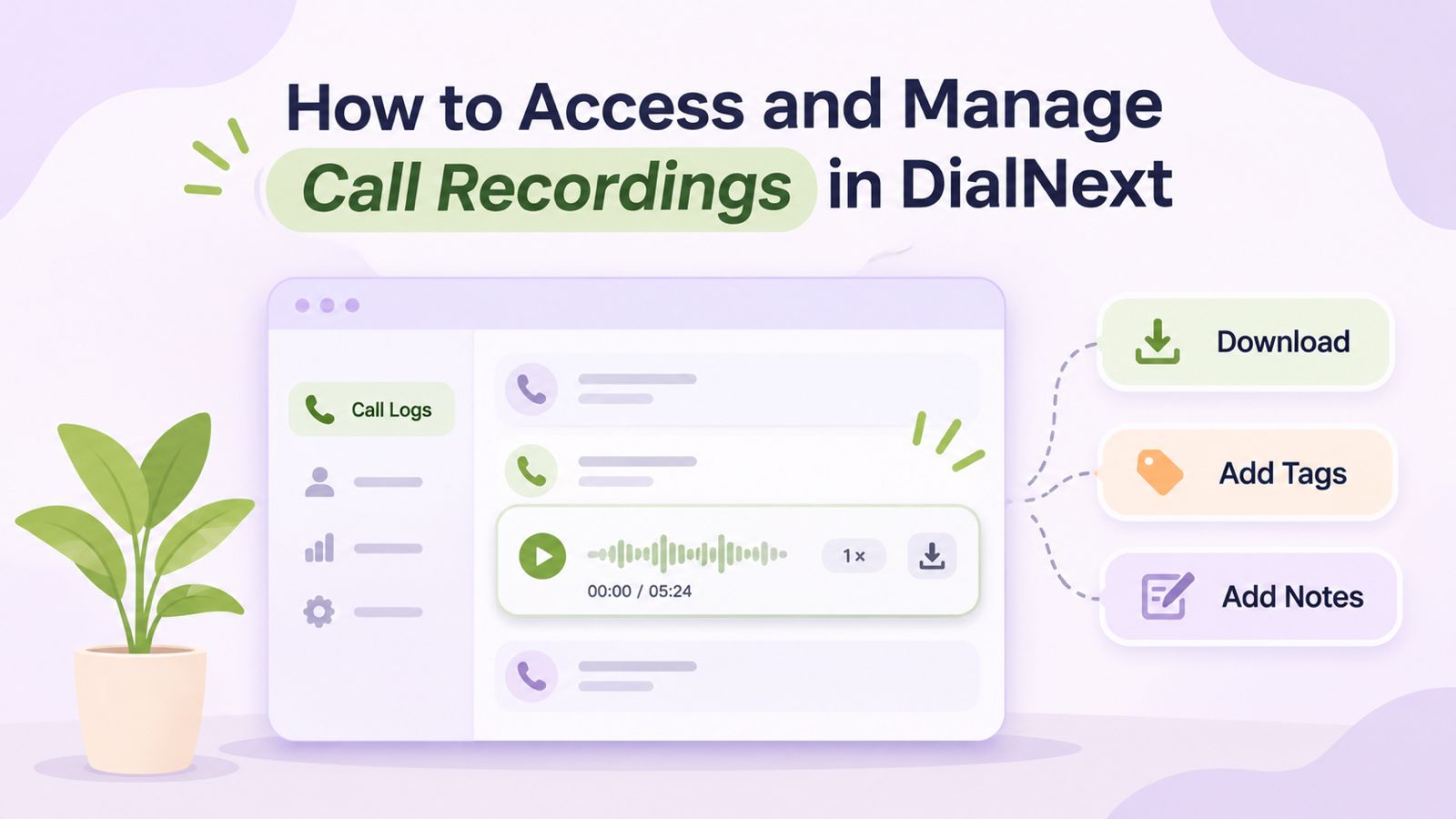
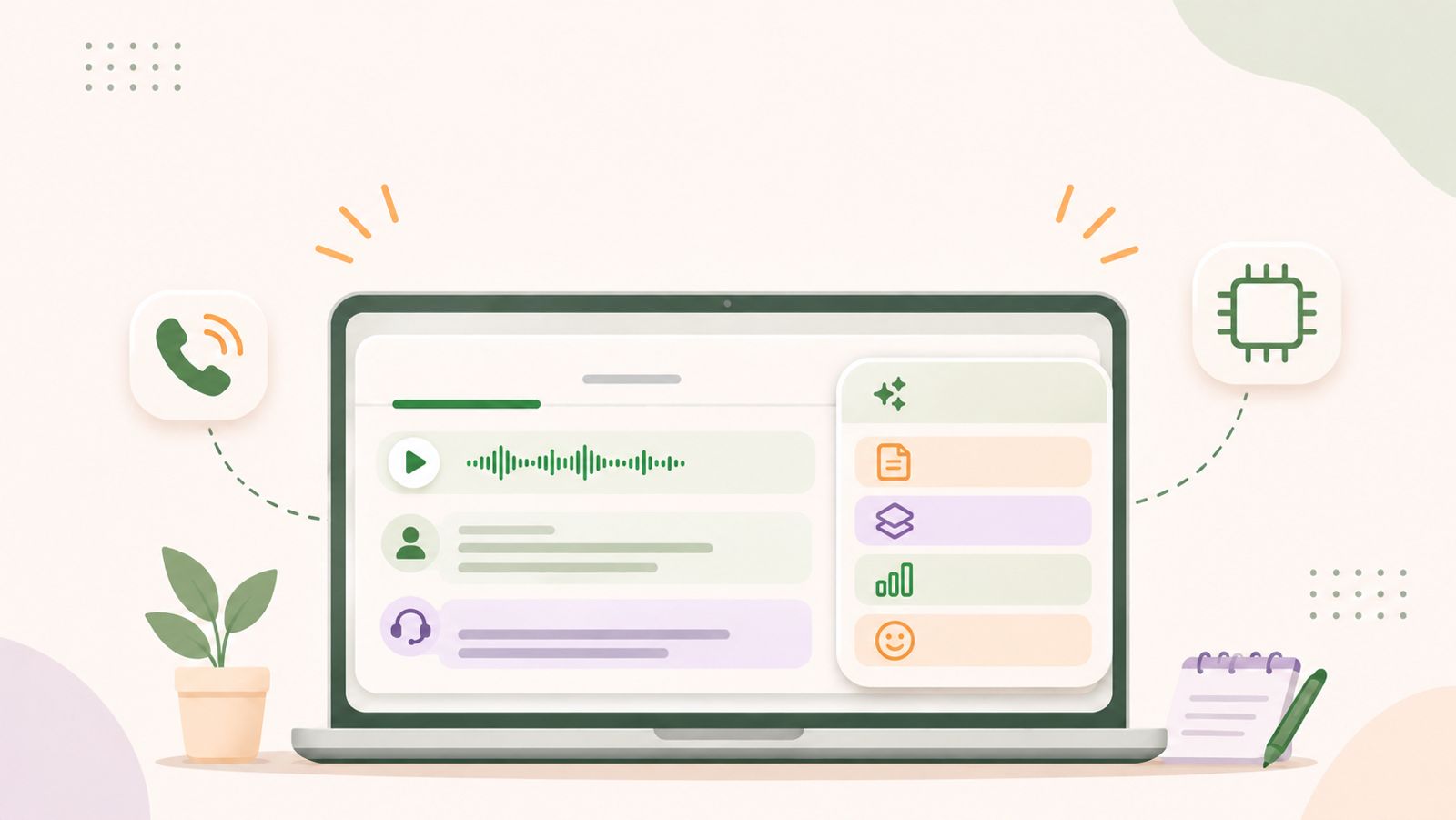
Call recordings in DialNext help businesses review customer conversations, revisit important details, and maintain useful records of previous interactions. Through the Call Logs section, users can access available recordings, listen to conversations, download audio files, and organize call information using notes and tags.
Moreover, these features make it easier for teams to understand previous customer interactions and find relevant information when needed. Whether you want to review a customer query, check a conversation, or organize call details, DialNext provides useful tools to manage your calling activity.
In this guide, you will learn how to access, play, download, and manage call recordings in DialNext, along with practical tips for keeping your call records organized.
How to Access Call Recordings in DialNext
You can access available call recordings directly through the Call Logs section of your DialNext dashboard. Before proceeding, make sure you can sign in to your account and access the relevant call records.
Follow these steps to find and play a recording.
Step 1: Navigate to Call Logs in DialNext
First, log in to your DialNext account using your login credentials.
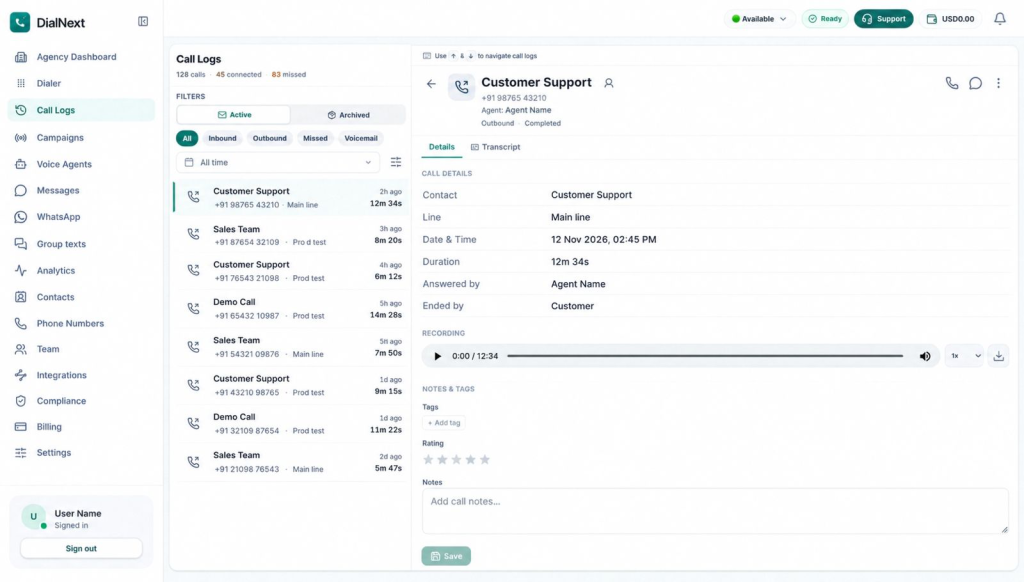
Next, locate the navigation menu on the left side of your dashboard. Then, click Call Logs to open your call history and view the available call records.
Step 2: Select a Call Record
Once the Call Logs page opens, browse the available records to find the conversation you want to review.
Additionally, you can use the available filters, such as Inbound, Outbound, Missed, and Voicemail, to narrow down the list. This makes it easier to locate a specific call without reviewing your entire call history.
After finding the relevant record, select it to open its details.
After selecting a call, locate the Details tab in the call details panel on the right side of the screen.
Here, you can review information associated with the selected call, including the contact, calling line, date and time, duration, and answering agent.
Next, locate the Recording section to check whether an audio recording is available for that call.
Step 4: Play Call Recordings in DialNext
If a recording is available, locate the audio player in the Recording section.
Then, click the Play button to listen to the conversation. Additionally, you can use the playback speed control to adjust how quickly the recording plays, depending on the available options.
As a result, you can revisit important parts of a conversation, understand customer queries, and check specific details without relying only on written notes.
Step 5: Download Call Recordings in DialNext
If you want to save an available recording to your device, locate the Download icon next to the audio player.
Next, select the icon to download the audio file, provided the download option is available for that recording.
This allows you to keep a copy for future reference. However, always follow your organization’s recording, privacy, and data-handling policies when accessing or downloading customer conversations.
How to Manage Call Recordings in DialNext
Accessing a recording is only one part of managing call information. In addition to listening to conversations, DialNext provides options to organize additional details associated with individual call records.
For example, you can use notes, tags, and ratings to make previous interactions easier to understand and review.
1. Add Tags to Call Records in DialNext
Tags help categorize call records based on their purpose or outcome.
To add a tag, follow these steps:
First, open the required call record from the Call Logs section.
Next, navigate to the Notes & Tags section in the call details panel.
Then, click + Add tag under the Tags section.
Finally, select the relevant tag from the available options.
For example, your team may use suitable tags to identify calls that require follow-up or additional attention, depending on the available tag options.
Furthermore, using consistent tags can make it easier to organize and identify important call records.
2. Review Call Ratings in DialNext
DialNext also provides a star-rating field in the Notes & Tags section.
You can review the rating associated with an individual call record to understand its recorded assessment. Additionally, this information provides more context when reviewing previous customer interactions.
3. Add and Save Call Notes in DialNext
Call notes help your team retain important information about a conversation. For instance, you can add a short summary or mention details that another team member may need later.
To add notes:
First, open the required call record.
Next, navigate to the Notes & Tags section.
Then, locate the Notes text box.
Enter a short summary or other relevant information about the conversation.
Before saving, review the note to ensure it contains the correct details.
Finally, click Save to store your changes.
As a result, your team can refer to relevant call information without having to listen to the entire recording again.
Call recordings can support several everyday business activities. When used appropriately, they help teams revisit conversations and maintain better visibility into customer interactions.
Here are some practical ways businesses can use call recordings:
Review customer conversations: Listen to previous interactions to understand customer queries, responses, and important discussion points.
Maintain useful call records: Keep available recordings for future reference, subject to organizational policies.
Support team coordination: Provide relevant conversation context to team members when appropriate.
Organize call information: Use notes and tags to keep important details associated with individual call records.
Verify conversation details: Revisit recordings when specific information needs to be checked.
Furthermore, combining recordings with call details, notes, and tags can make it easier to review customer interactions. Therefore, teams can find relevant information and understand previous conversations more efficiently.
Best Practices for Managing Call Recordings in DialNext
Managing recordings effectively requires more than simply accessing and downloading audio files. Instead, a consistent process can help teams keep call information organized and handle customer data responsibly.
Consider the following best practices:
Follow Recording and Privacy Policies
First, make sure your team follows applicable recording requirements and organizational privacy policies. Additionally, access recordings only when there is a legitimate business need.
Use Relevant Tags
Apply consistent tags to categorize calls based on their purpose or outcome. As a result, your team can identify relevant records more easily.
Add Clear and Useful Notes
Keep call notes short, accurate, and relevant. For example, include information that may help another team member understand the conversation without listening to the entire recording.
Review Recordings When Needed
Use recordings to revisit important conversation details, clarify information, or support internal call reviews. However, avoid accessing recordings unnecessarily.
Handle Downloaded Files Carefully
If you download a recording, store it only in approved locations. Furthermore, follow your organization’s access, privacy, and retention policies. Avoid sharing customer recordings through unauthorized channels.
Frequently Asked Questions About Call Recordings in DialNext
1. When are Call Recordings Available in DialNext?
Call recordings are available through Call Logs when a recording has been generated and is accessible for the selected call. Therefore, you can open the relevant call record and check its Recording section.
2. Where Can I Find Call Recordings in DialNext?
You can find available recordings in the Call Logs section of your DialNext dashboard. First, select the relevant call. Then, open its Details tab and locate the Recording section.
3. Can I Listen to a Call Recording More Than Once?
Yes. If a recording is available, you can play it again whenever you need to revisit the conversation. Additionally, this makes it easier to check specific details from previous interactions.
4. Can I Download Call Recordings in DialNext?
Yes. You can download an available recording using the Download icon next to the audio player, provided the download option is enabled for that recording.
5. Can I Adjust the Playback Speed of Call Recordings?
Yes. You can use the playback speed control in the audio player to adjust the listening speed. This allows you to review recordings at a pace that suits your requirements.
6. Can I Add Notes and Tags to a Call Record?
Yes. The Notes & Tags section provides options to add notes and tags to the selected call record. Additionally, you can review the available star rating associated with that call.
7. What Should I Do If a Call Recording Is Unavailable?
First, open the correct call record and check its Details tab for the Recording section. If no recording is available, contact your workspace administrator to confirm the relevant recording settings and access permissions.
However, if the issue continues, contact DialNext Support for further assistance.
Conclusion
DialNext makes it easier to access and manage available call recordings through the Call Logs section. Users can listen to previous conversations, download recordings when the option is available, and organize call information using notes and tags.
Moreover, keeping relevant call details organized helps teams revisit customer interactions and refer to important conversation details whenever needed. By following appropriate recording and data-handling practices, businesses can manage their call records more effectively.
Manage Your Business Calls with DialNext
Looking for a simpler way to manage business conversations? DialNext brings business calling and call management features together to help teams handle customer interactions more effectively.
Explore DialNext to learn more about its business communication solutions.
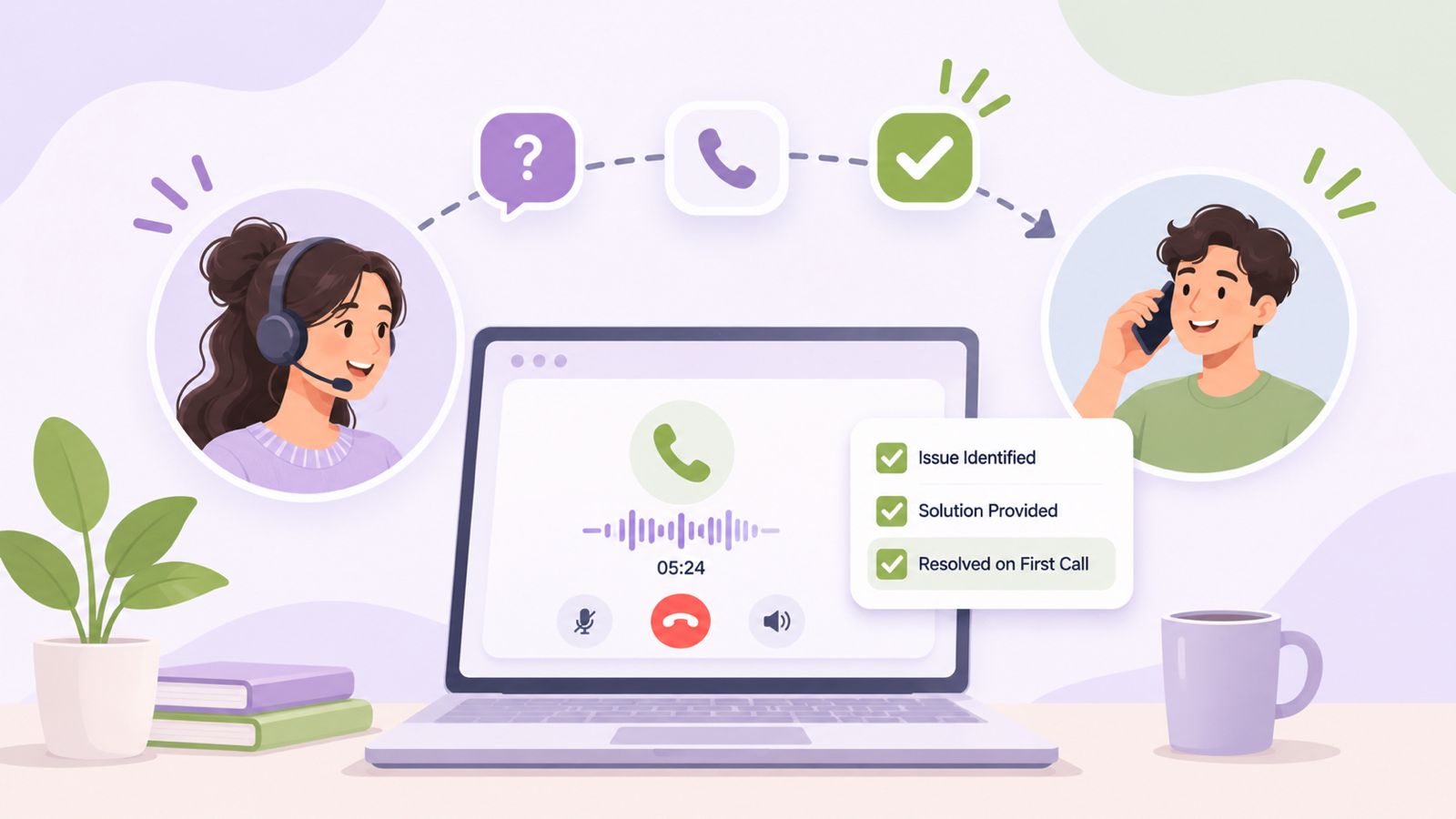
When customers contact a business for support, they expect a quick and complete solution. First Call Resolution (FCR) helps businesses measure how effectively their support teams resolve customer issues during the first phone interaction, without requiring customers to call back about the same problem.
However, many customer support teams still struggle with repeated calls, unnecessary transfers, unresolved complaints, and delayed follow-ups. As a result, customers may have to explain the same problem multiple times.
This is where First Call Resolution becomes important.
A higher FCR rate can indicate more effective problem-solving, better agent training, and more organized customer communication. It can also help businesses reduce avoidable repeat interactions and improve the overall customer experience.
In this guide, we will explain what First Call Resolution means, how to calculate it, what makes a good FCR rate, and how businesses can improve it through practical customer support strategies.
What Is First Call Resolution (FCR)?
First Call Resolution (FCR) is a customer service performance metric that measures the percentage of eligible customer issues successfully resolved during the initial phone interaction, without requiring another call about the same issue.
In other words, it indicates how effectively support agents understand customer problems, access the information they need, and provide appropriate solutions during the first call.
For example, imagine a customer calls a company’s support team because they cannot access their account.
First, the agent verifies the customer’s information.
Next, the agent identifies the reason for the login problem.
Then, the agent guides the customer through the required steps.
Finally, the customer confirms that the issue is resolved.
If the customer does not need to call again about the same issue, the interaction qualifies as a first-call resolution.
However, if the customer has to call again because the original problem remains unresolved, it does not qualify as FCR.
First Call Resolution vs. First Contact Resolution
Although these terms are closely related, they are not always interchangeable.
First Call Resolution: Focuses specifically on resolving customer issues during the initial phone interaction.
First Contact Resolution: Measures whether an issue is resolved during the first interaction across a particular support channel, such as a phone call, email, or live chat.
For example, if a customer contacts a company through live chat and receives a complete solution during that conversation, it may count as First Contact Resolution. However, it would not count as First Call Resolution because no phone call occurred.
The measurement method should clearly define which channels and interactions are included.
Why Is First Call Resolution Important?
First Call Resolution is more than a customer support metric. It also provides insight into how effectively a business manages customer communication and problem-solving.
When customers receive effective assistance during their first interaction, they spend less time waiting, explaining problems, and following up. Consequently, support teams can manage their workload more efficiently.
Here are five important benefits of improving FCR.
1. Improves Customer Satisfaction
Customers generally prefer quick and complete solutions rather than multiple conversations about the same issue.
When support agents resolve problems during the first interaction, customers are more likely to feel that the business understands their needs. As a result, businesses can create a smoother support experience and strengthen customer relationships.
2. Reduces Repeat Calls
Unresolved issues often result in additional calls, which increases the workload for support agents.
By improving FCR, businesses can reduce avoidable repeat interactions. Consequently, agents can dedicate more time to new customer enquiries instead of repeatedly handling the same problems.
3. Improves Agent Productivity
When customers repeatedly contact support about the same issue, agents spend valuable time reviewing previous conversations and understanding what went wrong.
However, an organized support process helps agents access customer history, understand previous actions, and provide more effective assistance. This allows teams to focus on resolving problems rather than collecting the same information repeatedly.
4. Reduces Customer Effort
Customers should not have to repeat their account information or explain the same problem to multiple representatives.
A higher FCR rate can indicate that customers are receiving more consistent support with fewer unnecessary interactions. Therefore, businesses should consider FCR when evaluating the overall customer experience.
5. Helps Identify Operational Problems
A consistently low FCR rate can indicate deeper issues within a customer support operation.
For instance, some common problems include:
Agents may not have sufficient product knowledge.
Call routing may connect customers to the wrong department.
Customer information may be incomplete.
Internal processes may require unnecessary approvals.
Support documentation may be outdated.
By monitoring FCR, managers can identify these problems. More importantly, they can improve the processes responsible for unresolved interactions.
How to Calculate First Call Resolution Rate
Businesses can calculate First Call Resolution using a straightforward formula.
First Call Resolution Formula:
FCR Rate = (Number of Issues Resolved During the First Call ÷ Total Eligible Customer Issues) × 100
For example, suppose a customer support team handles 500 eligible customer issues in one month.
Out of these:
375 issues are resolved during the first interaction.
125 issues require additional contact.
The calculation would be:
FCR = (375 ÷ 500) × 100
FCR = 75%
This means the support team successfully resolved 75% of eligible customer issues during the first interaction. Meanwhile, the remaining 25% required additional contact or were not resolved during the initial interaction.
Another Practical Example
Consider a company that receives customer calls about billing issues.
During one week:
Metric
Number
Eligible customer issues
200
Issues resolved on first contact
150
Issues requiring follow-up
50
First Call Resolution Rate
75%
Therefore, the team has an FCR rate of 75%.
However, the company should also investigate why the remaining 50 issues required additional contact. Perhaps agents lack access to billing information, approval processes are too complicated, or customers are being transferred between departments.
As a result, the formula identifies the performance level, while further analysis helps explain the reasons behind it.
Important Considerations When Measuring FCR
For an accurate FCR calculation, businesses should establish consistent measurement rules.
Consider the following points:
Use unique customer issues: Avoid counting every repeat call about the same problem as a separate issue.
Define a repeat-contact period: Decide how long after the initial interaction a repeat call will be associated with the original issue.
Set eligibility criteria: Specify which customer interactions should be included in the calculation.
Account for transfers: Define whether an issue resolved after an internal transfer during the same interaction qualifies as FCR.
Validate resolution: Use customer feedback where possible to confirm that the issue was actually resolved.
Different measurement methods can produce different FCR results. Therefore, businesses should document their methodology before comparing performance across teams or periods.
What Is a Good First Call Resolution Rate?
There is no single FCR target that works for every business. The appropriate target depends on several factors, including:
Industry and service complexity.
Types of customer enquiries.
Agent experience and training.
Available support resources.
Measurement methodology.
Whether the business handles simple enquiries or complex technical issues.
According to SQM Group’s published contact center research:
71%: Reported industry benchmark average.
70%–79%: Considered a good FCR performance range.
80% or higher: Considered a world-class FCR rate by SQM Group.
SQM Group also notes that only a small proportion of benchmarked call centers achieve world-class performance.
However, these figures are reference points rather than universal standards. Actual results can vary depending on industry, call complexity, customer expectations, and how FCR is measured.
For example, resolving a basic billing enquiry may require less time and fewer resources than troubleshooting a complex technical issue.
Therefore, businesses should compare their performance with relevant industry benchmarks and their own historical results.
Ultimately, rather than focusing only on a percentage, businesses should also monitor whether customers are actually receiving complete and satisfactory solutions.
10 Ways to Improve First Call Resolution in Your Contact Center
Improving FCR requires more than asking agents to resolve calls faster. Instead, businesses need to improve the entire support process, from the moment a customer calls to the point where the issue is confirmed as resolved.
Here are ten practical strategies businesses can implement.
1. Improve Call Routing and Connect Customers to the Right Agent
One of the common reasons for repeated calls is incorrect call routing.
When customers reach the wrong department, they may need to explain their problems again or wait while the call is transferred. Consequently, this creates unnecessary delays and increases customer effort.
Businesses can improve this process through:
IVR menus.
Department-based routing.
Ring groups.
Business-hours routing.
Agent availability rules.
For example, a customer calling about a payment issue should be directed to the billing team instead of a general support representative who cannot access billing information.
By connecting customers to the appropriate department at the beginning of the interaction, businesses can reduce unnecessary transfers. As a result, they can improve the chances of resolving the issue during the first call.
2. Provide Agents With Complete Customer Information
Support agents need context to understand customer problems.
If agents cannot access previous conversations, customer details, or relevant account information, they may spend a significant portion of the call collecting information that the business already has.
Therefore, businesses should maintain organized customer records containing:
Customer contact details.
Previous call history.
Open support issues.
Relevant account information.
Previous resolutions.
Pending follow-up actions.
CRM integrations can help bring customer information and communication history into a more organized workflow.
As a result, agents can spend more time solving problems instead of searching for information.
3. Invest in Continuous Agent Training
An agent may understand the communication process but still struggle to resolve specific customer issues.
This often happens when agents lack product knowledge, technical understanding, or the authority to make decisions.
To address this, regular training should cover:
Product and service knowledge.
Common customer complaints.
Troubleshooting procedures.
Communication skills.
Handling difficult conversations.
Escalation procedures.
Additionally, managers can review recorded calls and use real customer scenarios during training sessions.
The goal is to help agents understand problems independently and provide accurate solutions without unnecessary transfers. Over time, this can improve both resolution quality and customer confidence.
4. Build an Updated Knowledge Base
A knowledge base gives support agents access to important information while handling customer enquiries.
For example, it can include:
Frequently asked questions.
Troubleshooting instructions.
Product documentation.
Billing procedures.
Account management steps.
Common error explanations.
If multiple customers contact support about the same login problem, agents should be able to access a documented troubleshooting process rather than searching for a solution during every call.
Moreover, businesses should regularly update their knowledge base whenever products, policies, or internal processes change. This ensures agents can rely on accurate information while resolving customer issues.
5. Reduce Unnecessary Call Transfers
Call transfers are sometimes necessary, especially when an issue requires specialized knowledge.
However, repeated transfers can create a frustrating customer experience and increase the time needed to resolve an issue.
Before transferring a call, agents should:
Understand the reason for the transfer.
Confirm which department can resolve the issue.
Share relevant customer information with the receiving agent.
Explain the next steps to the customer.
Avoid asking customers to repeat information unnecessarily.
Whenever possible, businesses should use structured routing processes to connect customers with the appropriate team from the beginning. This can reduce repeated explanations and make support interactions more efficient.
6. Use Call Recording and Quality Assurance
Call recordings allow managers to understand how customer interactions are handled in practice.
By reviewing recordings, businesses can identify:
Repeated customer complaints.
Incomplete explanations.
Incorrect information.
Unnecessary transfers.
Communication gaps.
Missed opportunities to resolve problems.
For example, if customers frequently call back after receiving unclear billing explanations, managers can review relevant calls and improve agent training or documentation.
Therefore, call quality reviews should focus on resolution quality, not just conversation length. In addition, regular reviews can help managers identify recurring issues and provide more targeted coaching.
7. Analyze Call Data and Identify Repeat-Call Patterns
Call analytics can help managers understand why customers contact support repeatedly.
Instead of reviewing only the total number of calls, businesses should examine patterns across different types of enquiries.
For instance, useful data points include:
Call volume.
Missed calls.
Call duration.
Call outcomes.
Repeat interactions.
Agent performance.
Common enquiry categories.
If repeat calls increase significantly after a product update, this could indicate a technical issue or a gap in customer communication.
By identifying these patterns, businesses can address the underlying problem instead of treating every repeat call as an individual incident. Consequently, support teams can make improvements based on actual customer interaction data.
8. Give Agents the Authority to Resolve Common Issues
Sometimes, agents know exactly what a customer needs but cannot complete the required action without supervisor approval.
As a result, routine issues can create unnecessary delays and additional interactions.
To prevent this, businesses should establish clear decision-making guidelines that allow trained agents to handle routine issues within approved limits.
Examples include:
Updating basic account information.
Correcting eligible billing errors.
Explaining standard policies.
Processing authorized requests.
Resolving common technical issues.
Of course, sensitive, high-value, or complex cases should still follow appropriate approval and escalation procedures.
The objective is to remove avoidable delays without compromising business policies or customer security.
9. Establish Clear Escalation Procedures
Not every customer problem can be resolved by the first agent.
Some issues require technical specialists, supervisors, or other departments. Nevertheless, a structured escalation process helps ensure that complex cases reach the right person without creating confusion.
An effective escalation process should define:
Which issues require escalation.
Which team is responsible for each issue.
What information must be shared.
Who owns the customer interaction.
How the customer will receive updates.
Even when an issue cannot be resolved immediately, clear ownership and communication can prevent customers from repeatedly chasing the business for updates.
Therefore, escalation should be treated as a managed process rather than simply transferring responsibility to another team.
10. Collect Customer Feedback After Support Interactions
An agent marking a call as resolved does not always mean the customer considers the issue resolved.
That is why customer feedback should be part of FCR measurement.
For example, businesses can use short post-interaction surveys, such as:
Was your issue resolved during this interaction?
Did you receive the information you needed?
Was the solution clear?
Would you need to contact support again about this issue?
Customer feedback helps validate internal resolution records and identify cases where agents may have closed an issue prematurely.
Additionally, it provides insight into the overall support experience. By combining customer feedback with call data, managers can make more informed decisions about service improvements.
Common Reasons Why First Call Resolution Rates Are Low
Before implementing improvement strategies, businesses should understand why their existing FCR performance may be weak.
Common Problem
How It Affects FCR
Recommended Action
Incorrect call routing
Customers reach the wrong department.
Improve IVR and routing rules.
Incomplete customer information
Agents lack the context needed to resolve issues.
Improve CRM data access and integration.
Insufficient agent training
Agents struggle with common customer problems.
Provide regular product and process training.
Outdated documentation
Agents cannot find accurate solutions.
Maintain an updated knowledge base.
Unnecessary approvals
Routine issues take longer to resolve.
Define agent decision-making authority.
Poor call documentation
Previous interactions are difficult to understand.
Standardize call notes and outcomes.
Weak escalation processes
Customers experience repeated transfers.
Define escalation ownership and procedures.
Inadequate feedback collection
Businesses cannot validate resolution quality.
Introduce customer feedback surveys.
By understanding these causes, businesses can prioritize improvements based on actual operational problems. More importantly, they can focus on fixing the root causes instead of simply trying to increase the FCR percentage.
Key Metrics to Track Alongside First Call Resolution
FCR should not be evaluated in isolation.
A support team may achieve a high FCR rate while customers still experience long waiting times, poor communication, or unsatisfactory service.
Therefore, combining FCR with other customer support metrics provides a more complete picture of operational performance.
Metric
What It Measures
Why It Matters
First Call Resolution
Issues resolved during the first phone interaction.
Measures resolution effectiveness.
Average Handle Time (AHT)
Average time spent handling an interaction, including talk time, hold time, and after-call work.
Helps evaluate support workload and efficiency.
Customer Satisfaction (CSAT)
Customer satisfaction with a support interaction.
Shows how customers perceive the experience.
Average Speed of Answer (ASA)
Average time customers wait before an agent answers.
Helps evaluate accessibility.
Call Abandonment Rate
Percentage of eligible callers who disconnect before reaching an agent.
Identifies potential waiting-time problems.
Repeat Contact Rate
Percentage of customers who contact support again about an issue within a defined period.
Helps identify unresolved problems.
Service Level
Percentage of eligible calls answered within a specified time target.
Measures responsiveness.
For example, a support team may improve its FCR rate while Average Handle Time increases slightly because agents are spending more time understanding and resolving issues properly.
That is not necessarily a problem. Instead, the objective should be to provide complete, accurate solutions while maintaining an efficient and sustainable support operation.
In other words, businesses should balance resolution quality, customer satisfaction, and operational efficiency rather than optimizing a single metric.
How Call Analytics and Communication Tools Help Improve FCR
Improving First Call Resolution requires visibility into customer interactions and the processes surrounding them.
Communication tools can help businesses organize these interactions, understand call outcomes, and identify areas that need improvement.
Some important capabilities include:
Intelligent Call Routing: Directs incoming calls to appropriate departments or available agents, reducing unnecessary transfers.
Call Recording: Allows managers to review conversations, identify communication gaps, and support agent training.
Call Tags and Notes: Help categorize customer interactions and maintain useful records of call outcomes.
CRM Integration: Keeps customer information and previous interaction history accessible to support teams.
Call Analytics: Helps managers monitor calling activity, identify patterns, and evaluate team performance.
SMS Follow-Ups: Allow businesses to share relevant information and communicate next steps after a call when appropriate.
Together, these capabilities create a more organized support workflow. Furthermore, they give managers better visibility into how customer interactions are handled and where improvements may be needed.
How DialNext Helps Support Teams Improve First Call Resolution
First Call Resolution depends on more than the performance of individual support agents. It also depends on how effectively a business manages incoming calls, customer information, and communication history.
DialNext provides a cloud-based business communication platform that helps customer support teams organize these workflows.
With DialNext, businesses can use several communication capabilities:
Intelligent Call Routing and IVR
Direct customers to the appropriate department through configurable IVR menus, ring groups, and business-hours routing. As a result, businesses can organize incoming calls and reduce avoidable transfers.
Call Recording and Playback
Review customer conversations for quality assurance, agent coaching, and a better understanding of unresolved issues. In addition, recordings can help managers identify recurring communication gaps.
Call Tags and Notes
Categorize call outcomes and maintain useful information about customer interactions. This helps teams keep customer communication records more organized.
CRM Integrations
Connect calling workflows with supported CRM platforms to keep customer information and communication records organized. Consequently, agents can access relevant context while handling customer interactions.
Call Analytics
Monitor call volume, handle times, and available call activity data to identify operational patterns. Moreover, these insights can help managers understand trends that may affect support efficiency.
SMS Support
Continue customer conversations through text messaging when sharing information or following up is more appropriate than another phone call.
Together, these capabilities can help businesses improve call management, maintain better customer context, and create more consistent support workflows.
However, technology alone cannot guarantee a higher FCR rate. Businesses must also invest in agent training, accurate documentation, clear escalation procedures, and reliable resolution processes.
First Call Resolution (FCR) refers to the percentage of eligible customer issues successfully resolved during the first phone interaction without requiring another call about the same problem.
2. How is First Call Resolution calculated?
FCR is calculated by dividing the number of eligible customer issues resolved during the first call by the total number of eligible customer issues, then multiplying the result by 100.
According to SQM Group, 70%–79% is considered a good FCR performance range, while 80% or higher is considered world-class. However, the appropriate target depends on the industry, issue complexity, and measurement methodology.
4. Why is First Call Resolution important for customer support teams?
FCR helps businesses evaluate how effectively their support teams resolve customer problems. By improving it, businesses can reduce repeat interactions, improve customer experience, and make support operations more efficient.
5. What causes a low First Call Resolution rate?
Common causes include incorrect call routing, insufficient agent training, incomplete customer information, outdated documentation, unnecessary transfers, and unclear escalation procedures.
6. How can businesses improve First Call Resolution?
Businesses can improve FCR by training agents, improving call routing, providing access to customer history, maintaining knowledge bases, reviewing call recordings, and collecting customer feedback. Additionally, they should regularly analyze repeat-contact patterns to identify unresolved issues.
7. What is the difference between First Call Resolution and First Contact Resolution?
First Call Resolution focuses on issues resolved during the initial phone interaction. In contrast, First Contact Resolution measures resolution during the initial interaction across a specified support channel, such as calls, email, or live chat.
8. Does increasing First Call Resolution reduce Average Handle Time?
Not necessarily. Resolving an issue completely may require a slightly longer initial interaction. However, it can reduce the total time spent across multiple interactions about the same problem.
9. How do CRM integrations help improve FCR?
CRM integrations help agents access customer details, previous interactions, and relevant records. Consequently, this reduces the need to collect the same information repeatedly and helps agents understand the context of customer enquiries.
10. Can call analytics improve First Call Resolution?
Yes. Call analytics can help businesses identify repeat-call patterns, monitor call outcomes, evaluate team performance, and understand where support workflows need improvement. As a result, managers can make more informed decisions about operational changes.
Conclusion
First Call Resolution is an important indicator of how effectively a business handles customer support interactions.
When customers receive complete solutions during their first interaction, they spend less time following up, agents can focus on other enquiries, and businesses can create more consistent support experiences.
However, improving FCR requires more than setting performance targets. It involves better call routing, continuous agent training, accurate customer information, effective escalation processes, and regular performance monitoring.
By combining these practices with the right communication technology, businesses can build support operations that focus on resolving customer problems rather than simply handling more calls.
Ultimately, successful customer support is not about how quickly a call ends. Instead, it is about whether the customer’s problem is actually solved.
Improve Your Customer Support Workflows with DialNext
Want to reduce unnecessary transfers, organize customer conversations, and make your support operations more efficient?
DialNext brings business calling, call routing, CRM connectivity, call recordings, and messaging capabilities together to help teams manage customer interactions more effectively.
Give your support team the tools to create more organized and consistent customer conversations.
Ready to improve the way your business handles customer calls? Explore DialNext and discover how better communication workflows can support your team.
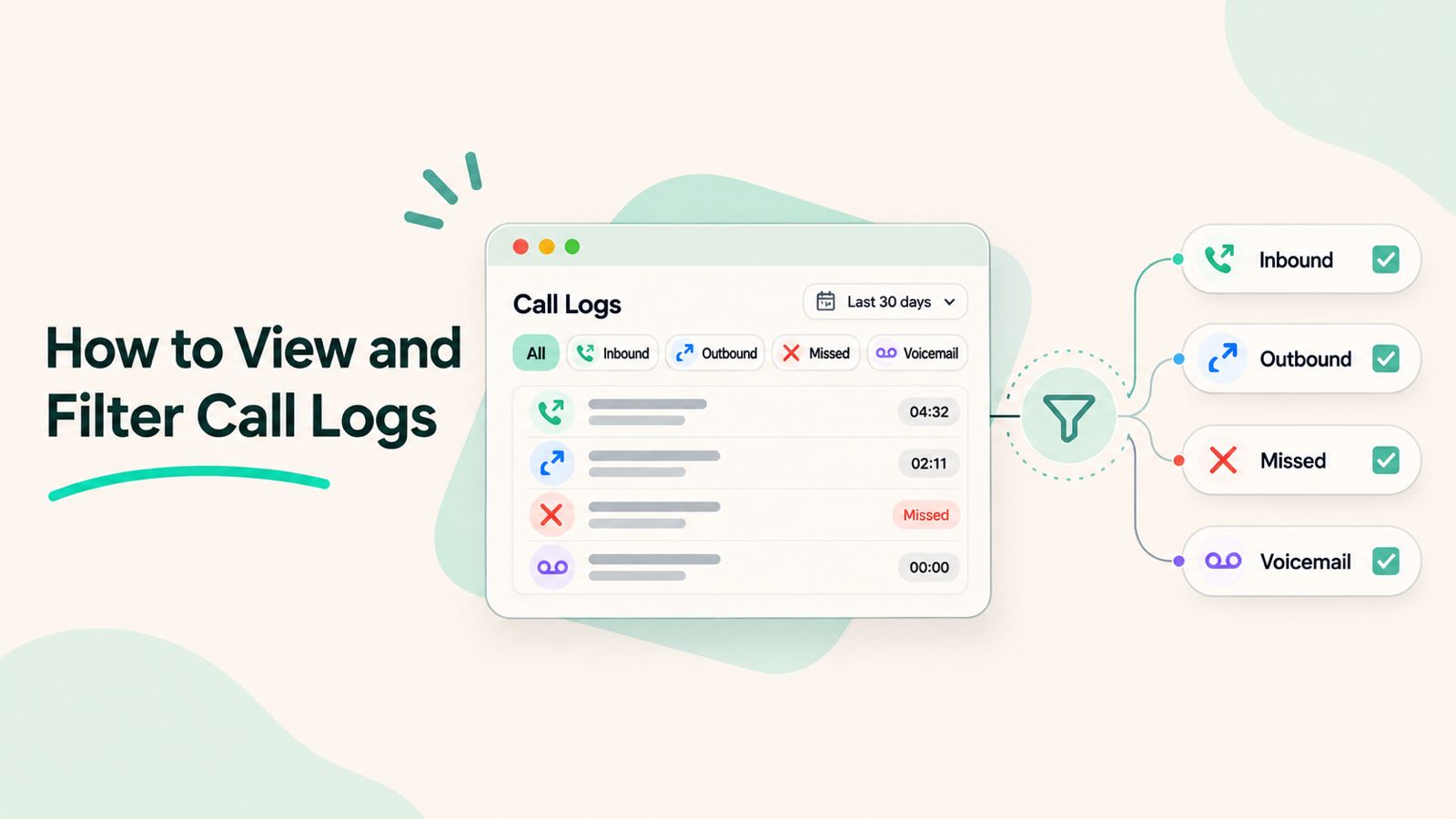
DialNext Call Logs help you review your previous calling activity in one place. You can view incoming calls, outgoing calls, missed calls, and voicemail records directly from your dashboard.
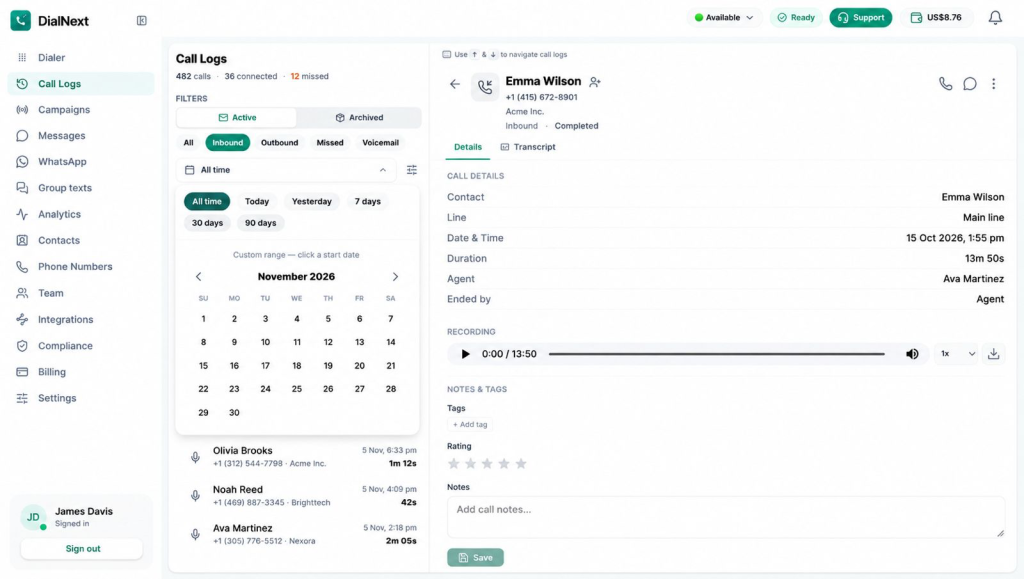
Additionally, you can select individual call records to review call details, recordings, notes, and other available information. Moreover, you can use the available filters to find specific calls without reviewing your entire call history.
In this guide, you will learn how to access DialNext Call Logs, filter records by call type and date, view archived calls, and review important call details step by step.
Before You Begin
Before you access Call Logs, first make sure that:
You can sign in to your DialNext account.
Your workspace has calling activity available to review.
You can access the Call Logs section from your dashboard.
Step 1: Access Call Logs in DialNext
First, log in to your DialNext account.
Next, locate the navigation menu on the left side of your dashboard.
Then, click Call Logs, located directly below the Dialer option.
Once the Call Logs page opens, you can review your previous calling activity.
Step 2: Understand the Call Logs Interface
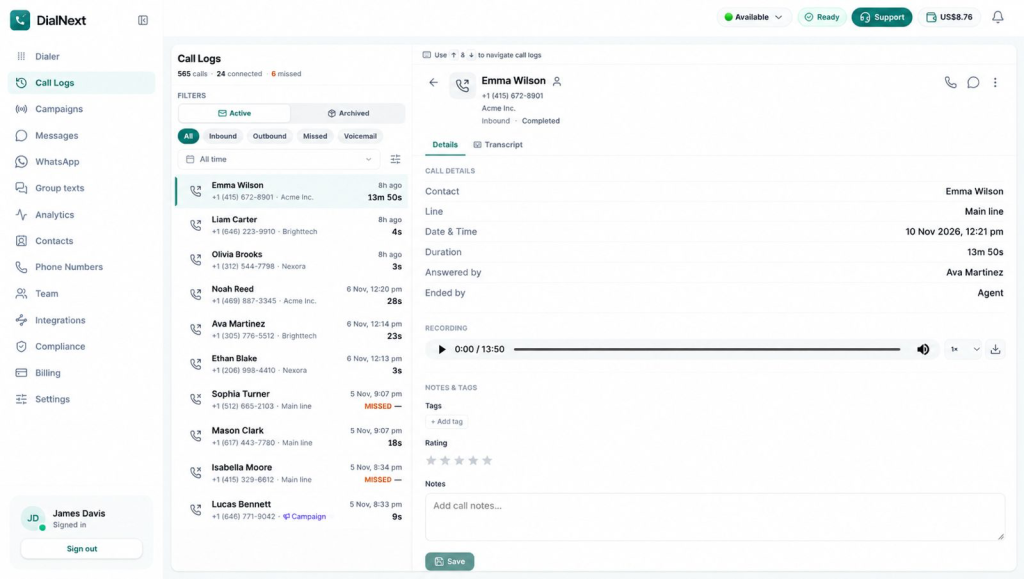
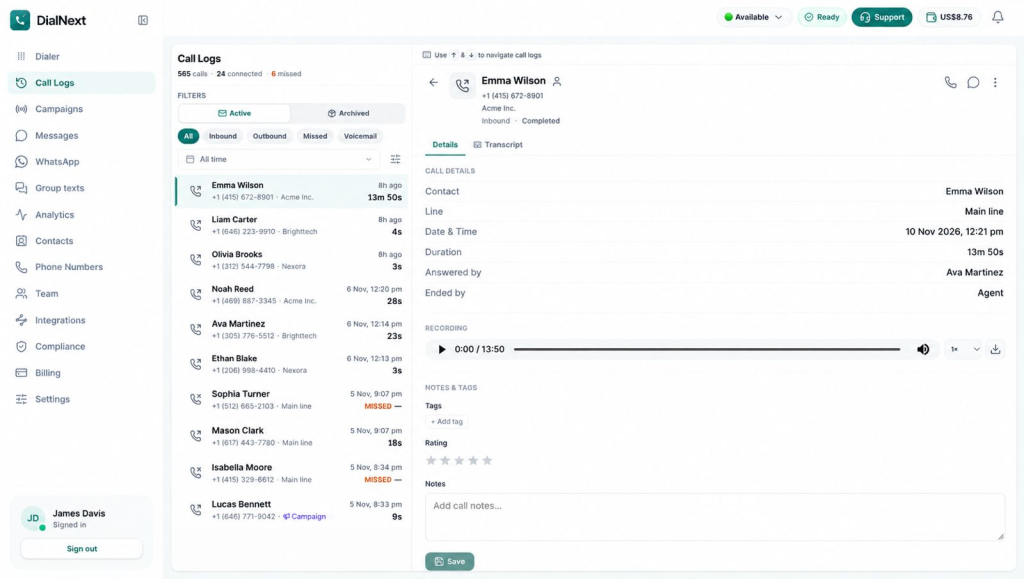
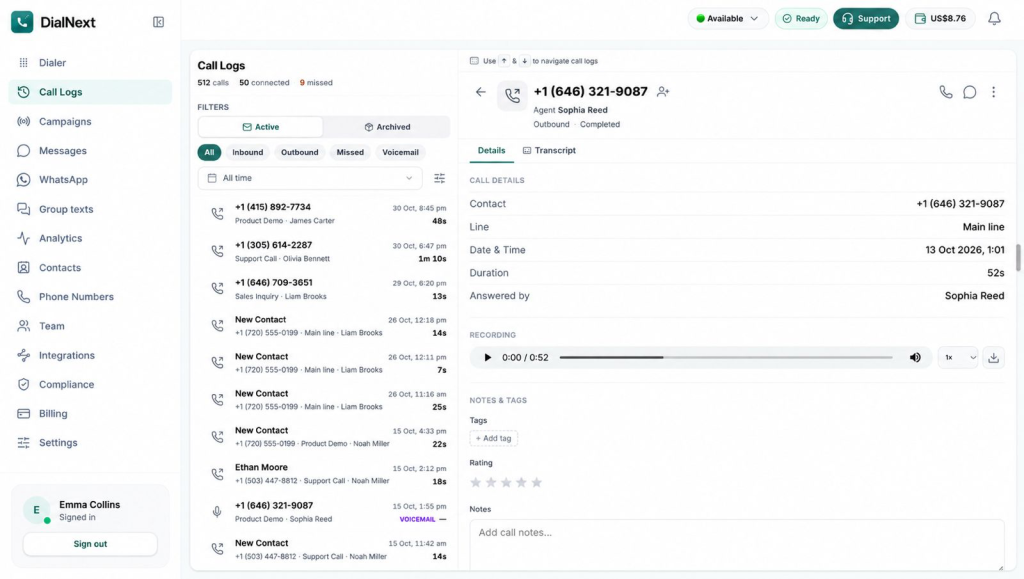
After opening Call Logs, you can review your calling activity in the records panel.
The call records list displays several details to help you identify each call:
Contact Name: Shows the contact associated with the call.
Phone Number: Displays the phone number linked to the record.
Call Direction: Indicates whether the call was inbound or outbound.
Date and Time: Shows when the call took place.
Call Duration: Displays how long the call lasted.
Missed Status: Identifies calls that were not answered.
Next, select a call record from the list to view more information. Its details will appear in the panel on the right.
Additionally, the details panel displays information such as the contact, calling line, date and time, call duration, answering agent, and available call recording. The panel also includes sections for notes, tags, and ratings.
Step 3: Filter Calls by Type
DialNext provides different call-type filters to help you find specific records. For example, instead of reviewing your entire call history, you can select a filter to narrow down the list.
You will find the following options below the Active and Archived sections:
All: Displays all available call records.
Inbound: Shows calls received by your team.
Outbound: Shows calls made by your team.
Missed: Displays calls that were not answered.
Voicemail: Displays records associated with voicemail.
How to Apply a Call-Type Filter
Follow these steps to filter your call records:
First, open the Call Logs page.
Next, locate the call-type filters below the Active and Archived options.
Then, select the required filter, such as Inbound, Outbound, Missed, or Voicemail.
Once selected, DialNext will update the records list to show matching calls.
Finally, select any record to review its details in the right-side panel.
Moreover, you can switch between the available filters whenever you need to review a different type of calling activity.
Step 4: Filter Call Logs by Date
DialNext allows you to filter call records by date. This makes it easier to find calls from a specific day or review calling activity over a selected period.
To apply a date filter, follow these steps:
First, open the Call Logs page.
Next, locate the All time dropdown below the call-type filters.
Then, click the dropdown to view the available date options.
Select a predefined date range based on your requirements:
All time: View call records from all available dates.
Today: View calls from the current day.
Yesterday: View calls from the previous day.
7 days: View calls from the last seven days.
30 days: View calls from the last 30 days.
90 days: View calls from the last 90 days.
Alternatively, select Custom range to choose specific start and end dates using the calendar.
Once you select a date range, DialNext updates the call records to match your selection. For example, you can select Today to review calls from the current day or use Custom range to check records from a specific period.
Step 5: View Archived Call Logs
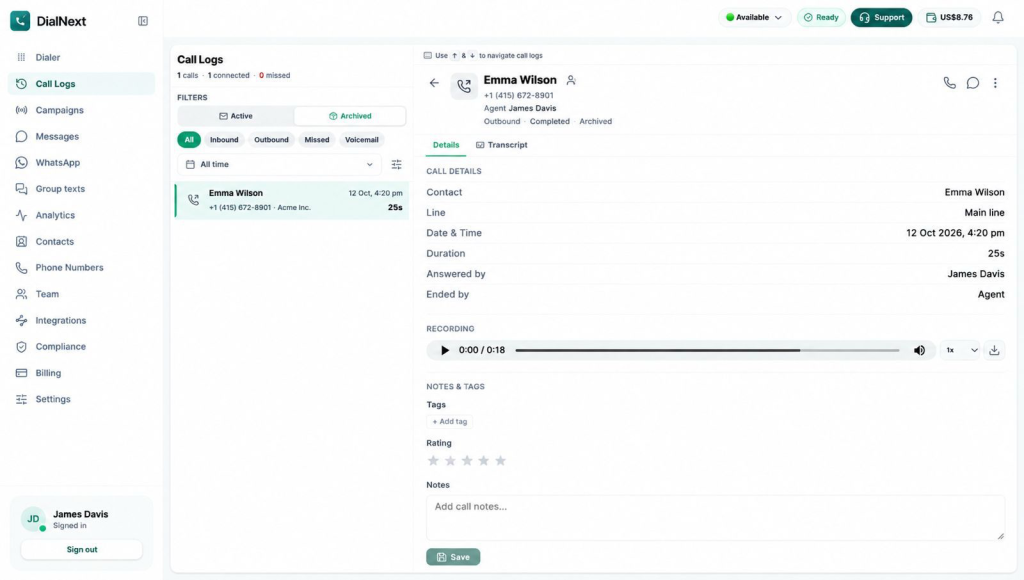
In addition to active call records, DialNext provides an Archived tab where you can view archived call records separately.
To access archived calls, follow these steps:
First, open the Call Logs page.
Next, locate the Active and Archived options under Filters.
Then, click Archived to view archived call records.
Once the archived records appear, review the available calls and select a record to check its details.
However, if no records appear, check whether any call-type or date filters are active. You can also click Clear filters to remove the applied filters and check again.
Step 6: Review Call Details and Recordings
DialNext allows you to review additional information about individual calls. To access these details, simply select a call record from the list.
Review Call Details
To review a call, follow these steps:
First, open the Call Logs page.
Next, select the call you want to review.
The call details will then appear in the panel on the right.
Under the Details tab, review the available information:
Contact: Displays the contact associated with the call.
Line: Shows the calling line used for the call.
Date & Time: Displays when the call took place.
Duration: Shows the total call duration.
Answered by: Identifies the agent who answered the call.
Ended by: Shows who ended the call.
Listen to or Download Call Recordings
Additionally, if a recording is available, you can listen to it directly from the call details panel.
First, locate the Recording section.
Click the Play button to listen to the recording.
Next, use the playback speed dropdown to select an available playback speed.
Finally, select the Download icon to download the recording, if this option is available.
As a result, you can review previous conversations and keep track of important call information.
Step 7: Add Call Notes, Tags, and Ratings
DialNext provides a Notes & Tags section where you can add information to individual call records. Additionally, this helps your team keep track of important conversations and customer interactions.
Add Tags to a Call
To add a tag to a call record, follow these steps:
First, open the required call record.
Next, navigate to the Notes & Tags section.
Then, click + Add tag under the Tags section.
Select the relevant tag from the available options.
Add Notes to a Call
You can also add notes to keep important information about a conversation.
First, locate the Notes text box.
Next, enter the information you want to save about the call.
Before saving, review your note to make sure it contains the relevant details.
Finally, click Save to save your changes.
Review Call Ratings
In addition to notes and tags, the Notes & Tags section also displays a star-rating field. You can review the rating associated with an individual call record here.
Step 8: Troubleshoot Common Call Log Issues
Sometimes, you may not find the call record you are looking for. In such cases, try the following checks to identify the issue.
1. No Call Records Are Displayed
If the Call Logs page does not display any records:
First, check whether you have selected the correct call-type filter.
Next, review the selected date range.
Additionally, switch between the Active and Archived tabs.
If no matching records appear, click Clear filters to remove the applied filters.
2. Unable to Find a Specific Call
If a call does not appear in the records list:
First, check the contact name or phone number.
Next, select the appropriate filter, such as Inbound, Outbound, Missed, or Voicemail.
Then, change the date range to include the expected call date.
Finally, check both Active and Archived records.
3. Call Recording Is Not Available
If you cannot find a recording for a selected call, first check whether the Recording section is displayed in the call details panel.
However, if the recording is still unavailable, contact your workspace administrator or DialNext Support for further assistance.
4. Call Notes Are Not Saved
If your call notes do not appear after entering them:
First, check that you entered the information in the Notes text box.
Next, click Save after adding your note.
Then, reopen the call record to check whether the note appears.
If the issue continues, contact DialNext Support for assistance.
Frequently Asked Questions (FAQs)
1. Where can I find Call Logs in DialNext?
You can access Call Logs from the left navigation menu of your DialNext dashboard. Simply click Call Logs to view your calling activity.
2. Can I filter calls by type in DialNext?
Yes. DialNext provides filters such as All, Inbound, Outbound, Missed, and Voicemail. Simply select the required option to find specific call records.
3. Can I filter call records by date?
Yes. You can use predefined date filters, including Today, Yesterday, 7 days, 30 days, and 90 days. Additionally, you can select a Custom range to review calls from a specific period.
4. Can I listen to or download call recordings?
Yes, if a recording is available for the selected call. First, open the call record and locate the Recording section. From there, you can play the recording or use the download option, if available.
5. Can I add notes to individual call records?
Yes. First, open the required call record and navigate to the Notes & Tags section. Next, enter your information in the Notes text box. Finally, click Save to save your changes.
Need Help with DialNext Call Logs?
Still have questions about viewing or managing your call records? Don’t worry! The DialNext team is here to help.
Visit our official website to learn more about DialNext’s calling solutions and features.
For assistance with Call Logs, recordings, or other product-related queries, contact our support team at support@dialnext.io.
We’re always happy to help!
Related Articles
Explore these resources to learn more about DialNext features and integrations:
Call center quality assurance (QA) helps businesses evaluate customer interactions, identify service gaps, and improve agent performance. Every customer call is an opportunity to understand customer needs, resolve issues, and build trust. However, without a structured quality assurance process, it can be difficult to maintain consistent service standards across a team.
A well-defined call center quality assurance process allows managers to review conversations, measure agent performance, identify recurring problems, and provide meaningful feedback. As a result, businesses can improve customer satisfaction while helping agents handle conversations more effectively.
In this guide, we will explain what call center quality assurance is, why it matters, which metrics to track, how to build a QA scorecard, and which best practices can help improve contact center performance.
What Is Call Center Quality Assurance?
Call center quality assurance is the process of monitoring, reviewing, and evaluating customer interactions to ensure that agents follow company standards and deliver a consistent customer experience.
In practice, this process involves reviewing recorded calls, evaluating communication skills, checking whether customer issues were resolved, and assessing compliance with internal policies.
For example, a QA manager may review a customer support call to check whether the agent:
Greeted the customer professionally.
Understood the customer’s concern.
Provided accurate information.
Followed the correct procedures.
Resolved the issue or explained the next steps.
Ended the conversation politely.
After the evaluation, managers can assign scores, identify improvement areas, and provide targeted coaching. As a result, agents get clearer guidance on how to improve their customer interactions.
Why Is Call Center Quality Assurance Important?
A structured QA process benefits both customers and employees. More importantly, it helps businesses understand how customer conversations are handled and where improvements are needed.
1. Improves Customer Satisfaction
Customers expect quick, accurate, and helpful responses. Therefore, managers need to understand how agents handle customer concerns.
By reviewing interactions, managers can identify communication gaps and improve the way agents respond. As a result, customers receive more consistent support and are more likely to have positive experiences.
2. Improves Agent Performance
Quality monitoring helps managers understand individual agent strengths and weaknesses. Instead of relying on assumptions, they can use actual call evaluations to provide specific feedback.
For instance, an agent who struggles with product knowledge may benefit from additional training. Similarly, an agent who interrupts customers may need coaching on active listening.
3. Maintains Consistent Service Standards
As call volumes increase, maintaining consistent service quality becomes more challenging. For this reason, a standard QA framework is important.
It ensures that every agent is evaluated using the same criteria. Consequently, managers can maintain service expectations across different teams and shifts.
4. Identifies Training Requirements
Call evaluations can reveal recurring knowledge gaps, process errors, and communication problems.
Instead of providing generic feedback to the entire team, managers can use these findings to create focused training sessions. This approach makes coaching more relevant and practical.
5. Helps Maintain Compliance
Depending on the industry, agents may need to follow specific procedures when handling customer information, payments, or sensitive requests.
Through regular quality checks, managers can identify situations where agents miss required disclosures or fail to follow internal policies. However, QA reviews should complement, rather than replace, formal compliance controls.
6. Reduces Repeated Customer Issues
When managers identify why customers repeatedly contact support, they can investigate the underlying problem.
For example, repeated calls about the same billing issue may indicate unclear communication, an inefficient process, or an unresolved customer concern. By addressing the root cause, businesses can reduce repeat interactions and improve the overall support experience.
How Does the Call Center Quality Assurance Process Work?
An effective QA process follows a consistent workflow. Although the exact process varies by business, most call centers use the following steps.
Step 1: Define Quality Standards
First, identify what a successful customer interaction should look like.
Set clear expectations for greetings, communication, product knowledge, problem resolution, compliance, and call closure. Additionally, document these standards so that agents and evaluators understand how performance will be assessed.
Step 2: Select Calls for Evaluation
Next, select customer interactions for review.
Managers can evaluate a sample of calls from each agent, focus on specific interaction types, or review calls associated with customer complaints and escalations.
However, selecting only unusually good or poor calls may not provide an accurate picture of overall performance. Therefore, use a balanced sampling approach.
Step 3: Review and Evaluate Conversations
Once calls have been selected, listen to the recordings and assess each interaction against the established QA criteria.
During the review, consider whether the agent followed the correct process, communicated clearly, understood the customer, and provided an appropriate resolution. To maintain consistency, use a standard scorecard for every evaluation.
Step 4: Record Scores and Observations
After reviewing a conversation, document the evaluation results, including scores, strengths, and areas that need improvement.
Where possible, include specific examples from the conversation. This makes feedback easier to understand and helps agents identify exactly what they need to improve.
Step 5: Provide Feedback and Coaching
Once the evaluation is complete, share the results with agents through regular coaching sessions.
Start by recognizing good performance. Then, explain improvement areas and suggest practical ways to handle similar situations better. In addition, allow agents to ask questions or share context about difficult interactions.
Step 6: Monitor Progress and Improve
Finally, compare evaluation results over time to understand whether coaching and process changes are working.
Review recurring issues, update training materials, and adjust QA criteria when business requirements change. Ultimately, quality assurance should be an ongoing improvement process rather than a one-time evaluation.
Important Call Center Quality Assurance Metrics to Track
Tracking the right metrics helps managers understand service quality and identify performance trends. However, individual metrics should always be considered alongside call evaluations and customer feedback.
Here are some important metrics to monitor.
1. QA Score
The QA score measures how well an agent follows the quality standards defined in the evaluation scorecard.
A higher score generally indicates that the agent is meeting more of the expected service criteria.
Formula:
QA Score = (Points Earned ÷ Total Possible Points) × 100
2. First Call Resolution (FCR)
First Call Resolution measures the percentage of customer issues resolved during the first interaction without requiring another contact for the same issue.
Formula:
FCR = (Issues Resolved on First Contact ÷ Total Eligible Issues) × 100
Generally, a higher FCR can indicate effective issue resolution. Nevertheless, businesses should define what counts as a resolved issue and how repeat contacts are identified.
3. Customer Satisfaction Score (CSAT)
CSAT measures how satisfied customers are with a particular interaction, product, or service.
Businesses commonly collect this information through post-call surveys. For accurate comparisons, the survey scale and definition of a positive response should remain consistent.
Average Handle Time measures the average duration required to handle a customer interaction, including talk time, hold time, and after-call work.
Formula:
AHT = (Total Talk Time + Total Hold Time + Total After-Call Work) ÷ Total Handled Calls
Although AHT can help identify operational inefficiencies, it should not be treated as a standalone measure of quality. Instead, managers should consider it alongside customer satisfaction and resolution quality.
5. Call Abandonment Rate
Call Abandonment Rate measures the percentage of callers who disconnect before reaching an agent.
A high abandonment rate may indicate long waiting times, insufficient staffing, or inefficient call routing. Therefore, managers should investigate these factors before deciding which operational changes are required.
6. Compliance Score
A compliance score evaluates whether agents follow required procedures, scripts, disclosures, and internal policies during customer interactions.
For businesses operating in regulated industries, these checks are especially important. However, evaluation criteria should always reflect the specific legal and operational requirements applicable to the business.
Manual vs. Automated Call Center Quality Assurance
Call centers can use manual or automated methods to evaluate customer interactions. Although both approaches aim to improve service quality, they have different advantages and limitations.
Manual QA provides context and human judgment, especially when evaluating empathy, tone, and complex customer situations.
On the other hand, automated QA tools can help teams process larger volumes of interactions and identify patterns. However, automated results may still require human review, particularly when evaluating context, customer intent, or nuanced conversations.
For this reason, many businesses combine both approaches to balance coverage and evaluation quality.
Common Call Center Quality Assurance Mistakes
Even when a QA framework is in place, certain mistakes can reduce its effectiveness. Therefore, managers should understand these common problems and take steps to avoid them.
1. Evaluating Too Few Calls
Reviewing only a small number of interactions may not represent an agent’s overall performance.
How to avoid it: Use a consistent sampling approach. Additionally, include different call types, shifts, and customer scenarios.
2. Focusing Only on Scores
A numerical score does not always explain why an agent performed well or poorly.
How to avoid it: Include specific observations and examples alongside evaluation scores. This gives agents a clearer understanding of their performance.
3. Ignoring Agent Feedback
QA should not be a one-way process. In fact, agents may have useful context about difficult customer situations, unclear procedures, or recurring operational problems.
How to avoid it: Encourage two-way discussions during coaching sessions. As a result, managers can understand operational challenges more effectively.
4. Prioritizing Call Duration Over Resolution
Reducing Average Handle Time without considering customer outcomes can encourage rushed conversations.
How to avoid it: Evaluate call duration alongside customer satisfaction, resolution quality, and compliance. This ensures that efficiency does not come at the expense of customer experience.
5. Providing Inconsistent Evaluations
Different reviewers may interpret the same quality criteria differently.
How to avoid it: Use a standardized scorecard and train evaluators. Furthermore, conduct periodic calibration sessions to maintain consistent evaluation standards.
Best Practices for Improving Call Center Quality Assurance
A strong QA program requires consistent evaluation, clear communication, and regular improvements. To make the process more effective, consider these best practices:
Set measurable quality standards: Define clear expectations for every stage of a customer interaction.
Use standardized scorecards: Evaluate agents using consistent criteria and scoring methods.
Review a balanced sample of calls: Include different interaction types and customer scenarios.
Provide regular coaching: Share specific feedback and practical improvement suggestions.
Recognize good performance: Acknowledge agents who consistently deliver helpful customer experiences.
Track trends over time: Look for recurring problems instead of focusing only on individual call scores.
Collect customer feedback: Use surveys and complaints to understand how customers perceive the service.
Review QA criteria regularly: Update evaluation standards when processes, products, or customer expectations change.
Most importantly, make quality assurance part of everyday operations. When agents understand the evaluation process and receive useful feedback, they can take a more active role in improving customer interactions.
How DialNext Supports Call Center Quality Assurance
An effective quality assurance process depends on reliable interaction records, clear communication workflows, and useful performance information. This is where business communication tools can support day-to-day operations.
DialNext provides business calling and customer communication capabilities that can support these activities.
For example:
Call Recording: Recorded conversations can help managers review customer interactions, support agent coaching, and investigate customer concerns.
Call Tags and Notes: Agents can categorize call outcomes and add notes to maintain useful interaction context.
Call Routing: IVR menus, ring groups, and business-hours rules help direct customers to the appropriate teams.
Support Analytics: Call activity and performance information can help managers identify operational trends.
For teams handling customer inquiries, DialNext’s Customer Support solutions bring call routing, recording, tags, notes, and support analytics together.
Similarly, teams focused on customer retention can explore DialNext for Customer Success. These capabilities can help teams maintain better visibility into customer conversations and support a more structured approach to quality monitoring.
Improve Your Call Center Communication With DialNext
Consistent customer communication starts with having the right processes and tools in place.
Call center quality assurance helps businesses identify service gaps, improve agent performance, and deliver more reliable customer experiences. By combining structured call evaluations, meaningful coaching, and relevant performance metrics, teams can build a continuous improvement process.
DialNext helps businesses manage customer conversations through calling, call recording, call routing, tags, notes, and analytics.
Explore DialNext to see how its communication capabilities can support your team’s customer interaction workflows.
Final Thoughts
Call center quality assurance is an ongoing process that helps businesses understand how customer interactions are handled and where service improvements are needed.
By defining clear standards, reviewing conversations, tracking relevant metrics, and providing regular coaching, managers can improve agent performance while maintaining consistent customer service.
Ultimately, the goal of QA is not simply to achieve higher scores. Instead, it is to make every customer interaction more helpful, accurate, and effective.
During a customer call, an agent may need assistance from another team member to resolve a query or provide additional support. DialNext allows agents to transfer calls in DialNext using the Transfer option on the active call screen, helping customers connect with the appropriate teammate without interrupting the ongoing conversation.
This guide explains how to transfer an active call in DialNext, from opening the Transfer panel and reviewing teammate details to checking availability, selecting the right teammate, and troubleshooting common call transfer issues.
For more information about managing incoming calls efficiently, explore our guide on Call Queue Management.
How to Transfer Calls in DialNext
Before you begin, log in to your DialNext account.
Step 1: Open the Dialer
From the dashboard, select Dialer in the left navigation menu.
Once the Dialer opens, start a new call or receive an incoming call. The Transfer option becomes available on the active call screen.
The Dialer dashboard provides access to the calling interface, phone keypad, and other calling features.
Step 2: Find the Call Transfer Option in DialNext
After connecting a call, locate the calling controls on the active call screen.
You will find the following options:
Mute
Hold
Transfer
Audio
Notes
End Call
To transfer calls in DialNext, select Transfer to open the teammate selection panel.
The active call screen displays the available calling controls, including the Transfer option, which allows agents to initiate a call transfer.
Step 3: Open the Teammate Selection List
After selecting Transfer, the Transfer To panel appears.
Open the Select teammate dropdown to view the teammates listed in your DialNext workspace, along with their extensions and availability statuses.
Review these details before selecting the teammate you want to transfer the call to.
The Select teammate dropdown displays the available teammates in the workspace, along with their assigned extensions and availability statuses.
Step 4: Check Teammate Availability
Before selecting a teammate, review the availability status displayed in the dropdown.
The list displays teammate names, extensions, and availability statuses, such as Offline. Check these details before proceeding with the transfer.
If your preferred teammate appears as Offline, ask your workspace administrator whether they can receive transferred calls. When no suitable teammate is available, contact your workspace administrator for assistance.
Step 5: Select a Teammate
Once you identify the appropriate teammate, select their name from the Select teammate dropdown.
After making your selection, review the teammate’s details in the Transfer To panel to confirm that you have selected the correct person before proceeding.
Step 6: Select Transfer Call
Check whether the Transfer Call button is enabled. When it is, select Transfer Call to initiate the transfer.
If the button remains disabled, review the selected teammate and their availability status. Should the issue persist, contact your DialNext administrator or support team for assistance.
Understanding the Call Transfer Process in DialNext
The Transfer To panel allows you to select a teammate for transferring an active call. It displays teammate details and availability statuses to help you review your selection before proceeding.
The following table explains the main elements of the call transfer interface:
Interface Element
Purpose
Transfer
Opens the call transfer panel.
Select teammate
Displays the list of teammates in your workspace.
Teammate name
Identifies the teammate selected for the transfer.
Extension
Displays the teammate’s assigned extension.
Availability status
Shows the teammate’s displayed availability status.
Transfer Call
Allows you to proceed with the transfer when the button is enabled.
Common Issues When You Transfer Calls in DialNext
You may occasionally encounter issues while transferring an active call in DialNext. The following troubleshooting steps can help you identify possible causes and determine what to do next.
1. No Teammates Available for Transfer
If DialNext displays a message such as “No teammates available for transfer right now,” review the teammate list and check the displayed availability statuses.
If no suitable teammate is available, contact your workspace administrator for assistance.
2. Transfer Call Button Is Disabled
If the Transfer Call button is disabled, check whether you have selected a teammate from the dropdown.
Also, review the selected teammate’s availability status. If the button remains disabled, contact your DialNext administrator or support team for assistance.
3. The Teammate Is Not Listed
If a particular teammate does not appear in the dropdown, first verify that you are using the correct DialNext workspace.
Next, ask your workspace administrator whether they added the teammate to the workspace. If the teammate still does not appear, contact your administrator for assistance.
4. The Call Transfer Does Not Proceed
If you have selected a teammate but cannot proceed with the transfer, check your internet connection and confirm that the active call is still connected.
If the issue persists, contact your DialNext administrator or support team for further assistance.
A well-managed call transfer helps customers reach the right team member without unnecessary delays. Follow these best practices to make the transfer process smoother:
Check teammate availability: Review the selected teammate’s displayed availability status before initiating a transfer.
Choose the right teammate: Direct the call to someone with the relevant knowledge and experience to address the customer’s query.
Avoid unnecessary transfers: Understand the customer’s concern before deciding whether another team member needs to handle the call.
Keep the customer informed: Briefly explain that you are connecting them with another team member so they know what to expect.
Follow up when needed: If the transfer cannot be completed, explain the available next steps and ensure the customer is not left without assistance.
A consistent post-call process also helps teams manage customer interactions more effectively. Learn how to organize follow-up activities in our guide to building a better post-call workflow.
Frequently Asked Questions About Call Transfers in DialNext
1. Where can I find the Transfer option in DialNext?
You can find the Transfer option on the active call screen in the Dialer. It appears alongside other calling controls, including Mute, Hold, Audio, and Notes.
2. How Do You Transfer Calls in DialNext?
To transfer an active call, select Transfer on the active call screen. Choose a teammate from the dropdown and select Transfer Call when the button is enabled.
3. Why does DialNext show that no teammates are available for transfer?
This message may appear when no suitable teammates are available for transfer. Check the displayed availability statuses. If no appropriate teammate is available, contact your workspace administrator.
4. Can I transfer a call to an offline teammate?
The teammate selection list displays availability statuses, including Offline. Contact your workspace administrator to confirm whether an offline teammate can receive transferred calls.
5. What should I do if the Transfer Call button is disabled?
Check whether you have selected a teammate from the dropdown and review their displayed availability status. If the Transfer Call button remains disabled, contact your DialNext administrator or support team for assistance.
Final Thoughts
Transferring calls to the appropriate teammate helps businesses handle customer queries more efficiently. With DialNext, agents can access the Transfer option during an active call, review teammate details and availability statuses, and select the appropriate person.
Before proceeding with a transfer, review the selected teammate’s details and availability status. Maintaining good call quality also helps ensure clear conversations. Learn more in our guide on how to improve VoIP call quality.
Get Started with DialNext
Looking for a reliable way to manage business calls and customer conversations? DialNext helps your team streamline business communication and connect customers with the right teammates.
Ready to simplify your business calling experience?
Customers expect businesses to answer their calls quickly. However, long waiting times can frustrate callers and cause them to hang up before speaking with an agent. Therefore, businesses track call center service level to measure how quickly their teams answer incoming calls.
Call center service level measures the percentage of eligible incoming calls answered within a set time. For example, a contact center may aim to answer 80% of eligible calls within 20 seconds. This target is commonly known as the 80/20 rule.
By tracking this metric, managers can understand how well their teams handle calls. Additionally, they can identify delays, plan staff schedules, and improve customer service.
In this guide, you will learn what call center service level means, how to calculate it, how abandoned calls affect it, and how to improve it.
What Is Call Center Service Level and Why Does It Matter?
Call center service level is a performance metric that measures the percentage of incoming calls answered within a specified time.
Businesses use this metric to check whether their teams are meeting their call response targets. For example, a contact center may set the following targets:
Answer 80% of eligible calls within 20 seconds.
Answer 85% of eligible calls within 30 seconds.
Answer 90% of eligible calls within 60 seconds.
These targets help managers understand how quickly customers can reach an agent.
A higher service level usually means that more customers receive a quick response. However, this metric does not show the complete customer experience. Therefore, managers should also review waiting times, abandoned calls, and customer feedback.
What Is the 80/20 Call Center Service Level Rule?
The 80/20 rule is a common service level target used by contact centers. In simple terms, it means that a team aims to answer at least 80% of eligible incoming calls within 20 seconds.
For example, imagine a contact center receives 500 eligible calls in one day. To meet the 80/20 target, the team must answer at least 400 calls within 20 seconds.
However, the remaining calls may take longer to answer. Some customers may also hang up before an agent picks up.
It is important to remember that the 80/20 rule is not a fixed target for every business. Instead, the right target depends on call volume, customer needs, team size, and available resources.
For instance:
Customer support teams: May need faster response targets when handling urgent customer issues.
Sales teams: May set targets based on lead volume and agent availability.
Small businesses: May choose targets that match their team size and budget.
Therefore, each business should choose a target that works for both its customers and its team.
How to Calculate Call Center Service Level: Formula and Example
Businesses can calculate call center service level using a simple formula.
Service Level (%) = (Calls Answered Within the Target Time / Total Eligible Calls) × 100
Before using this formula, it is important to understand each part:
Calls answered within the target time: Calls picked up by an agent before the set time limit.
Total eligible calls: Calls included in the calculation for the selected reporting period, based on the contact center’s reporting rules.
Service level percentage: The final result, expressed as a percentage.
However, the exact calculation may vary depending on how the reporting system handles abandoned calls and short calls.
Call Center Service Level Formula: Calculation Example
Suppose a contact center receives 1,000 eligible calls in one day. During that period, the team answers 800 calls within the target time of 20 seconds.
Using the formula:
Service Level = (800 / 1,000) × 100
Service Level = 80%
This means the team answered 80% of eligible calls within 20 seconds. As a result, the contact center met its 80/20 target for that day.
How Do Abandoned Calls Affect Call Center Service Level?
An abandoned call happens when a customer hangs up before an agent answers. These calls can change the service level result. However, their effect depends on the reporting rules used by the contact center.
There are three common ways to handle abandoned calls:
Ignore abandoned calls: Exclude them from the calculation.
Count abandoned calls negatively: Include them in the denominator but do not count them as calls answered within the target time.
Count abandoned calls positively: Include abandoned calls that disconnect within the service level threshold in the number of calls that meet the target, based on the reporting rules.
Consider the following example:
Total eligible calls: 100
Calls answered within the target: 70
Calls abandoned within the target: 10
Other calls that did not meet the target: 20
The service level result changes depending on how abandoned calls are handled.
Abandoned call treatment
Calculation
Service level
Abandoned calls ignored
70 / (100 – 10)
77.8%
Abandoned calls counted negatively
70 / 100
70%
Abandoned calls counted positively
(70 + 10) / 100
80%
As you can see, the same call data can produce different results.
In addition, some contact centers use a short-abandonment threshold. Under this approach, calls disconnected within a set number of seconds may be excluded from the calculation.
Therefore, managers should check their reporting rules before comparing service level results across teams or reporting periods.
Call Center Service Level vs. Average Speed of Answer (ASA)
Service level and Average Speed of Answer (ASA) are two important contact center metrics. However, they measure different aspects of call performance.
Service level: Measures the percentage of eligible calls answered within a set time.
Average Speed of Answer (ASA): Measures the average time customers wait before an agent answers.
For example, a contact center may answer 80% of eligible calls within 20 seconds. However, the remaining calls may have much longer waiting times.
In this situation, the team may meet its service level target. Even so, some customers may still experience delays.
Metric
What it measures
Example
Service Level
Percentage of eligible calls answered within a target time
80% within 20 seconds
Average Speed of Answer (ASA)
Average time customers wait before an agent answers
18 seconds (illustrative example)
Both metrics provide useful information. When reviewed together, they help managers understand how quickly calls are answered and how long customers wait.
Call Center Service Level vs. Service Level Agreement (SLA)
Service level and Service Level Agreement (SLA) are related terms. However, they do not mean the same thing.
Service level is a metric that shows how quickly a contact center answers incoming calls.
In contrast, an SLA is a formal agreement between a service provider and a customer or business partner. It explains the level of service both sides expect.
An SLA may include:
Response time requirements.
Issue resolution targets.
Service availability.
Performance standards.
Reporting requirements.
For example, a business may set an internal target to answer 80% of eligible calls within 20 seconds. At the same time, its customer agreement may require the team to respond to support requests within a set period.
In short, service level measures performance, while an SLA sets service expectations.
Why Is Call Center Service Level Important for Businesses?
Tracking call center service level helps businesses understand how well they respond to customer calls. Additionally, it helps managers identify problems and make better decisions about daily operations.
1. Improves Customer Experience
Customers usually prefer speaking with an agent without waiting too long. Therefore, clear response targets help teams reduce delays.
As a result, customers can reach the right person more quickly. This can also make the support process more convenient.
2. Helps Identify Staffing Gaps
A sudden drop in service level may mean that the team is receiving more calls than available agents can handle.
To identify the problem, managers can compare call volume with the number of available agents. After reviewing this information, they can adjust work schedules or plan additional staff coverage.
3. Supports Better Staff Planning
Past call data helps managers understand when customers call the most.
For example, if call volume rises every afternoon, the business can plan more agents during those hours. Consequently, teams can prepare for busy periods more effectively.
At the same time, this approach can help prevent unnecessary staffing during quieter hours.
4. Makes Team Performance Easier to Track
A service level target gives managers a clear way to check call response times.
They can compare results across days, weeks, and teams. Moreover, regular reviews can help identify patterns that need attention.
5. Helps Reduce Long Waiting Times
A low service level may point to problems with call routing, agent availability, or call queues.
By reviewing these areas, managers can identify where delays begin. They can then take suitable steps to improve the call process.
How to Improve Call Center Service Level Performance
Improving service level takes good planning and regular monitoring. First, businesses should identify why customers are waiting. Then, they can choose the right way to address the problem.
Here are eight practical ways to improve call center service level.
1. Check Incoming Call Patterns
Start by checking call volume across different days and hours.
Next, identify the times when the team receives the most calls. Then, compare those periods with agent availability.
For example, if call volume rises between 11 AM and 1 PM, managers can plan enough agents for that period.
As a result, teams can prepare for busy hours instead of reacting after queues become long.
2. Match Agent Schedules With Call Demand
Too few agents during busy hours can increase customer waiting times.
Therefore, plan work schedules around expected call volume, breaks, shift changes, and staff availability.
At the same time, avoid having too many agents during quiet hours. Ultimately, the goal is to maintain enough coverage without adding unnecessary costs.
3. Improve Call Routing
Call routing sends incoming calls to the right agent, team, or department.
However, poor routing can lead to extra transfers and longer waiting times.
To prevent this, review routing rules regularly. Make sure calls reach the right team based on its responsibilities, business hours, and agent availability.
Daily averages may hide short periods when customers wait too long.
For example, a team may meet its daily target but still have long queues during busy hours.
Therefore, check service level at different intervals, such as:
Hourly.
Daily.
Weekly.
Also, use the same reporting rules when comparing results. This makes it easier to understand changes in team performance and identify recurring problems.
8. Set Realistic Call Center Service Level Targets
A service level target should match customer needs and the team’s available resources.
Setting a very high target may increase staffing costs and put pressure on agents. On the other hand, a very low target may lead to long waiting times.
To set a suitable target, review past results first. Then, choose a goal that the team can meet without reducing service quality.
Common Call Center Service Level Mistakes Businesses Should Avoid
Even when businesses track service level, some common mistakes can lead to poor decisions.
Here are the main mistakes managers should avoid:
Ignoring abandoned calls: Excluding abandoned calls without checking reporting rules can hide part of the customer experience.
Checking only daily averages: Daily results may hide busy hours with long waiting times. Therefore, review shorter reporting periods as well.
Setting targets that are too high: Targets should match business needs and available staff. Copying another company’s target may not work for your team.
Ignoring other metrics: Service level cannot explain every contact center problem. Instead, review it alongside ASA, abandoned call rate, and customer feedback.
Changing calculation rules: Different rules for abandoned calls can produce different results. Consequently, keep reporting rules consistent when comparing performance.
Focusing only on speed: Agents should not rush customer calls just to meet a target. Rather, balance quick answers with helpful customer support.
How DialNext Helps Businesses Manage Calls
Managing incoming calls requires clear processes, effective call routing, and reliable communication tools.
DialNext provides business communication solutions that help teams manage their calling operations. Depending on the product setup, businesses can use features such as:
Call Queuing: Manage incoming calls when agents are busy.
IVR: Guide callers through menu options to reach the right department.
Ring Groups: Organize incoming calls across selected groups.
Business-Hours Routing: Manage how calls are handled during and outside business hours.
Call Analytics and Reporting: Review available call activity and identify areas that may need attention.
Together, these tools can help teams manage calls in a more organized way. In addition, regular reviews of call activity can help managers identify areas for improvement.
However, service level also depends on staff numbers, routing rules, reporting settings, and the way the team handles calls.
Visit the DialNext Help Center to learn more about business calling and call management.
Call Center Service Level: Frequently Asked Questions
1. What is a good call center service level?
A common target is to answer 80% of eligible calls within 20 seconds. This is known as the 80/20 rule. However, the right target depends on customer needs, call volume, and available staff.
2. What is the formula for call center service level?
The basic formula is:
Service Level (%) = (Calls Answered Within the Target Time / Total Eligible Calls) × 100
However, the exact calculation may change based on how the reporting system handles abandoned calls.
3. What does an 80/20 service level mean?
It means the contact center aims to answer 80% of eligible incoming calls within 20 seconds. In other words, at least 80 out of every 100 eligible calls should be answered within that time.
4. Do abandoned calls affect call center service level?
Yes. Their effect depends on the reporting rules. For example, some systems exclude abandoned calls, while others count them as calls that did not meet the target.
5. What is the difference between service level and ASA?
Service level measures the percentage of calls answered within a set time. In comparison, ASA measures the average time customers wait before an agent answers.
6. Can a call center reach 100% service level?
Yes. A contact center can reach 100% if every eligible call is answered within the set time. However, maintaining this result may require additional staff and resources.
7. How often should call center service level be checked?
Businesses can check service level hourly, daily, and weekly. In particular, shorter reporting periods can help identify problems that daily averages may hide.
8. What affects call center service level?
Several factors can affect service level. These include call volume, agent availability, staff numbers, call routing, IVR menus, queue waiting times, and abandoned calls.
9. Is service level the same as an SLA?
No. Service level is a performance metric, whereas an SLA is a formal agreement that sets service rules and expectations.
10. How can businesses improve call center service level without hiring more agents?
Businesses can review call patterns, improve work schedules, simplify IVR menus, fix call routing, and reduce delays. Ultimately, the best approach depends on the main reason for low service level.
Final Thoughts
Call center service level helps businesses understand how quickly they answer incoming customer calls.
By setting clear targets, using consistent calculation rules, and reviewing call activity regularly, managers can identify problems and improve daily operations.
However, service level should not be measured alone. When businesses also review Average Speed of Answer, abandoned call rate, and customer feedback, they get a clearer picture of contact center performance.
Ultimately, better call management and the right communication tools can help businesses provide customers with a more consistent experience.
Improve Your Business Call Management with DialNext
Looking to manage incoming business calls more efficiently?
DialNext offers business communication tools that help teams organize incoming calls through features such as call routing, IVR, call queues, and ring groups.
Whether you are managing customer support or sales calls, DialNext helps your team organize business communication through flexible calling solutions.
Ready to improve the way your business handles calls? Explore DialNext and discover communication solutions for your team.
Call disposition codes help sales and customer support teams record the outcome of every phone call. These codes show whether a customer answered, a prospect showed interest, a customer requested a callback, or an issue needs more attention.
For example, a sales representative can use a call disposition code to mark an interested prospect for follow-up. Similarly, a support agent can record whether a customer’s issue was resolved or needs further help.
As a result, businesses can keep better call records, manage follow-ups, and understand their calling activity. In this guide, we explain what call disposition codes are, share 30 practical examples, and cover the best ways to use them.
What Are Call Disposition Codes and How Do They Work?
Call disposition codes are predefined labels that describe the result of a phone conversation. After a call, an agent or sales representative selects the label that best matches the outcome.
For example, a sales representative might select “Interested – Follow-Up Required” after speaking with a potential customer. On the other hand, a support agent might select “Issue Resolved” after solving a customer’s problem.
These labels help every team member record calls in the same way.
Some common call disposition codes include:
Answered
No Answer
Voicemail Left
Callback Requested
Interested
Not Interested
Demo Scheduled
Issue Resolved
Escalation Required
Wrong Number
However, not every business needs the same list. The right codes depend on the type of calls your team handles and the actions your business wants to track.
Why Are Call Disposition Codes Important for Businesses?
Recording a call is only the first step in managing customer communication. However, businesses also need to know what happened during the conversation and what should happen next.
This is where call disposition codes become useful.
1. Improve Sales Follow-Ups
Sales teams speak with prospects at different stages of the buying process. Some prospects request a demo, while others need more information or time to decide.
Therefore, sales representatives can use call disposition codes to record each result.
For example, a prospect marked “Callback Requested” needs another call. Similarly, a prospect marked “Demo Scheduled” has moved to the next stage of the sales process.
2. Maintain Consistent Call Records
Without standard labels, employees may describe the same result in different ways.
For example, one representative might write “Call Later,” while another writes “Follow Up Tomorrow.”
As a result, managers may find it difficult to review and compare call records.
A shared set of call disposition codes solves this problem. It gives employees clear options and makes call records easier to understand.
3. Understand Team Performance
Managers can review call outcomes to understand how their teams handle customer conversations.
For example, they can check:
How many calls were answered.
How many prospects requested callbacks.
How many calls resulted in meetings.
How often customers requested extra help.
How many conversations still need follow-up.
In addition, managers can compare these results over time to identify changes in team activity.
4. Improve Customer Support Workflows
Customer support teams handle different types of requests every day. Some issues are resolved during the first call, while others need more work.
Call disposition codes help agents separate resolved issues, pending requests, escalations, and missed interactions.
Therefore, support managers can quickly identify which conversations still need attention.
5. Keep Better CRM Records
A CRM stores customer details and records of previous interactions. Similarly, clear call outcomes make these records more useful.
For example, a representative can review a previous call before contacting the same customer again.
In addition, managers can use these records to create reports and understand customer communication patterns.
30 Call Disposition Codes Examples for Sales and Customer Support
The right call disposition codes depend on your business, sales process, and customer support needs.
Below are 30 practical examples divided into four groups. Each code includes its meaning and the next action your team can take.
A. General Call Outcome Codes
These codes describe what happened when someone made or received a call.
Code
Definition
Next Action
Answered
The recipient answered the call
Record the conversation outcome
No Answer
The recipient did not answer
Schedule another attempt
Voicemail Left
The agent left a voicemail
Plan a follow-up
Busy
The recipient’s line was busy
Try again later
Wrong Number
The number does not belong to the intended contact
Check the contact details
Call Disconnected
The call ended unexpectedly
Try to reconnect
Callback Requested
The recipient asked for another call
Schedule a callback
Not Reachable
The recipient could not be reached
Check the number and try again
These basic codes help teams understand the result of each call attempt. In addition, they make it easier to plan the next action.
B. Sales Call Disposition Codes
Sales teams need codes that show prospect interest and progress through the sales process.
Code
Definition
Next Action
Interested
The prospect showed interest in the product or service
Share more information
Not Interested
The prospect declined the offer
Record the reason
Qualified Lead
The prospect meets the sales team’s requirements
Move to the next sales stage
Unqualified Lead
The prospect does not meet the requirements
Update the lead status
Demo Scheduled
The prospect agreed to a product demo
Confirm the meeting
Follow-Up Required
More discussion is needed
Create a follow-up task
Pricing Discussion
The prospect asked about pricing
Share pricing details
Decision Pending
The prospect needs more time to decide
Schedule another conversation
Converted
The prospect became a customer
Update the CRM
Do Not Contact
The contact asked not to receive further calls
Update contact preferences and respect the request
These sales call disposition codes help representatives understand where each prospect stands. As a result, they can focus on the right follow-up activities.
C. Customer Support Call Disposition Codes
Support teams can use these codes to track customer issues and service requests.
Code
Definition
Next Action
Issue Resolved
The customer’s problem was solved
Close the support case
Issue Pending
The problem still needs attention
Continue the investigation
Escalation Required
Another team needs to handle the issue
Transfer or escalate the request
Information Provided
The customer received the requested information
Record the details
Complaint Received
The customer reported a problem
Review the complaint
Technical Support Required
The issue needs technical help
Assign a specialist
Refund Requested
The customer asked for a refund
Follow the refund process
Follow-Up Required
More communication is needed
Schedule another interaction
For example, a support agent can select “Issue Pending” when a problem cannot be solved during the first conversation. The next agent can then review the record and continue the work.
D. Appointment and Service Call Codes
Businesses that manage bookings, appointments, and service requests may need these additional codes.
Code
Definition
Next Action
Appointment Scheduled
A new appointment was confirmed
Update the calendar
Appointment Rescheduled
An existing appointment was changed
Confirm the new time
Appointment Cancelled
The customer cancelled the booking
Update the booking record
Confirmation Received
The customer confirmed the appointment
Keep the booking active
These examples provide a starting point. However, businesses should choose codes that match their actual calling process instead of using every available option.
What Is the Difference Between Call Status, Call Disposition and Call Notes?
Call status, call disposition, and call notes are related terms. However, each one serves a different purpose.
Term
Meaning
Example
Call Status
Shows the connection result
Answered, missed, failed
Call Disposition
Shows the business outcome
Interested, demo scheduled, issue resolved
Call Notes
Give extra details about the conversation
Customer requested a quotation next Monday
Consider this example.
A sales representative calls a potential customer. The call record may look like this:
Call Status: Answered
Call Disposition: Interested – Follow-Up Required
Call Notes: Customer wants to review the pricing proposal with their manager.
In this example, the call status shows that the connection was successful. Meanwhile, the disposition explains what happened during the conversation. Finally, the notes provide extra details.
Using all three helps businesses maintain clear and useful customer records.
How to Choose the Right Call Disposition Codes for Your Team
A good disposition system should be easy to understand and simple to use. Therefore, businesses should plan their categories before adding them to their calling workflow.
Follow these steps to create a useful system.
1. Identify Your Calling Objectives
First, understand why your team makes calls.
For example:
Sales teams focus on lead qualification, meetings, and sales.
Customer support teams focus on solving issues and handling requests.
Recruitment teams focus on candidate availability and interviews.
Service teams focus on bookings and job completion.
Your call disposition codes should match these goals. This way, employees can select the right result after each conversation.
2. Separate Main Outcomes From Extra Details
Use the main disposition to record the primary result of a call.
For example:
Interested
Not Interested
Callback Requested
Issue Resolved
Escalation Required
Then, use call notes or secondary tags to record more details where your platform supports them.
This approach keeps your main categories simple. It also makes reports easier to read.
3. Use Clear Labels
Avoid vague labels such as:
Other
Miscellaneous
General
Done
Instead, choose labels that describe a clear result.
For example, use “Pricing Information Requested” instead of “Other.” This makes it easier for employees and managers to understand the call record.
4. Avoid Too Many Categories
A long list can confuse employees. Moreover, it may slow down their work after a call.
Therefore, start with the outcomes your team uses most often. Add more codes only when your business needs them.
5. Explain When to Use Each Code
Write a short description for every category.
For example, use “Callback Requested” only when the customer or prospect asks for another call.
Similarly, use “Issue Resolved” only when the customer’s problem has been solved.
Clear rules help employees choose the same code for similar situations.
6. Review Your Categories Regularly
Business needs can change over time. Therefore, review your call disposition codes on a regular basis.
Look for categories that:
Are rarely used.
Have the same meaning as another category.
No longer match your calling process.
Do not provide useful information.
Finally, update the list and inform your team about any changes.
How to Use Call Disposition Codes to Improve Sales Performance
Sales managers can use call outcomes to understand how prospects move through the sales process.
Here are four practical ways to use this information.
Track Prospect Interest
Compare outcomes such as Interested, Not Interested, No Answer, and Callback Requested.
This helps managers understand how prospects respond to sales calls. In addition, it can help teams review their outreach approach.
Find Follow-Up Opportunities
A prospect marked “Follow-Up Required” should not get lost in the sales pipeline.
Instead, connect the disposition to a clear next step. This could be another call, an email, or a product demonstration.
Review Sales Progress
Compare the number of qualified leads, scheduled demos, and converted prospects over the same period.
As a result, managers can see where prospects are moving forward and where they may need more support.
Improve Sales Training
Managers can review call recordings, notes, and outcomes to understand how representatives handle conversations.
For example, they can identify common customer questions or objections. Then, they can use these findings to improve sales training and communication.
How Does Call Disposition Data Improve CRM Reporting?
A CRM stores customer details and records of business interactions. When teams record call outcomes in a consistent way, they can create more useful reports.
For example, managers can review:
Call outcomes: See how many calls were answered, missed, or ended with another result.
Sales progress: Track qualified leads, scheduled demos, and conversions.
Follow-up activity: Find contacts that need another call or message.
Agent activity: Compare recorded call outcomes across team members.
Customer support: Review resolved, pending, and escalated issues.
Consider a sales manager who wants to find prospects waiting for another call.
The manager can filter records marked “Callback Requested.” Next, they can check whether each representative completed the follow-up.
This makes it easier to manage pending sales activities.
However, the quality of these reports depends on accurate records, clear categories, and reliable CRM activity logging.
Even a good disposition system can fail if employees do not use it correctly.
Therefore, businesses should avoid these common mistakes.
Using Vague Categories
Labels such as “Other” and “Done” do not explain what happened during a call.
Instead, use clear categories that describe the actual outcome.
Mixing Call Status With Business Outcomes
An answered call does not always mean a successful sales conversation.
For this reason, keep connection results separate from sales and support outcomes.
Ignoring Follow-Up Actions
Recording “Callback Requested” is not enough.
Managers should also assign responsibility and set a clear next step. Otherwise, the prospect or customer may not receive the expected response.
Creating Duplicate Categories
Avoid using labels such as “Call Later,” “Follow Up,” and “Callback Required” for the same result.
Instead, choose one standard label and explain when employees should use it.
Not Training Employees
Employees need to know how and when to select each category.
Therefore, provide simple guidelines and review how your team uses the codes.
Ignoring Call Reports
Collecting data is only useful when managers review it.
Regularly check call outcomes and use the results to improve team workflows.
How DialNext Helps Teams Manage Call Outcomes
Managing business communication involves more than making and receiving calls. Teams also need a clear way to review conversations and maintain customer records.
DialNext provides business calling, call recording, call tags, notes, SMS, and CRM connectivity to support sales and customer support workflows.
With DialNext, teams can:
Record and review customer conversations.
Add call tags to group and identify interactions.
Maintain notes alongside customer interaction history.
Track call activity through available analytics and reporting.
Manage inbound and outbound business calls.
Connect communication activity with supported CRM workflows.
For example, a lead generation team can use call tags to group prospect interactions based on outcomes such as Qualified, Not Interested, and Callback Needed.
As a result, managers can get a clearer view of campaign activity and follow-up needs.
Similarly, customer support teams can use call tags and notes to keep track of customer requests.
By combining business calling with organized interaction records, DialNext helps teams manage customer communication more clearly.
Frequently Asked Questions About Call Disposition Codes
1. What are call disposition codes?
Call disposition codes are predefined labels that record the result of a phone call. They help businesses group conversations, track follow-ups, and review call activity.
2. What are the most common call disposition codes?
Common call disposition codes include Answered, No Answer, Voicemail Left, Callback Requested, Interested, Not Interested, Demo Scheduled, Issue Resolved, and Escalation Required.
3. What is the difference between a call disposition and a call tag?
A call disposition usually describes the main result of a conversation. On the other hand, a call tag can group calls by topic, customer type, campaign, or another detail. The exact difference depends on the calling platform.
4. Why are call disposition codes important for sales teams?
Call disposition codes help sales teams track prospect interest, find follow-up opportunities, review sales progress, and understand the results of outbound calls.
5. Can call disposition codes improve customer support?
Yes. Support teams can use these codes to track solved issues, pending requests, complaints, and escalations. As a result, agents can maintain better customer records and manage follow-ups.
6. How many call disposition codes should a business use?
There is no fixed number. Start with a small list that covers your team’s most common call outcomes. Then, add more codes only when they provide useful information.
7. Should call disposition codes be mandatory?
Making dispositions mandatory can improve record keeping. However, employees need clear options and a simple process. Businesses should also allow suitable exceptions when a call cannot be placed into a specific category.
8. Are call disposition codes the same as call outcomes?
These terms are often used in the same way. However, some platforms separate automatic call results, such as Answered or No Answer, from outcomes selected by an agent, such as Interested or Callback Requested.
9. Can call disposition codes be used in CRM systems?
Yes. Many CRM systems support call outcomes or custom activity categories. These records help teams filter interactions, review sales progress, and manage follow-up tasks.
10. How often should businesses review their call disposition codes?
Businesses should review their codes regularly and whenever their sales or support process changes. Remove duplicate labels and update categories that no longer match your team’s needs.
Final Thoughts
Call disposition codes help businesses turn phone conversations into clear and useful records.
By using simple categories, keeping accurate call notes, and connecting outcomes to follow-up tasks, sales and support teams can manage their daily work more effectively.
However, the best disposition system is not the one with the most categories. It is the one employees can understand and use in the same way.
With clear calling workflows and reliable interaction records, businesses can get more value from every customer conversation.
For better call management, explore DialNext’s business calling platform to manage customer conversations and organize your calling workflows.
Call transcription helps businesses turn recorded conversations into searchable, readable text. Speech-to-text technology converts spoken words into written text. With DialNext, users can review customer and agent conversations, follow timestamps, and revisit important parts of a call.
DialNext also provides AI Insights through the Overview section. Users can explore call summaries, conversation chapters, identified topics, action items, sentiment indicators, and call quality metrics.
This guide explains how to access call transcripts, review recordings, understand AI-generated insights, and use call quality information to get more value from every conversation.
How to Access Call Transcription in DialNext
You can access call transcripts directly from the Call Logs section in DialNext. Follow these steps to find and open a transcript:
Log in to your DialNext account.
Click Call Logs in the left sidebar.
Select Active or Archived, depending on where the call is listed.
Use the available filters to find the call. You can filter by All, Inbound, Outbound, Missed, or Voicemail.
Select the call you want to review from the call list.
Open the Transcript tab in the call details panel.
DialNext displays the available transcript for the selected call. You can then review the conversation and explore the related call information.
Figure 1: Call Logs in DialNext. This screen displays the Active and Archived call views, available call filters, and selected call details. Users can review call information, access recording controls, and navigate to the Transcript tab.
How to View and Read Call Transcripts in DialNext
After opening the Transcript tab, you can review the conversation between the Customer and Agent. DialNext displays the recognized speech along with speaker labels and timestamps.
The transcript interface helps you follow the conversation and review specific parts of a call.
You can find the following details:
Speaker Labels: Identify whether each conversation entry belongs to the Customer or Agent.
Timestamps: See when each part of the conversation occurred.
Recognized Conversation Text: Read the spoken words converted into text.
Audio Playback: Use the available audio player to listen to the call while reviewing the transcript.
These details make it easier to follow conversations, revisit important exchanges, and understand what was discussed during a call.
Figure 2: Call Transcript and AI Overview in DialNext. This screen displays the call summary, conversation chapters, identified topics, and action items. The transcript section shows Customer and Agent conversations with timestamps, along with audio playback controls for reviewing the recording.
Understanding Chapters
The Chapters tab organizes a call into separate discussion segments. It helps you navigate the conversation without having to review the entire transcript from beginning to end.
Each chapter includes three key details:
Timestamp: Shows when the discussion segment begins.
Chapter Title: Highlights the main subject discussed in that segment.
Description: Provides a brief overview of the discussion.
To explore the chapters, open the Chapters tab under Overview. Review the chapter timestamps and descriptions to find the discussion segment relevant to your needs.
This makes it easier to review specific discussions, understand the flow of a call, and find relevant information quickly.
Figure 3: Chapters Overview in DialNext. The Chapters tab organizes call conversations into individual discussion segments. Each segment displays a timestamp, chapter title, and brief description, helping users quickly understand the key stages of a conversation.
Understanding Call Quality
The Call Quality tab provides an overview of different aspects of a recorded conversation. It brings together sentiment indicators, talk distribution, and call metrics to help users review call performance.
You can explore three types of information:
1. Sentiment Analysis
The Sentiment section displays sentiment indicators for different parts of the call:
Overall: Shows the overall sentiment of the conversation.
Customer: Displays the customer’s sentiment.
Agent: Displays the agent’s sentiment.
2. Talk Distribution
Talk Distribution shows how speaking time is divided between the participants and silence.
Agent: Displays the percentage of time the agent speaks.
Customer: Displays the percentage of time the customer speaks.
Silence: Displays the percentage of time without speech.
3. Call Metrics
The Metrics section displays additional information about the conversation:
Dead Air: Displays the dead air value for the call.
Interruptions: Shows the number of interruptions.
Avg Response: Displays the average response value.
Agent WPM: Shows the agent’s words per minute.
Customer WPM: Shows the customer’s words per minute.
To access these details, open the selected call and navigate to the Call Quality tab under Overview.
Figure 4: Call Quality Overview in DialNext. This screen displays overall, customer, and agent sentiment, along with talk distribution and key call metrics such as dead air, interruptions, Avg Response, and words per minute (WPM) for both participants.
How to Play and Download Call Recordings in DialNext
DialNext lets you play and download call recordings directly from the call details panel. The built-in audio player provides playback controls to help you review conversations at your preferred speed.
Follow these steps to access a call recording:
Open Call Logs from the left sidebar.
Select the call you want to review.
Open the Details tab in the call details panel.
Locate the Recording section.
Click the Play button to listen to the recording.
Use the playback timeline to move to a specific part of the recording.
Adjust the volume using the volume control.
Select a playback speed: 0.75x, 1x, 1.25x, 1.5x, or 2x.
Click the Download icon to download the recording.
These controls help you review conversations, revisit specific moments, and access recordings when needed.
Figure 5: Call Recording Player in DialNext. Users can play recordings, navigate the audio timeline, adjust volume and playback speed, and download recordings.
Call Too Short
Sometimes, DialNext may not generate an AI summary for a call because the conversation does not contain enough speech.
In such cases, the Summary tab displays a Call Too Short status instead of the usual AI-generated insights.
Why does this happen?
Short conversations, brief exchanges, or repeated greetings may not provide enough speech for DialNext to generate a meaningful summary.
What can you do?
Review the transcript: Open the Transcript tab to check the recognized conversation text.
Check the conversation: See whether the call contains enough meaningful speech.
Review the call recording: Use the audio player to listen to the conversation again.
Even when a meaningful summary is unavailable, you may still be able to review the available transcript entries.
Figure 6: Call Too Short Status in DialNext. When a call does not contain enough speech, DialNext displays the Call Too Short status instead of generating a meaningful AI summary. The transcript remains available for reviewing the recognized conversation.
Frequently Asked Questions
1. How can I access call transcripts in DialNext?
Open Call Logs, select the call you want to review, and click the Transcript tab in the call details panel.
2. What information does a DialNext call transcript include?
A call transcript displays recognized conversation text, Customer and Agent labels, and timestamps for individual conversation entries.
3. What are AI Insights in DialNext?
AI Insights help users review conversations through the Summary, Chapters, and Call Quality tabs. These sections display conversation summaries, topics, action items, sentiment indicators, and call metrics.
4. Why does DialNext show a Call Too Short status?
DialNext displays this status when a call does not contain enough speech to generate a meaningful AI summary. You may still be able to review the available transcript entries.
5. Can I play and download call recordings in DialNext?
Yes. Open the selected call’s Details tab and locate the Recording section. You can play the recording, adjust its volume and playback speed, navigate the timeline, and download it.
6. What metrics are available under Call Quality?
The Call Quality tab displays sentiment indicators, talk distribution, dead air, interruptions, average response, and Agent and Customer words-per-minute (WPM) values.
Conclusion
Call Transcription and AI Insights help businesses get more value from their customer conversations. With DialNext, teams can review call transcripts, explore AI-generated summaries, navigate conversation chapters, and understand call quality through sentiment indicators and performance metrics.
These features make it easier to revisit important discussions, identify follow-up actions, and gain a clearer understanding of customer interactions. By using call recordings and AI Insights together, teams can make more informed decisions and improve their communication processes.
Explore more setup guides, tutorials, and product documentation in the DialNext Help Center.